
Common PEDIT Mistakes (and How to Fix Them)
If you’ve ever tried to use PEDIT and thought, “Why won’t this thing just work?” — you’re not alone. PEDIT is one of AutoCAD’s most powerful geometry-editing tools, but it’s also one of the most misunderstood. Most problems users run into with PEDIT are not bugs or limitations; they’re misunderstandings about how precise AutoCAD really is.
This article focuses on the most common PEDIT mistakes, why they happen, and how to fix them quickly. If you’ve struggled to join lines into a polyline, had JOIN mysteriously fail, or watched PEDIT refuse to cooperate, this page is designed specifically for you.
Related reading:
Why PEDIT “Doesn’t Work” (It Usually Is)
PEDIT does exactly what it’s designed to do — but only if the geometry meets strict requirements. Unlike commands such as FILLET or EXTEND, PEDIT does not fix bad geometry for you. It assumes the objects are already prepared.
That design choice is intentional. PEDIT is a precision tool, and precision tools expect clean inputs. Once you understand that mindset, most PEDIT frustrations disappear.
The mistakes below account for the vast majority of “PEDIT not working” situations.
Mistake #1: Expecting PEDIT to Trim or Extend Geometry
One of the most common assumptions is that PEDIT JOIN will automatically pull endpoints together. It won’t.
PEDIT does not trim, extend, or otherwise modify geometry to make endpoints meet. For JOIN to work, the endpoints of the objects must touch each other exactly. It is not enough for the end of one line to touch the middle of another line, or for two objects to simply intersect. If an endpoint meets any location on another object that is not also an endpoint, PEDIT will still fail. This strict endpoint-to-endpoint requirement is why geometry that appears connected on screen often cannot be joined. PEDIT evaluates actual object structure, not visual appearance, and it will only join objects when their endpoints coincide within tolerance.
This often happens when users import geometry, draw quickly without snaps, or manually eyeball endpoints.
How to fix it
- Use TRIM or EXTEND to force endpoints to meet
- Or use FILLET with a radius of 0, which trims or extends geometry automatically before joining
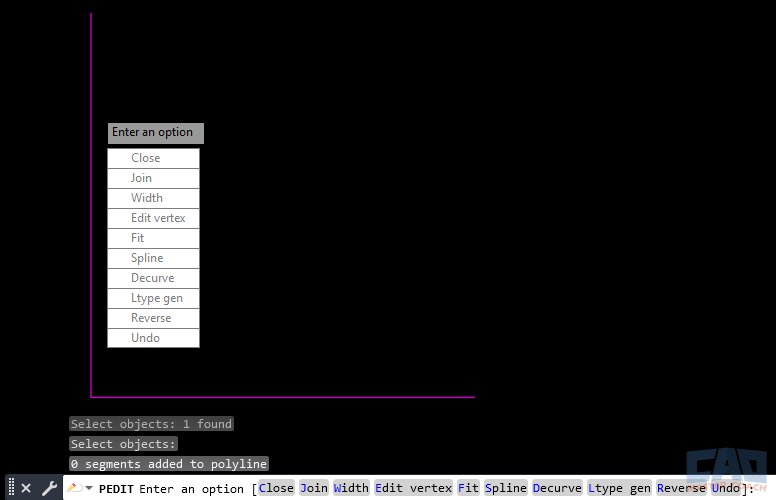
PEDIT cannot join objects unless endpoints actually meet
Once endpoints actually touch, PEDIT JOIN will work reliably.
Mistake #2: Lines Look Connected — But Aren’t
AutoCAD drawings are viewed at varying zoom levels. What appears connected at a normal zoom is often separated by a tiny gap that prevents PEDIT from joining objects that is only visible when zoomed in very close to the two objects.
This is especially common in large drawings or drawings created from PDFs, scans, or external references.
Why this happens
- AutoCAD works with exact coordinates
- Even a microscopic gap counts as “not touching”
- Visual alignment does not equal geometric alignment
How to fix it
- Zoom in aggressively on endpoints
- Use Endpoint Object Snap instead of free clicks
- Verify questionable gaps with the DISTANCE command
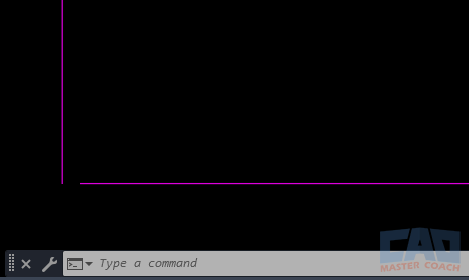
Small gaps become obvious when zoomed in
If JOIN fails, assume there is a gap until proven otherwise.
Mistake #3: Not Understanding Fuzz Distance
Fuzz distance is one of PEDIT’s most misunderstood options. Many users don’t know it exists; others expect it to fix everything.
Fuzz distance allows PEDIT to join objects whose endpoints are close, but not touching — within a defined tolerance.
What fuzz distance does
- Allows near-touching endpoints to join
- Does not fix large gaps
- Does not replace proper drafting habits
If the fuzz distance is too small, JOIN still fails. If it’s too large, you risk joining geometry that shouldn’t be connected.
How to fix it
- Set a small, intentional fuzz distance
- Use it as a tolerance tool, not a cleanup tool
- Don’t rely on fuzz distance to compensate for sloppy geometry
How to access and edit fuzz distance:
Fuzz distance is set directly during the PEDIT JOIN process. After starting PEDIT, selecting multiple objects edit, and choosing the JOIN option, AutoCAD prompts you in the command line to enter a fuzz distance value. This number defines the maximum gap AutoCAD will allow between endpoints when attempting to join objects. You can type a numeric value or press Enter to accept the current setting. If JOIN fails, rerun PEDIT and increase the fuzz distance slightly, but avoid large values that could join unintended geometry. Fuzz distance is temporary for the command session and should be set intentionally based on the scale and precision of your drawing.
Warning: Large fuzz distance values can cause unintended joins by connecting geometry that was never meant to be part of the same polyline.
How to set fuzz distance in PEDIT
- Start the PEDIT command
- Enter M to edit Multiple objects
- Select at least two objects to be joined
- Choose the JOIN option
- When prompted, enter a fuzz distance value
- Press Enter to attempt the join
- If it fails, rerun PEDIT and slightly increase the value
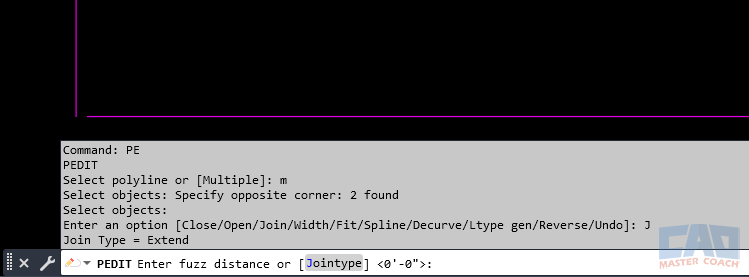
Fuzz distance allows near-touching objects to join
Used carefully, fuzz distance can save time. Used blindly, it can cause problems.
Mistake #4: Mixing Object Types Without Realizing It
PEDIT works on polylines — but it can convert other objects, such as lines and arcs, into polylines. The catch is that AutoCAD asks for confirmation, and many users miss the prompt.
If you select lines and arcs together and PEDIT seems to do nothing, it’s often because AutoCAD is waiting for you to confirm the conversion.
Common symptoms
- PEDIT appears to cancel
- JOIN partially works
- Only some objects convert
How to fix it
- Watch the command line carefully
- Respond Yes when prompted to convert objects to polylines
- Avoid clicking through prompts too quickly
Command-line awareness is critical when using PEDIT effectively.
Mistake #5: Assuming PEDIT Always Preserves Layers or Properties
Some users avoid PEDIT because they’re afraid it will change layers, colors, or linetypes. That concern is valid — especially when you use JOIN.
PEDIT does not randomly restyle your drawing, but when multiple objects are joined into one polyline, the resulting polyline can only have one layer, color, linetype, and lineweight. In practice, the new polyline will typically assume the properties of the first object selected (or the primary object being edited). That means any objects you join that were on different layers or had different linetypes may appear to “change,” even though AutoCAD is simply applying a single property set to the final polyline.
What to expect
- If all objects share the same properties, nothing visually changes.
- If objects have mixed layers/linetypes/colors, the final polyline will adopt one set of properties (commonly from the first selected object).
How to avoid surprises
- Put the geometry you plan to join on the same layer/linetype first, or
- Select the object with the desired properties first before joining.
Common PEDIT Mistakes — Quick Reference
| Mistake | What Happens | How to Fix It |
|---|---|---|
| Endpoints don’t touch | JOIN fails | Trim, Extend, or Fillet first |
| Tiny gaps | JOIN fails | Zoom in and use OSNAP |
| No fuzz distance | JOIN fails | Set a small fuzz value |
| Mixed object types | Partial join | Convert objects |
| Expecting auto-cleanup | Nothing happens | Clean geometry manually |
This table alone solves most PEDIT issues users encounter.
Related Commands That Solve PEDIT Problems
PEDIT is rarely used in isolation. In real workflows, it’s part of a cleanup sequence. The commands below are often used before or alongside PEDIT to prepare geometry.
| Command | Why It Matters |
|---|---|
| FILLET | Trims or extends geometry automatically |
| JOIN | Combines already-connected objects |
| TRIM | Removes overshooting geometry |
| EXTEND | Forces endpoints to meet |
| DISTANCE | Verifies gaps before joining |
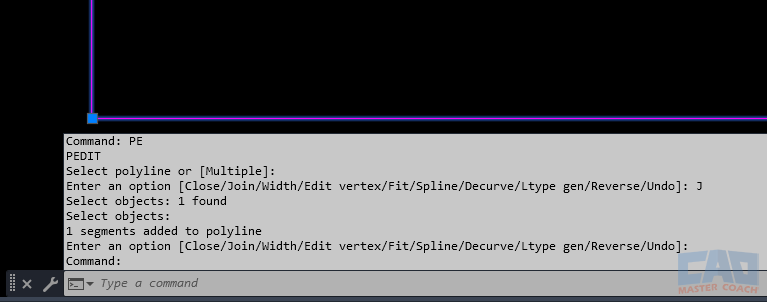
Clean endpoints result in a single polyline
Using these commands together dramatically improves PEDIT reliability.
Frequently Asked Questions (FAQ)
Because the endpoints do not actually touch. PEDIT does not trim or extend geometry, so even tiny gaps will prevent JOIN from working.
Yes. Lines must share endpoints or fall within the defined fuzz distance.
Fuzz distance is a tolerance that allows near-touching endpoints to join. It does not fix large gaps or poor geometry.
Yes. FILLET trims or extends geometry automatically, making it ideal for preparing objects before using PEDIT.
Yes. A zero-radius fillet trims or extends objects to meet at a sharp corner.
Yes. Polylines can contain both straight and curved segments.
Yes. PEDIT preserves layers and properties, changing only the geometry structure.
Because FILLET modifies geometry first. JOIN and PEDIT require geometry to already be clean.
No. Original object properties are preserved.
Ways to Use Pedit
Learn how to convert lines to polylines in AutoCAD using PEDIT and FILLET. Understand why JOIN fails, when FILLET works, and how to clean geometry efficiently.
Learn how PEDIT JOIN works in AutoCAD, why it fails, how fuzz distance affects results, and when FILLET is the best way to connect polylines correctly.
Learn how to use the PEDIT command in AutoCAD to convert lines, join geometry, calculate areas, and create clean offsets.
Learn the most common PEDIT mistakes in AutoCAD, why JOIN fails, how fuzz distance works, and how to fix broken geometry before converting lines to polylines.
Command Categories

Create
Explore all AutoCAD Create commands in one place. Learn how to use LINE, CIRCLE, ARC, POLYLINE, BLOCK, HATCH, and more with tutorials and practical examples.

Modify
Your complete guide to AutoCAD Modify tools—ERASE, TRIM, EXTEND, MOVE, ROTATE, OFFSET, FILLET, and more—with tips and workflows.

Notation
Complete guide to annotation in AutoCAD: text, dimensions, leaders, tables, zoom/pan basics, and clipboard tools.

Drafting Aids
Learn AutoCAD’s Drafting Aids and Precision Controls—OSNAP, Ortho Mode, Polar Tracking, Object Snap Tracking, and Dynamic Input. Improve accuracy, speed, and control with this complete guide.

All Commands
Browse every AutoCAD command in one place with this complete A–Z index. Quickly find command pages for LINE, ERASE, ZOOM, and more, with clear explanations and tips for efficient drafting.
Modify Commands















Ways to Use Pedit