AutoCAD MATCHPROP Command
MATCHPROP Command Access
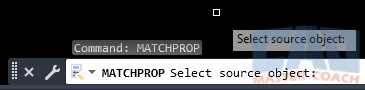
COMMAND LINE: MATCHPROP
DEFAULT KEYBOARD SHORTCUT: MA
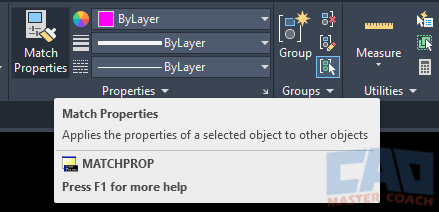
RIBBON: HOME | PROPERTIES TAB | MATCH PROPERTIES
How To Use The AutoCAD MATCHPROP Command
Use the AutoCAD MATCHPROP command to match the common properties of one object to another.
Every object created in AutoCAD has properties that are associated with it, and they can be different for each object type. All objects share a few common properties; color, layer, linetype, and linetype scale are some examples of properties nearly every object has.
When matching properties of object types that are the same, all properties will be matched to be the source object’s properties. When matching properties of different object types, all properties that the objects have in common with the source object will be matched.
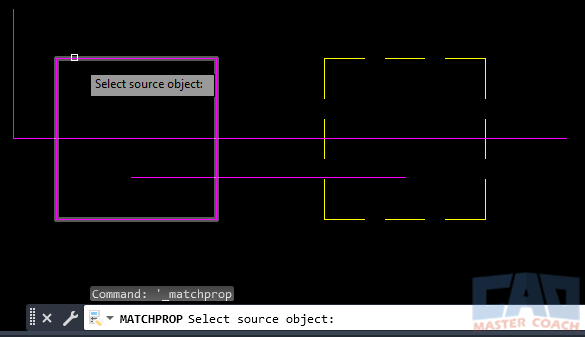
Initiate the MATCHPROP command and select the source object with the pickbox. In the image below, the source object is the magenta box at the left.
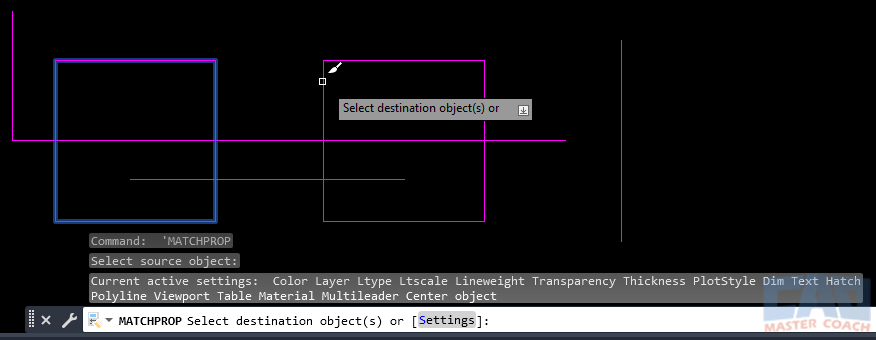
Next, select the destination objects that will have their properties matched to the source object. In the image below, the right box is selected, and its properties will be changed to match the source object’s properties. The properties of the right box that are being changed to match the source object's properties are shown at the command line.
Matching Properties of Different Object Types
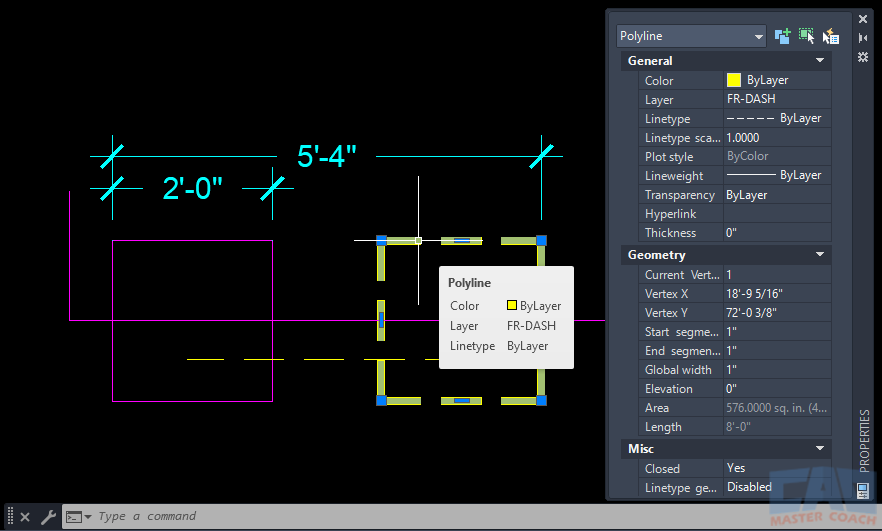
When the destination object is a different type than the source object, only the properties they have in common will be matched. In the image below, the yellow dashed square is selected and the properties palette is shown. By hovering over the object, a few basic properties are shown in the pop-down window. A few things to note: the object is a polyline that is on a layer called FR-DASH, the color and the Linetype are both set to ByLayer, so the polyline has the properties of the layer it is on. On this layer, the color is set to yellow, the Linetype is set to Dashed, and thus the polyline has both of those properties. In addition, the Global Width is set to 1”, which means the width of the entire polyline is 1” wide.
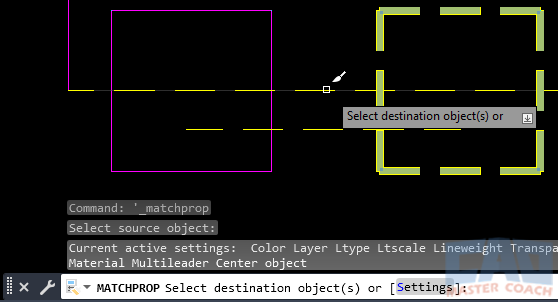
In the image below, the yellow polyline is the source object and the upper magenta line in the image above is having its properties matched to the yellow polyline. Note that these are two different object types, the square is a polyline, and the horizontal line is a line object type. Because they are two different object types, the line does not have all of the same properties as the polyline, only the properties they have in common will transfer to the line object. The line object does not have a Width property, so the width of the line remains as it was originally drawn. The MATCHPROP command does not change an object from one type to another, it only matches the properties the destination object has in common with the source object.
Frequently Asked Questions (FAQ)
The MATCHPROP command copies selected object properties—such as layer, color, linetype, lineweight, and plot style—from a source object to one or more target objects without changing their geometry.
MATCHPROP can copy layer, color, linetype, linetype scale, lineweight, plot style, transparency, and other display properties depending on object type and current settings.
Yes. After starting MATCHPROP, you can use the Settings option to choose exactly which properties are copied, allowing precise control instead of copying everything.
MATCHPROP works best when source and target objects are compatible. Some properties may not transfer between different object types, such as text and polylines.
Common reasons include locked layers, incompatible object types, or property filters being disabled in MATCHPROP settings. Layer overrides can also prevent visible changes.
Yes. After selecting the source object, you can apply its properties to multiple target objects in a single MATCHPROP operation.
For repetitive formatting tasks, MATCHPROP is much faster and more consistent than manually adjusting properties in the Properties palette.
All Commands
Command Categories

Create
Explore all AutoCAD Create commands in one place. Learn how to use LINE, CIRCLE, ARC, POLYLINE, BLOCK, HATCH, and more with tutorials and practical examples.

Modify
Your complete guide to AutoCAD Modify tools—ERASE, TRIM, EXTEND, MOVE, ROTATE, OFFSET, FILLET, and more—with tips and workflows.

Notation
Complete guide to annotation in AutoCAD: text, dimensions, leaders, tables, zoom/pan basics, and clipboard tools.

Drafting Aids
Learn AutoCAD’s Drafting Aids and Precision Controls—OSNAP, Ortho Mode, Polar Tracking, Object Snap Tracking, and Dynamic Input. Improve accuracy, speed, and control with this complete guide.

All Commands
Browse every AutoCAD command in one place with this complete A–Z index. Quickly find command pages for LINE, ERASE, ZOOM, and more, with clear explanations and tips for efficient drafting.
Modify Commands