
How to Use PEDIT in AutoCAD
Convert, Join, and Edit Polylines the Right Way
The PEDIT command (short for Polyline Edit) is one of the most useful — and most misunderstood — tools in AutoCAD. If you’ve ever tried to offset a building outline and ended up trimming corners, struggled to calculate the area of a room, or wondered why JOIN didn’t work, PEDIT is usually the missing piece.
This article focuses specifically on how to use PEDIT in real drawings, not just what the command does. You’ll learn how to convert lines into polylines, join geometry correctly, understand fuzz distance, and recognize the best situations where PEDIT saves time instead of creating frustration.
If you’re looking for a practical, workflow-focused explanation of PEDIT, you’re in the right place.
How to Start the PEDIT Command
You can start the PEDIT command by typing PEDIT at the command line and pressing Enter. While PEDIT is available through menus and the ribbon, most users rely on the command line because it provides clear prompts and faster access to options.
When PEDIT starts, AutoCAD will prompt you to select an object. This is where many users first encounter confusion — especially when selecting a line instead of an existing polyline.

Starting the PEDIT command from the command line
Converting Lines and Arcs into a Polyline
One of the most common uses of PEDIT is converting existing geometry into a polyline. If you select a line or arc, AutoCAD will ask whether you want to convert it to a polyline. Choosing Yes changes the object type without altering the geometry.
This conversion:
- Does not move or reshape the object
- Does not change layer, color, or linetype
- Simply turns the object into a polyline so it can be edited as one
This is especially useful in drawings where geometry was created using individual lines instead of polylines. Once converted, that geometry becomes far more powerful — it can be offset cleanly, joined with other segments, and used for area calculations.
Polylines can also contain both straight and curved segments, so converting a mix of lines and arcs into a single polyline is not only possible, it’s common.
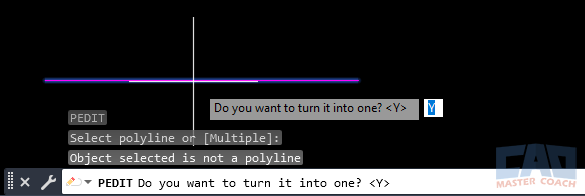
Converting an existing line into a polyline using PEDIT
Using PEDIT JOIN to Combine Geometry
The JOIN option inside PEDIT allows you to combine multiple connected segments into a single polyline. This works only when the endpoints of the objects actually touch — or are close enough to fall within a defined tolerance.
A frequent point of confusion is that geometry may look connected on screen but still fail to join. Even microscopic gaps are enough to prevent PEDIT JOIN from working.
It’s also important to understand the difference between:
- PEDIT JOIN – joins geometry only if it already touches
- JOIN command – similar behavior, but outside the PEDIT workflow
- FILLET (radius = 0) – trims or extends geometry before joining
If PEDIT JOIN fails, FILLET with a zero radius often succeeds because it actively modifies geometry to make endpoints meet. PEDIT assumes the geometry is already correct.
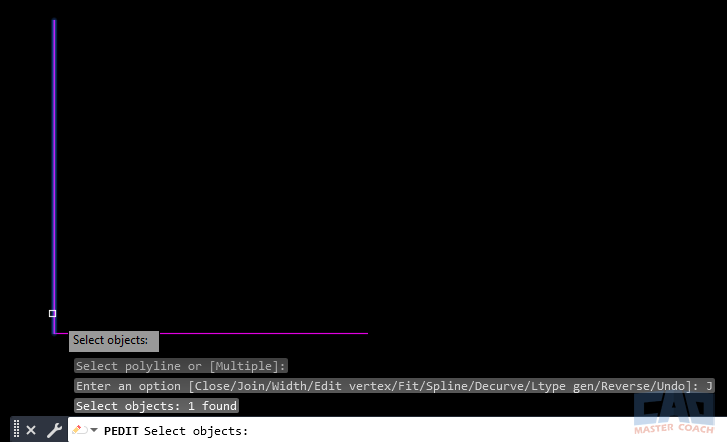
Using PEDIT JOIN to combine connected geometry
Understanding and Using Fuzz Distance
Fuzz distance is a tolerance value that allows PEDIT to join endpoints that are very close but not perfectly touching. When prompted, you can enter a small distance that defines how far apart endpoints are allowed to be for joining.
Used carefully, fuzz distance can save time on slightly imperfect drawings. Used recklessly, it can create distorted or unexpected geometry.
Best practices:
- Use the smallest value possible
- Visually inspect results afterward
- Avoid large fuzz distances on critical geometry
Fuzz distance is a convenience tool — not a substitute for clean drafting.
How to Adjust the Fuzz Distance
The fuzz distance is adjusted when you use the JOIN option within the PEDIT command and AutoCAD prompts you to specify a tolerance value. After selecting the geometry to join, AutoCAD asks for a fuzz distance, which represents the maximum allowable gap between endpoints for them to be considered connected. Entering a small, precise value allows near-touching objects to join without visibly altering the geometry. Larger values increase the risk of unintended connections or distorted shapes, so the fuzz distance should be kept as small as possible and used only when necessary. Once the join operation is complete, it’s good practice to visually inspect the resulting polyline to confirm that the geometry behaves as expected.
Best Use Cases for the PEDIT Command
PEDIT is not something you use constantly, but when it’s the right tool, it’s extremely effective. These are some of the most common and valuable real-world use cases.
Creating Clean Offsets for Building Outlines
One of the strongest use cases for PEDIT is creating clean offsets of building outlines. When a perimeter is drawn using individual lines, offsetting each segment creates corner problems that require trimming and extending.
By joining the entire outline into one polyline, you can offset the shape once and all corners resolve automatically. The result is faster, cleaner, and far less error-prone — especially on irregular building footprints.
This workflow is widely used in architectural, structural, and site drawings.
Calculating Area of Enclosed Spaces
Another powerful use of PEDIT is area calculation. Polylines store area as an object property, but individual lines do not.
If you need the area of a room, slab, footing, or lot boundary:
- Join all edges into a closed polyline
- Select the polyline
- Read the area directly from Properties
This avoids hatches entirely and provides an area value that updates automatically if the polyline is modified.
Preparing Geometry for Hatches and Boundaries
Hatches work best when applied to closed, well-defined boundaries. If hatch detection fails or leaks, creating a single closed polyline first often solves the problem immediately.
Using PEDIT to prepare hatch boundaries:
- Improves reliability
- Makes future edits easier
- Keeps drawings cleaner
Cleaning Imported or Messy Drawings
Survey files, PDF conversions, and legacy drawings often contain fragmented geometry. PEDIT allows you to consolidate those fragments into manageable polylines, making selection, modification, and measurement far easier.
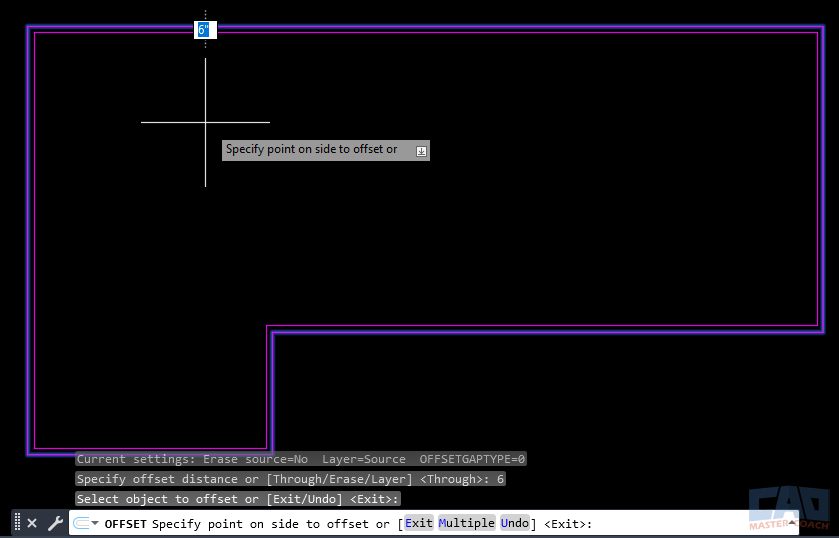
Cleaning a building outline into one polyline for offsets and area
Common PEDIT Options You Should Know
PEDIT includes several additional options that are useful to recognize, even if you don’t use them every day. You don’t need to master all of these immediately, but understanding what they do will help you recognize when PEDIT is the right tool — and when it isn’t.
Edit Vertex
The Edit Vertex option allows you to modify individual vertices within a polyline. You can move, add, or remove vertices to refine the shape of the polyline without redrawing it. This is especially useful for correcting small drafting errors or adjusting irregular outlines where precision matters. While powerful, vertex editing can become tedious on complex shapes, so it’s best used for targeted corrections rather than major redesigns.
Width
The Width option lets you assign a width to polyline segments, creating thick or tapered lines instead of simple zero-width geometry. This can be useful for diagrammatic drawings, schematic representations, or situations where line weight needs to be visually represented in model space. In most production drawings, width is handled through lineweights instead, so this option is best reserved for specific, intentional use cases.
Open / Close
The Open and Close options control whether a polyline forms a closed loop. Closing a polyline connects the start and end points automatically, which is essential for area calculations, hatching, and clean offsets. Opening a polyline removes that closure if it’s no longer needed. This option is commonly used when preparing boundaries for hatches or when converting outlines into usable regions.
Fit / Spline
Fit and Spline options smooth polyline geometry by creating curved transitions between vertices. These options are often used for aesthetic or conceptual drawings rather than precise construction documents. Because they alter the geometry in ways that can reduce dimensional control, they should be used cautiously, especially in engineering or architectural workflows where accuracy is critical.
These options significantly expand what polylines can do, but they’re best explored gradually. As with most AutoCAD tools, understanding when to use an option is just as important as knowing how to use it.
CAD Master Coach Tip: When NOT to Use PEDIT
PEDIT does not fix geometry. It does not trim, extend, or heal drawings. If your geometry doesn’t already meet correctly, PEDIT will usually fail — or produce unreliable results.
If objects don’t touch, use:
- FILLET (radius = 0) to force intersections
- EXTEND to push geometry to boundaries
- TRIM to clean intersections
Use PEDIT once the geometry is already correct.
Related AutoCAD Commands
| Command | Why It Matters |
|---|---|
| PEDIT | Edit vertices, widths, joins |
| JOIN | Combine already-connected geometry |
| FILLET | Trim or extend geometry before joining |
| EXTEND | Force geometry to meet boundaries |
| TRIM | Clean intersections before joining |
| POLYLINE | Create polylines correctly from the start |
Frequently Asked Questions (FAQ)
Because the endpoints do not actually touch. PEDIT does not trim or extend geometry.
Yes. Endpoints must meet exactly or fall within the fuzz distance.
A tolerance that allows near-touching endpoints to join.
Yes. Polylines can contain both straight and curved segments.
No. Original object properties are preserved.
Because FILLET trims or extends geometry before joining.
Yes. Area is stored as a property of closed polylines.
Yes. It avoids cleanup later and improves reliability.
Yes. PEDIT operations can be undone like other commands.
Ways to Use Pedit
Learn how to convert lines to polylines in AutoCAD using PEDIT and FILLET. Understand why JOIN fails, when FILLET works, and how to clean geometry efficiently.

Learn how PEDIT JOIN works in AutoCAD, why it fails, how fuzz distance affects results, and when FILLET is the best way to connect polylines correctly.

Learn how to use the PEDIT command in AutoCAD to convert lines, join geometry, calculate areas, and create clean offsets.

Learn the most common PEDIT mistakes in AutoCAD, why JOIN fails, how fuzz distance works, and how to fix broken geometry before converting lines to polylines.
Command Categories

Create
Explore all AutoCAD Create commands in one place. Learn how to use LINE, CIRCLE, ARC, POLYLINE, BLOCK, HATCH, and more with tutorials and practical examples.

Modify
Your complete guide to AutoCAD Modify tools—ERASE, TRIM, EXTEND, MOVE, ROTATE, OFFSET, FILLET, and more—with tips and workflows.

Notation
Complete guide to annotation in AutoCAD: text, dimensions, leaders, tables, zoom/pan basics, and clipboard tools.

Drafting Aids
Learn AutoCAD’s Drafting Aids and Precision Controls—OSNAP, Ortho Mode, Polar Tracking, Object Snap Tracking, and Dynamic Input. Improve accuracy, speed, and control with this complete guide.

All Commands
Browse every AutoCAD command in one place with this complete A–Z index. Quickly find command pages for LINE, ERASE, ZOOM, and more, with clear explanations and tips for efficient drafting.
Modify Commands















Ways to Use Pedit