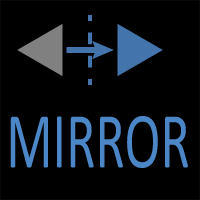
AutoCAD MIRROR Command
MIRROR Command Access
COMMAND LINE: MIRROR

DEFAULT KEYBOARD SHORTCUT: MI
RIBBON: HOME | MODIFY TAB | MODIFY
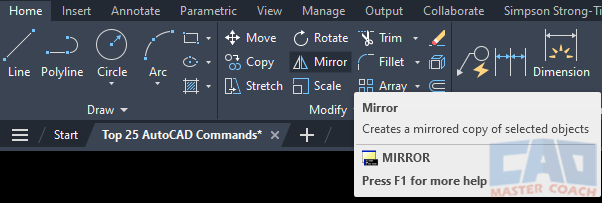
How to Use the MIRROR Command in AutoCAD.
The MIRROR Command in AutoCAD Will Reflect Objects About A Defined Line
Use the MIRROR command to mirror one or more objects. Mirroring objects can be performed at any mirroring angle. Most commonly, mirroring objects is done about either a horizontal line or a vertical line, however AutoCAD allows mirroring to be performed at any mirror angle.
Initiate the MIRROR command and select the objects to be mirrored. Next, select the point at which the objects will be mirrored about.
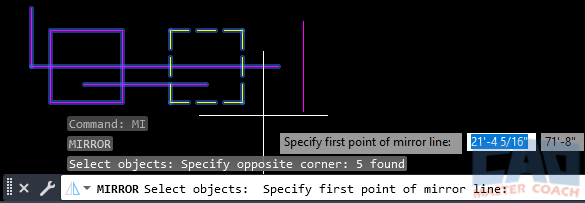
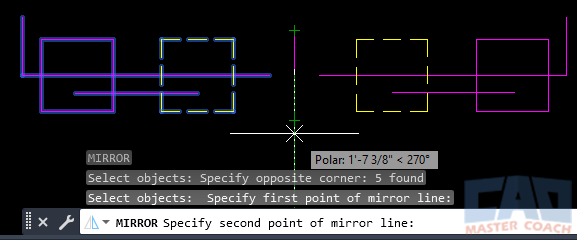
Next, select the second point of the mirror line. In the image below, the objects selected are being mirrored about a vertical line.
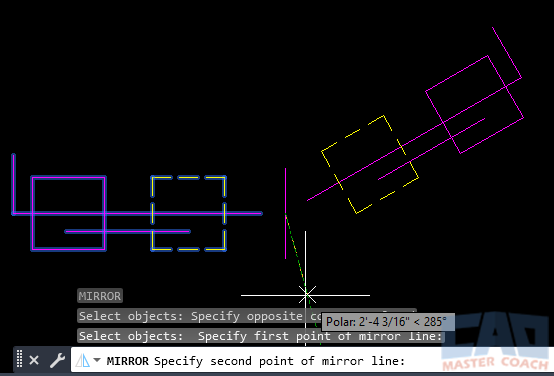
In the image below, the same objects are being mirrored at a random angle. All objects are still a mirror of the original objects and are being created at an angle other than what is traditionally thought of when mirroring.
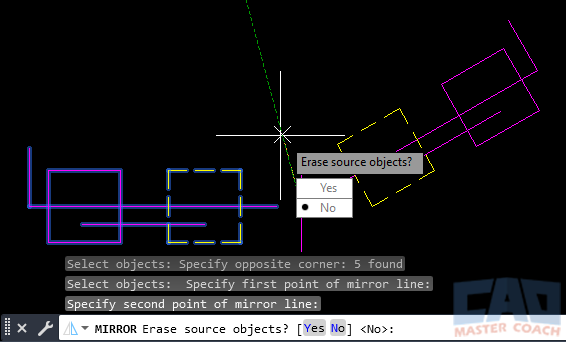
When the Second Point of Mirror Line has been entered in the Dynamic Input, AutoCAD asks if you would like to erase the source objects. Entering Yes will erase the source objects and entering No will leave the source objects and create the newly mirrored objects.
Frequently Asked Questions (FAQ)
The MIRROR command creates a symmetrical copy of selected objects across a specified mirror line. It is commonly used to produce left-right or top-bottom symmetry in drawings without redrawing geometry.
MIRROR gives you a choice. After defining the mirror line, AutoCAD prompts whether to erase the original objects. You can keep both the original and mirrored copy or remove the original.
The mirror line is defined by two points. For precision, you can use object snaps, orthogonal mode, or typed coordinates to ensure the axis is perfectly aligned.
Yes, but mirrored text may appear reversed. AutoCAD includes system variables that control whether text and dimensions remain readable after mirroring.
MIRROR works with most object types, including lines, arcs, polylines, circles, blocks, hatches, and text.
For symmetrical layouts, MIRROR is faster and more accurate than copying and rotating because it guarantees true geometric symmetry.
MIRROR primarily operates in 2D, but it can mirror planar 3D objects depending on the current UCS and object type.
All Commands
Command Categories

Create
Explore all AutoCAD Create commands in one place. Learn how to use LINE, CIRCLE, ARC, POLYLINE, BLOCK, HATCH, and more with tutorials and practical examples.

Modify
Your complete guide to AutoCAD Modify tools—ERASE, TRIM, EXTEND, MOVE, ROTATE, OFFSET, FILLET, and more—with tips and workflows.

Notation
Complete guide to annotation in AutoCAD: text, dimensions, leaders, tables, zoom/pan basics, and clipboard tools.

Drafting Aids
Learn AutoCAD’s Drafting Aids and Precision Controls—OSNAP, Ortho Mode, Polar Tracking, Object Snap Tracking, and Dynamic Input. Improve accuracy, speed, and control with this complete guide.

All Commands
Browse every AutoCAD command in one place with this complete A–Z index. Quickly find command pages for LINE, ERASE, ZOOM, and more, with clear explanations and tips for efficient drafting.
Modify Commands