FILLET Radius Explained: How Radius Controls Corners
The FILLET command is one of the simplest tools in AutoCAD — and also one of the most misunderstood. When FILLET doesn’t behave the way users expect, the problem is almost never the command itself. It’s almost always the radius.
The FILLET radius controls everything about how corners are created. Whether you get a sharp corner, a subtle rounding, or no result at all depends entirely on that single value.
This article explains exactly how FILLET radius works, why it causes so many issues for users, and how to control it confidently. If you’re new to FILLET, you may also want to review the main FILLET command overview page. If you’re deciding between curved and straight corners, CHAMFER is another closely related command worth understanding.
Early links worth exploring if you want broader context:
- FILLET Command Overview
- What to do when the FILLET Radius is too large
- ARC Command Overview
What Is the FILLET Radius?
The FILLET radius defines the size of the arc AutoCAD inserts between two objects. When you fillet two lines, arcs, or polyline segments, AutoCAD creates a tangent arc that smoothly connects them — and the radius of that arc is controlled by the current FILLET radius setting.
This is not a one-time option. The radius value is persistent, meaning AutoCAD remembers it until you change it again. If you set a radius of 2.00 units today, that same radius will still be active tomorrow unless you explicitly reset it.
This persistence is the root cause of most FILLET confusion. Users often assume FILLET is “broken” when it produces unexpected geometry, when in reality it is doing exactly what the current radius value tells it to do.

The FILLET radius setting controls how corners are formed.
FILLET Radius = 0 (Sharp Corners)
When the FILLET radius is set to 0, AutoCAD does not create an arc at all. Instead, it trims or extends the selected objects so that they meet at a sharp intersection.
This behavior surprises many users because it feels similar to TRIM or EXTEND. However, FILLET with a radius of zero is still performing a fillet operation — it is simply creating a corner with no curvature.
This mode is especially useful for cleanup work:
- Closing small gaps between lines
- Forcing precise intersections
- Cleaning up geometry before dimensioning
Because no arc is created, users sometimes believe FILLET “did nothing.” In reality, it successfully modified the geometry exactly as instructed.

A radius of zero creates a sharp intersection instead of an arc.
FILLET Radius > 0 (Rounded Corners)
As soon as the FILLET radius is greater than zero, AutoCAD inserts a curved arc between the selected objects. The larger the radius, the wider and smoother the resulting corner.
The arc created by FILLET is always tangent to both objects. This means:
- The original objects are trimmed or extended automatically
- The arc blends smoothly without sharp transitions
- The geometry remains mathematically clean
FILLET works with far more than just simple lines. You can apply a radius to:
- Lines
- Arcs
- Polylines
- Rectangles
- Many combinations of these object types
The key requirement is that the objects can logically support a tangent arc of the given radius.

Larger radius values create smoother, wider corners.
Changing the FILLET Radius (The Right Way)
Changing the FILLET radius is simple, but it must be done intentionally.
The correct workflow is:
- Start the FILLET command
- Press R for Radius
- Enter the desired radius value
- Select the objects to fillet
Many users skip step 2, assuming the radius resets automatically. It does not. AutoCAD will continue using the last radius value — even if that value no longer makes sense for the geometry you are working with.
A quick habit that prevents frustration is to check the radius every time you start FILLET, especially when switching between drawings or tasks.
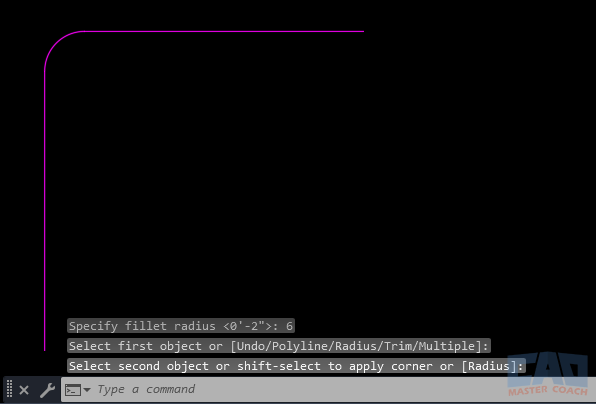
Always set the radius before selecting objects.
When FILLET Radius Fails (And Why)
When FILLET fails to produce a result, AutoCAD is not guessing or approximating. It is enforcing strict geometric rules. The most common causes of failure are directly related to radius.
Radius Too Large
One of the most common reasons a fillet fails is that the radius is too large for the available geometry. AutoCAD can only create a fillet when the specified radius physically fits between the two objects being connected.
A fillet arc must be tangent to both objects. This means AutoCAD needs enough length along each object to place the tangent points. If the radius is larger than the usable length of the objects — or larger than the space between them — AutoCAD cannot construct the arc and the fillet will not be created.
This typically occurs when:
- The objects are very short
- The angle between the objects is shallow
- A large radius value was left over from a previous fillet operation
AutoCAD does not scale or approximate fillets. If a true tangent arc cannot be created using the current radius, the command simply fails. This is why FILLET may appear to “do nothing” even though the command itself is working correctly.
There are two reliable ways to fix this issue:
- Reduce the fillet radius so it fits within the existing geometry
- Increase the length of the objects so there is enough space for the arc
Increasing object length is often done using the EXTEND command, which allows you to lengthen lines or edges until they can support the specified radius. Once the geometry is long enough, the fillet will typically work as expected.
When FILLET fails, checking whether the radius fits the geometry — and adjusting either the radius or the object length — should always be your first troubleshooting step.
Objects Cannot Intersect
For FILLET to work, AutoCAD must be able to determine a valid geometric relationship between the selected objects — either where they already intersect or where they can be logically extended to intersect. In modern AutoCAD, FILLET is far more tolerant than it once was. Small gaps, slight misalignment, and imperfect endpoints are usually not a problem, and FILLET is often an effective way to close those gaps automatically.
Today, FILLET typically fails only when a true intersection cannot exist. This can occur when objects are fundamentally misaligned, broken in a way that prevents extension, or lie in different planes. It’s also important to note that FILLET can create an arc between parallel lines, provided the radius is exactly half the distance between them. If the geometry can support a valid tangent arc, AutoCAD will create it. When it cannot, using EXTEND or correcting the geometry is usually the solution.
Locked Layers
Objects on locked layers cannot be modified. FILLET will silently fail if one or more selected objects are locked.
Geometry Issues
In modern versions of AutoCAD, tiny gaps and minor misalignment are usually not a problem for FILLET. If there is enough available geometry to support the specified radius, AutoCAD will typically extend or trim objects automatically and create the fillet. In fact, FILLET is often an excellent tool for closing small gaps and cleaning up imperfect geometry.
Where FILLET does still fail is with non-planar geometry. FILLET requires both objects to lie in the same plane. If objects exist at different elevations, have mismatched Z-values, or are not coplanar, AutoCAD cannot create a valid tangent arc. In these cases, flattening or correcting the geometry is required before FILLET will work reliably.
In these cases, TRIM or EXTEND is often useful for preparing geometry before applying a fillet.
CAD Master Coach Tip: Think in Design Intent
FILLET radius should reflect intent, not convenience. In real-world drafting, radii are rarely arbitrary.
A consistent radius may represent:
- Manufacturing constraints
- Construction tolerances
- Design standards
- Aesthetic consistency
Avoid mixing random radius values throughout a drawing. Decide on appropriate radii early and apply them consistently. This makes drawings clearer, cleaner, and easier for others to understand.
Related Modify Commands
| Command | Why It’s Related |
|---|---|
| FILLET | Creates rounded or sharp corners using radius |
| CHAMFER | Creates straight beveled corners instead of arcs |
| TRIM | Removes excess geometry |
| EXTEND | Lengthens objects to meet boundaries |
| LENGTHEN | Precisely adjusts object length |
Frequently Asked Questions (FAQ)
The radius controls the size of the arc AutoCAD inserts between two objects. A radius of zero creates a sharp corner, while larger values create rounded corners.
Most often, the radius is set to zero or too large for the available geometry. FILLET may also fail if objects cannot intersect.
If AutoCAD cannot fit the arc between the selected objects, the fillet operation fails and no geometry is created.
Yes. FILLET radius is persistent and remains active until you change it manually.
Yes. FILLET works on polylines and can create smooth transitions between polyline segments.
Start FILLET, press R, and enter 0 as the radius value.
FILLET creates curved corners using a radius, while CHAMFER creates straight beveled corners using distances or angles.
Yes. FILLET trims or extends objects automatically to accommodate the arc or corner.
Yes. FILLET supports selecting multiple objects, especially when working with polylines or using selection sets.
Command Categories

Create
Explore all AutoCAD Create commands in one place. Learn how to use LINE, CIRCLE, ARC, POLYLINE, BLOCK, HATCH, and more with tutorials and practical examples.

Modify
Your complete guide to AutoCAD Modify tools—ERASE, TRIM, EXTEND, MOVE, ROTATE, OFFSET, FILLET, and more—with tips and workflows.

Notation
Complete guide to annotation in AutoCAD: text, dimensions, leaders, tables, zoom/pan basics, and clipboard tools.

Drafting Aids
Learn AutoCAD’s Drafting Aids and Precision Controls—OSNAP, Ortho Mode, Polar Tracking, Object Snap Tracking, and Dynamic Input. Improve accuracy, speed, and control with this complete guide.

All Commands
Browse every AutoCAD command in one place with this complete A–Z index. Quickly find command pages for LINE, ERASE, ZOOM, and more, with clear explanations and tips for efficient drafting.
Modify Commands


















Ways to Use Fillet