AutoCAD DISTANCE Command
DISTANCE Command Access
COMMAND LINE: DISTANCE
DEFAULT KEYBOARD SHORTCUT: DI
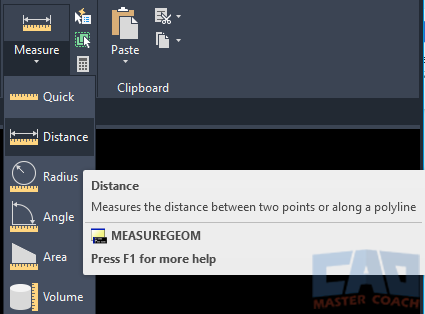
RIBBON: HOME | UTILITIES TAB | MEASURE PULL-DOWN | DISTANCE
How To Use DIST Command to Measure a Distance in AutoCAD
DISTANCE can be used to measure any distance in the AutoCAD drawing. The distance being measured can be two points on the same object, or it can be points on different objects. In addition, DISTANCE can be measured along a path of multiple points.
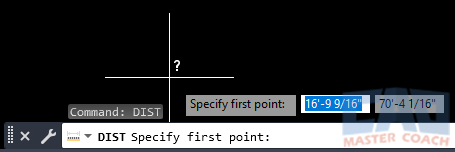
Initiate the DISTANCE command and AutoCAD waits for the First Point to be specified in the Dynamic Input, as shown below. The first point can be anywhere in the drawing, however it is commonly a known point, like a snap box of an existing object.
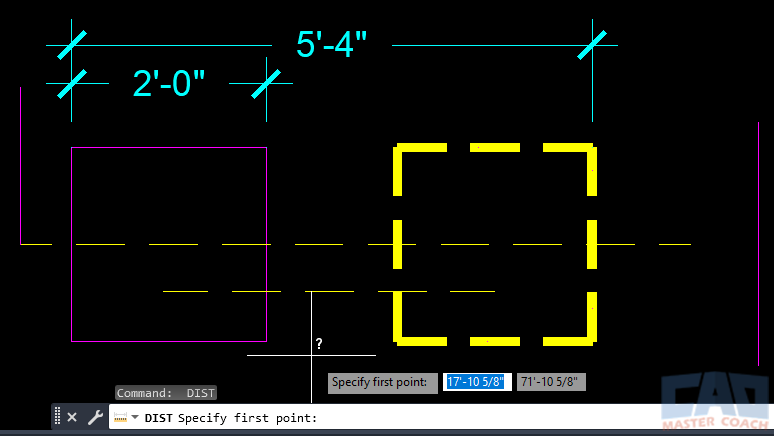
By default, after specifying the First Point, AutoCAD waits for a Second Point to be entered in the Dynamic Input. This also can be any point in the drawing, and is most commonly another known point, like the snap box of an object.
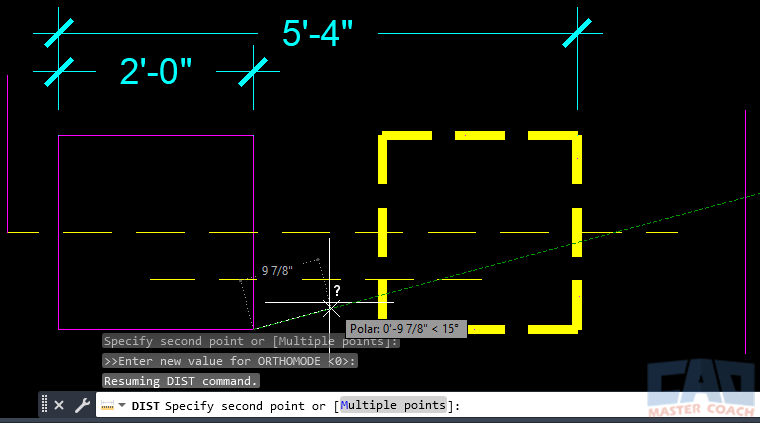
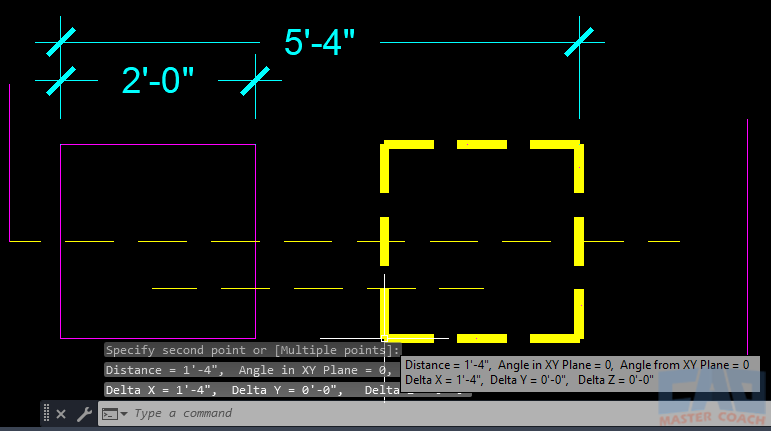
As shown in the image below, the distance reported is along the axis of the line between the two points that are selected. In this case, the distance measured is between the bottom right corner of the magenta box and the bottom left corner of the yellow dashed box. The distance is reported in the default Units of the drawing and the angle of the straight line between the two points is reported. In this case, the angle is 0 degrees.
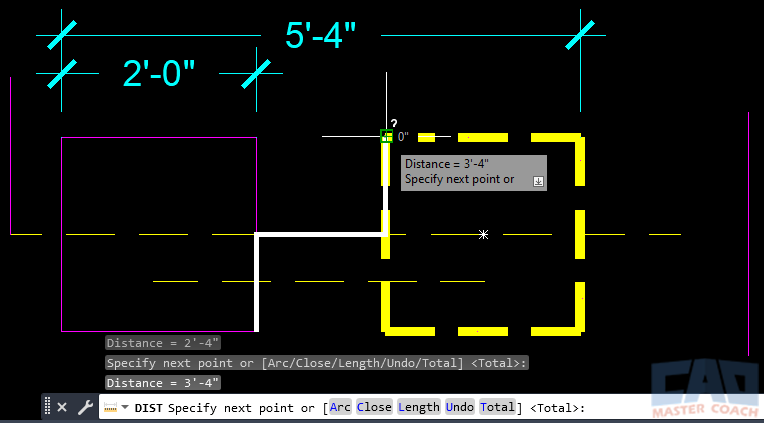
As shown below, DISTANCE can also be used along a path with multiple points. In the image below, DISTANCE initiated, the First Point selected, and Multiple was chosen. Then, the points along the white polyline were selected. Measuring from point to point along the white line, a distance of 3’-4” is being reported.
Frequently Asked Questions (FAQ)
The DISTANCE command measures the straight-line distance, angle, and coordinate differences between two selected points without modifying any geometry. It is commonly used for checking dimensions and verifying layout accuracy.
DISTANCE reports the linear distance, delta X, delta Y, delta Z (if applicable), and the angle between two points. This makes it useful for both drafting checks and coordinate verification.
No. DISTANCE is an inquiry command only. It does not create, modify, or delete any objects in the drawing.
Yes. Object snaps (OSNAP) can and should be used with DISTANCE to ensure accurate point selection when measuring between endpoints, intersections, midpoints, and other precise locations.
DISTANCE measures and reports values without creating visible dimensions, while DIM commands create permanent dimension objects that appear in the drawing.
Yes. In addition to distance, the DISTANCE command reports the angle between the two selected points relative to the current coordinate system.
Incorrect results are often caused by snapping to unintended points, working in the wrong coordinate system, or having drawing units set incorrectly. Using OSNAP and checking units usually resolves the issue.
DISTANCE provides quick numeric feedback in the command line, while MEASUREGEOM offers additional visual and interactive measurement options. Both are inquiry tools but serve slightly different workflows.
All Commands
Command Categories

Create
Explore all AutoCAD Create commands in one place. Learn how to use LINE, CIRCLE, ARC, POLYLINE, BLOCK, HATCH, and more with tutorials and practical examples.

Modify
Your complete guide to AutoCAD Modify tools—ERASE, TRIM, EXTEND, MOVE, ROTATE, OFFSET, FILLET, and more—with tips and workflows.

Notation
Complete guide to annotation in AutoCAD: text, dimensions, leaders, tables, zoom/pan basics, and clipboard tools.

Drafting Aids
Learn AutoCAD’s Drafting Aids and Precision Controls—OSNAP, Ortho Mode, Polar Tracking, Object Snap Tracking, and Dynamic Input. Improve accuracy, speed, and control with this complete guide.

All Commands
Browse every AutoCAD command in one place with this complete A–Z index. Quickly find command pages for LINE, ERASE, ZOOM, and more, with clear explanations and tips for efficient drafting.
Notation Commands