CHAMFER Distance Explained (Distance vs Angle)
The CHAMFER command is simple in concept but surprisingly easy to misuse—especially when it comes to distance versus angle. Many AutoCAD users understand that CHAMFER creates a straight, beveled corner, yet still feel unsure about what the distance values actually control and why the chamfer angle seems to change unexpectedly.
This article focuses specifically on CHAMFER distance, how it works, how it differs from the angle method, and how to use both intentionally. If you searched for “chamfer distance” or “chamfer distance vs angle”, this page is designed to answer exactly what you’re trying to figure out—and then help you apply it correctly.
Related reading (recommended):
If you want a deeper understanding of how chamfers and fillets behave, these articles expand on the concepts covered here:
- FILLET
- FILLET Radius Too Large: Causes, Fixes, and Common Mistakes
- FILLET Radius Explained: How Radius Controls Corners
- CHAMFER
- What Does CHAMFER Do in AutoCAD?
What “Distance” Means in CHAMFER
By default, CHAMFER operates in distance mode. In this mode, you define two distances, one for each object you select. AutoCAD then trims or extends those objects by the specified distances and inserts a straight line between the resulting endpoints.
One of the most important concepts to understand is this:
CHAMFER distance does not define the chamfer line itself.
Instead, the distances define where the original objects stop. The chamfer line is simply the straight connection between those two new endpoints.
- If both distances are equal, the chamfer is symmetrical.
- If the distances are different, the chamfer becomes asymmetrical.
- The chamfer angle is a result, not a setting.
This is why many users feel like CHAMFER is “changing angles on its own.” It isn’t. The angle changes because the trim points moved.
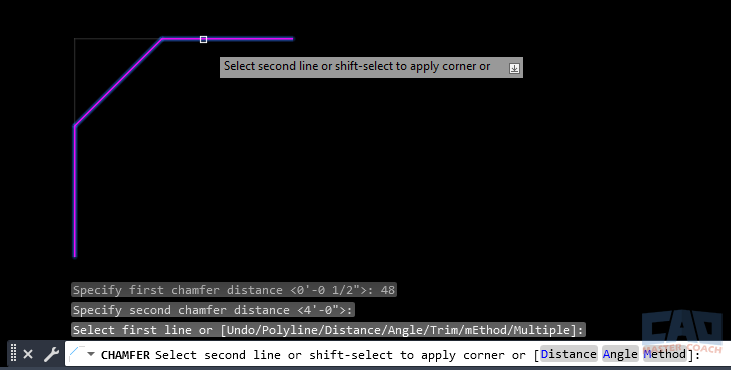
CHAMFER distance trims each object before inserting a straight beveled edge.
How Distance-Based Chamfers Are Calculated
When you use distance mode, AutoCAD follows a consistent internal process:
- You enter Distance 1 and Distance 2.
- AutoCAD measures those distances along the selected objects.
- Each object is trimmed or extended to that location.
- A straight chamfer line is drawn between the two new endpoints.
The length and angle of the chamfer line are entirely dependent on the distances you enter and the orientation of the objects. There is no independent “chamfer length” or “chamfer angle” parameter in distance mode.
This explains several common behaviors:
- Increasing distances makes the chamfer longer.
- Unequal distances skew the chamfer.
- Changing distances changes the angle even if you never touched an angle option.
Once you understand this cause-and-effect relationship, CHAMFER becomes predictable instead of frustrating.
A Simple Distance Workflow Example
Consider two perpendicular lines forming a 90-degree corner.
- With distances set to 1 and 1, AutoCAD trims each line back by one unit and connects those points with a straight chamfer.
- Change the distances to 2 and 2, and the trim points move farther from the corner. The chamfer becomes longer, but the angle stays the same because the distances are still equal.
- Change the distances to 1 and 3, and the trim points are no longer symmetrical. The chamfer angle changes because one side was trimmed farther than the other.
At no point did you specify a chamfer angle—yet the angle clearly changed. This is the core idea behind distance-based chamfers: you control offsets, not orientation.
This workflow is why distance mode is so popular. You can adjust chamfers intuitively by thinking in terms of offsets rather than angles.
The Angle Method Explained
CHAMFER also provides an Angle option, which replaces the second distance value with an explicit angle.
In angle mode, you define:
- One distance
- One angle measured relative to the first selected object
Selection order matters here. The angle is measured from the first object you pick, which can produce unexpected results if you select objects casually.
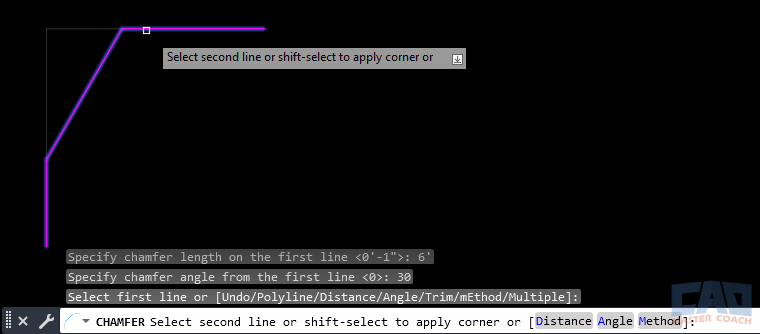
The angle method replaces the second distance with an explicit angle.
Angle mode is useful when:
- A specific slope must be maintained
- The chamfer must align with another angled feature
- You’re working from fabrication or manufacturing requirements
For general drafting and layout work, however, angle mode is far less common than distance mode.
Distance vs Angle — When to Use Each
| Method | Best Used When | Why |
|---|---|---|
| Distance | Drafting, layouts, architectural work | Fast, intuitive, and offset-based |
| Angle | Manufacturing, controlled slopes | Exact orientation matters |
Most users rely on distance mode for everyday work because it aligns with how geometry is usually dimensioned and adjusted. Angle mode is a precision tool—valuable, but situational.
Common Mistakes with Chamfer Distance
Many CHAMFER issues stem from misunderstanding rather than incorrect commands.
Forgetting that values persist
CHAMFER remembers the last distances or angles you used. If you return to the command later and get an unexpected result, stale values are often the cause.
Assuming the chamfer angle is fixed
In distance mode, the angle is never fixed. Any change in distance changes the angle automatically.
Mixing up selection order
This matters most in angle mode, but it can still affect expectations in distance mode when switching methods.
Using distances larger than available geometry
When chamfer distances are larger than the available geometry, CHAMFER does not always extend objects to force a result. In many cases—especially when the distances exceed what can physically fit—the chamfer operation simply fails and no geometry is created.
This behavior is similar to FILLET when the radius is too large. AutoCAD evaluates whether the specified distances can produce a valid straight connection between the two objects. If they cannot, the command quietly does nothing, leaving the original geometry unchanged.
This is why it can feel like CHAMFER “ignored” your input. The command didn’t fail randomly—the distances you specified could not be satisfied by the existing geometry.
Practical takeaway:
If a chamfer doesn’t appear, reduce the distance values and try again. Large or stale distance settings are a common cause of failed chamfers.
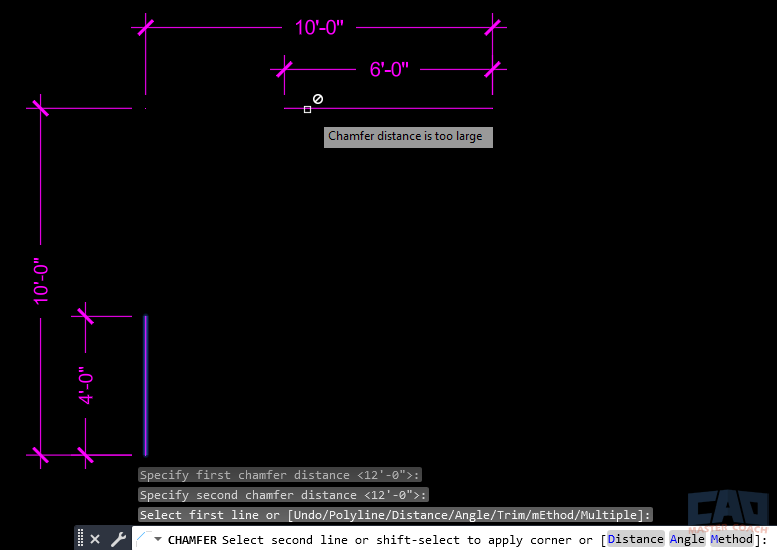
When chamfer distances exceed available geometry, AutoCAD cannot create a valid chamfer and the operation fails.
Controlling and Resetting CHAMFER Distance
Good chamfer results depend on controlling the command state.
- Distance and angle values persist until changed.
- Reset distances by starting CHAMFER, choosing Distance, and entering 0 for both values.
- A zero-distance chamfer creates a sharp corner but keeps CHAMFER behavior predictable for the next use.
- Always set distances before selecting objects when precision matters.
Developing the habit of checking or resetting values prevents most CHAMFER surprises.
How CHAMFER Distance Interacts with Polylines
CHAMFER distance becomes especially efficient when applied to polylines.
When used on a polyline:
- Multiple corners can be chamfered at once
- Distance values apply consistently to each eligible corner
- Equal distances produce uniform chamfers across the shape
Unequal distances are still supported, but they can lead to visually inconsistent results unless that is the intended outcome.
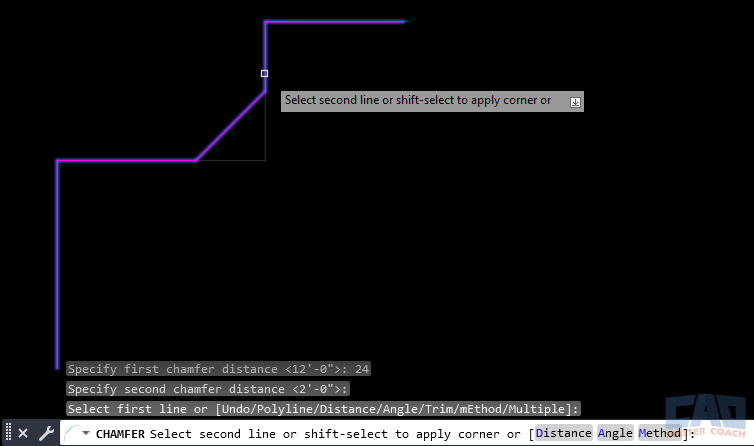
Distance mode applies consistently across polyline corners.
Related Commands You’ll Often Use with CHAMFER
CHAMFER is rarely used alone. These commands frequently support chamfer workflows.
| Command | Relationship |
|---|---|
| FILLET | Rounded alternative to chamfered corners |
| TRIM | Cleans up geometry before or after chamfering |
| EXTEND | Prepares short geometry for chamfer operations |
| LENGTHEN | Adjusts object length prior to chamfering |
| STRETCH | Modifies surrounding geometry without redrawing |
Frequently Asked Questions (FAQ)
It controls how far AutoCAD trims or extends each object before inserting the chamfer line.
Because the angle is created by connecting trim points, not by an angle setting.
The chamfer becomes asymmetrical, and the angle shifts toward the shorter distance.
No. Distances are measured along the original objects.
Yes. Use the Distance option and enter 0 for both values.
Yes. Values persist until you change them.
When a specific slope or orientation is required.
Yes. It works very efficiently on polylines.
AutoCAD extends geometry when needed to satisfy the specified distances.
For most drafting tasks, yes. Distance mode is faster and more intuitive.
Command Categories

Create
Explore all AutoCAD Create commands in one place. Learn how to use LINE, CIRCLE, ARC, POLYLINE, BLOCK, HATCH, and more with tutorials and practical examples.

Modify
Your complete guide to AutoCAD Modify tools—ERASE, TRIM, EXTEND, MOVE, ROTATE, OFFSET, FILLET, and more—with tips and workflows.

Notation
Complete guide to annotation in AutoCAD: text, dimensions, leaders, tables, zoom/pan basics, and clipboard tools.

Drafting Aids
Learn AutoCAD’s Drafting Aids and Precision Controls—OSNAP, Ortho Mode, Polar Tracking, Object Snap Tracking, and Dynamic Input. Improve accuracy, speed, and control with this complete guide.

All Commands
Browse every AutoCAD command in one place with this complete A–Z index. Quickly find command pages for LINE, ERASE, ZOOM, and more, with clear explanations and tips for efficient drafting.
Modify Commands














Ways to Use Chamfer