What Does CHAMFER Do in AutoCAD?
The CHAMFER command in AutoCAD is used to create a straight, beveled corner between two objects. Instead of forming a rounded corner like FILLET, CHAMFER removes a sharp corner by trimming or extending geometry and replacing it with a straight edge.
Many AutoCAD users encounter CHAMFER early but never fully understand what it’s doing behind the scenes—or when it’s the better choice over other modify commands. CHAMFER is simple in concept, but its behavior can feel unpredictable if you don’t understand how AutoCAD decides whether to trim, extend, or fail.
This article focuses on what CHAMFER actually does, how it behaves, and when it makes sense to use it—without turning into a step-by-step tutorial.
Before diving in, you may also want to explore these related commands, which often appear in the same workflows:
- FILLET – Creates rounded corners using an arc
- TRIM – Removes excess geometry
- EXTEND – Lengthens objects to meet a boundary
- STRETCH – Moves and resizes geometry by stretching selected vertices
- LENGTHEN – Precisely adjusts object length by distance, percent, or total length
Understanding how these commands differ helps prevent redraws and confusion later.
What Happens When You Use CHAMFER
When you apply CHAMFER to two objects, AutoCAD performs a short but important sequence of operations:
- It evaluates whether the two objects can logically intersect
- It trims or extends each object as needed
- It removes the original sharp corner
- It creates a straight line connecting the two objects
That straight line is the chamfer.
CHAMFER is not a visual effect or a cosmetic overlay. It permanently modifies the geometry of the selected objects. Once applied, the original corner no longer exists unless you undo the command.
In practical drafting terms, CHAMFER is most often used to:
- Remove sharp corners
- Create beveled edges
- Prepare geometry for detailing or fabrication

Original sharp corner before a chamfer is applied
How CHAMFER Decides Whether to Trim or Extend
One of the most confusing aspects of CHAMFER is that AutoCAD may trim geometry in some cases and extend it in others—even when the same distance values are used.
This behavior is intentional.
AutoCAD’s goal is to satisfy the chamfer distances or angle you’ve specified. If the objects are long enough, AutoCAD trims them back to create the bevel. If they are too short, AutoCAD extends them so the chamfer can exist at all.
This is why CHAMFER sometimes appears to “do the opposite” of what you expect. It is not choosing randomly—it is choosing the only solution that allows the geometry to exist logically.
Understanding this behavior helps explain:
- Why CHAMFER sometimes extends lines outward
- Why CHAMFER may fail entirely
- Why adjusting distances often fixes the issue immediately
How CHAMFER Is Controlled: Distance vs Angle
CHAMFER behavior is controlled by values you set before selecting objects. These values determine where the bevel starts and ends.
Distance Method (Most Common)
The distance method uses two linear distances, one measured along each object from the corner.
- Distance 1 controls the chamfer location on the first object
- Distance 2 controls the chamfer location on the second object
If the distances are equal, the chamfer will be symmetrical. If they differ, the chamfer will favor one object over the other.
This method is:
- Fast
- Predictable
- Ideal for architectural and mechanical drafting
Angle Method
The angle method uses:
- One distance
- One angle
This is useful when a specific bevel angle is required, but it’s less common in everyday drafting. Most users rely on the distance method for efficiency.
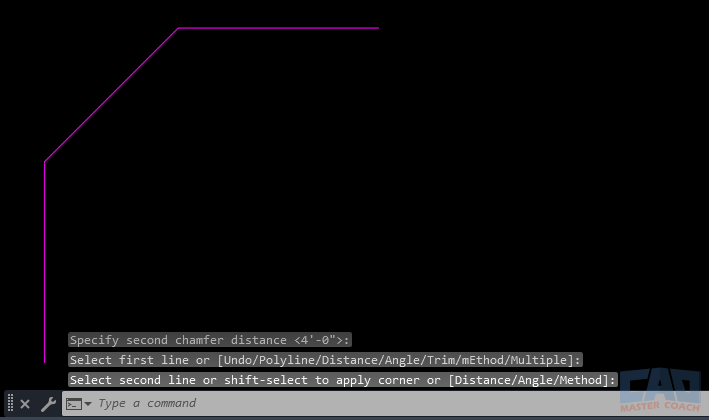
Straight beveled corner created by the CHAMFER command
CHAMFER Always Has a Radius of Zero
A key concept that simplifies everything:
CHAMFER always produces straight geometry.
There is no curvature involved. There is no arc. There is no radius value to adjust.
This is the defining difference between CHAMFER and FILLET:
- CHAMFER creates straight, beveled edges
- FILLET creates curved transitions using a radius
If you need a rounded corner, CHAMFER is not the right tool. If you need a flat edge, CHAMFER is often the better and cleaner option.
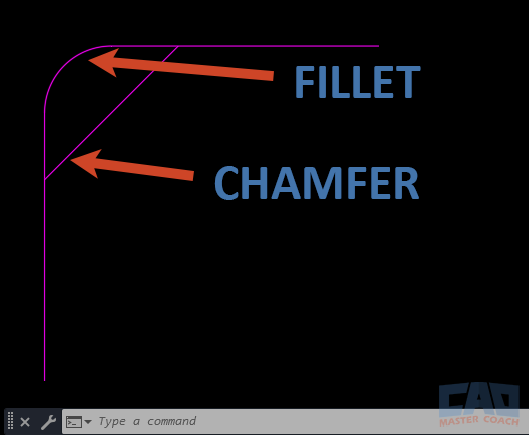
Chamfer creates straight edges while fillet creates arcs
Using CHAMFER on Different Object Types
CHAMFER works on a wide range of 2D geometry, including:
- Lines
- Polylines
- Rectangles
- Most objects that can logically intersect
When applied to polylines, CHAMFER can bevel multiple corners efficiently, making it useful for cleanup and detailing tasks.
CHAMFER relies on logical intersections, not just proximity. If AutoCAD cannot determine a valid way for the objects to meet, the command may fail or appear to do nothing.
Common CHAMFER Problems (and Why They Happen)
Most CHAMFER issues fall into a few predictable categories:
- The chamfer distances are too large
- Objects are too short to support the bevel
- Geometry does not intersect logically
- The chamfer values are still set from a previous operation
Modern AutoCAD versions are fairly forgiving, but CHAMFER will not force invalid geometry. If it cannot find a solution that satisfies your settings, it will simply fail.
In practice, the fastest fixes are often:
- Reducing the chamfer distances
- Adjusting object length with EXTEND or LENGTHEN
- Using Undo and trying again with smaller values
CAD Master Coach Tip: When to Use CHAMFER Instead of FILLET
Use CHAMFER when:
- You need straight, crisp edges
- Rounded corners would be incorrect
- You want predictable geometry without radius calculations
- You are working on mechanical or architectural details
Use FILLET when smooth curvature matters or when you want a continuous arc between objects.
Choosing the correct command upfront saves time and prevents unnecessary redraws.
Related AutoCAD Commands
CHAMFER is rarely used alone. These commands commonly support the same workflows.
| Command | What It Does | When to Use It |
|---|---|---|
| FILLET | Creates rounded corners | When curvature is required |
| TRIM | Removes excess geometry | Cleaning up after chamfers |
| EXTEND | Lengthens objects | Preparing geometry for chamfering |
| OFFSET | Creates parallel geometry | Layout before corner modification |
| BREAK | Splits objects | Manual control over corner geometry |
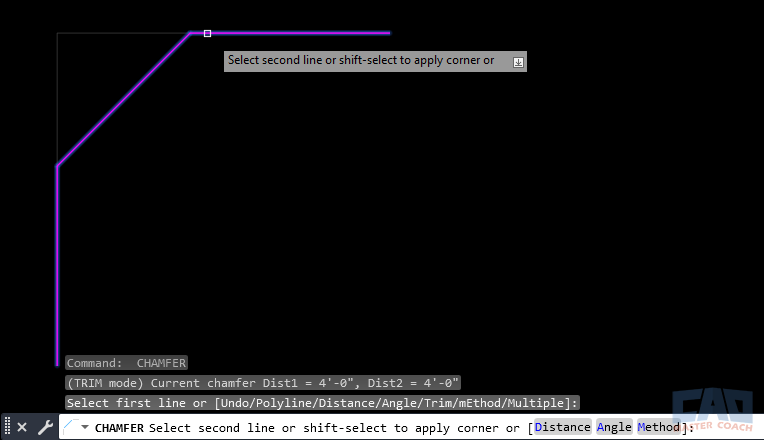
CHAMFER combined with TRIM for clean geometry
Frequently Asked Questions (FAQ)
CHAMFER creates a straight, beveled corner between two objects by trimming or extending them and inserting a straight edge.
CHAMFER creates straight edges, while FILLET creates rounded corners using an arc and radius.
Yes. CHAMFER permanently modifies object length by trimming or extending geometry.
Yes. CHAMFER supports an angle-based method, though distance-based chamfers are more common.
AutoCAD extends geometry when necessary to satisfy the specified chamfer values.
Yes. CHAMFER works on polylines and can bevel multiple corners efficiently.
Yes. Chamfer distance or angle values persist until you change them.
Use CHAMFER when straight edges are required and rounded corners would be inappropriate.
Command Categories

Create
Explore all AutoCAD Create commands in one place. Learn how to use LINE, CIRCLE, ARC, POLYLINE, BLOCK, HATCH, and more with tutorials and practical examples.

Modify
Your complete guide to AutoCAD Modify tools—ERASE, TRIM, EXTEND, MOVE, ROTATE, OFFSET, FILLET, and more—with tips and workflows.

Notation
Complete guide to annotation in AutoCAD: text, dimensions, leaders, tables, zoom/pan basics, and clipboard tools.

Drafting Aids
Learn AutoCAD’s Drafting Aids and Precision Controls—OSNAP, Ortho Mode, Polar Tracking, Object Snap Tracking, and Dynamic Input. Improve accuracy, speed, and control with this complete guide.

All Commands
Browse every AutoCAD command in one place with this complete A–Z index. Quickly find command pages for LINE, ERASE, ZOOM, and more, with clear explanations and tips for efficient drafting.
Modify Commands
















Ways to Use Chamfer