FILLET Radius Too Large: Causes, Fixes, and Common Mistakes
If you’ve ever tried to apply a fillet in AutoCAD and been stopped by the message “Fillet radius too large,” you’re not alone. This is one of the most commonly searched FILLET issues — and one of the most poorly explained online.
What makes this error especially frustrating is that FILLET often seems inconsistent. Sometimes it works even when the radius is clearly larger than the spacing between objects. Other times, it fails even though the geometry looks reasonable. Much of the confusion comes from the fact that FILLET behavior has changed in recent versions of AutoCAD, while most tutorials and forum answers still describe older behavior.
This article explains what “FILLET radius too large” actually means today, why it happens, and how to fix it reliably — based on how modern AutoCAD really behaves, not how it used to.
Early links worth exploring if you want broader context:
- FILLET Command Overview
- How to Set the FILLET Radius
- ARC Command Overview
Important Note: FILLET Behavior Has Changed in Recent AutoCAD Versions
Many explanations online still claim that a fillet radius must be smaller than the distance between objects, or that selecting the “wrong” side of a line will cause FILLET to fail. Those explanations are based on older AutoCAD behavior.
In current versions of AutoCAD:
- FILLET is far more tolerant of selection order and pick location
- The numeric radius value alone does not determine success or failure
- FILLET evaluates whether an arc can be physically constructed from the available geometry
This article reflects current AutoCAD behavior, which explains why your results may not match what older documentation describes.
How AutoCAD Determines Whether a FILLET Radius Is Valid
The “Fillet radius too large” message is not about spacing, snapping, or clicking the right spot. It is about whether AutoCAD can build a valid arc using the objects you selected.
Parallel Lines: Automatic Arc Creation
When you apply FILLET to two parallel lines, AutoCAD behaves in a very specific and consistent way:
- An arc is created automatically
- The arc radius is set to half the distance between the lines
- The radius value you entered is ignored
- No “radius too large” error is generated
This behavior surprises many users because it contradicts older tutorials, but it is intentional and reliable in modern AutoCAD.
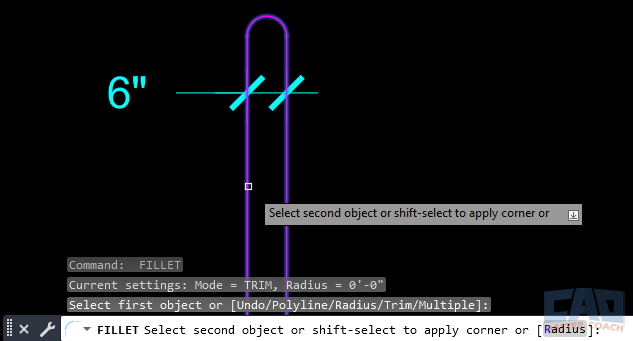
AutoCAD automatically creates an arc with a radius equal to half the spacing between parallel lines.
Non-Parallel Geometry: Objects Must Support the Arc
When filleting non-parallel objects (lines, arcs, or combinations of both), AutoCAD evaluates something much simpler than most people expect:
Do the selected objects have enough usable length to support the requested radius?
Key points:
- The radius can be larger than the distance between objects
- The arc will be created as long as each selected object provides enough length
- If one or more selected objects (or segments) are too short, AutoCAD reports “Fillet radius too large”
This applies to:
- Line–line fillets
- Line–arc fillets
- Arc–arc fillets
- Fillets involving arcs created by previous FILLET operations
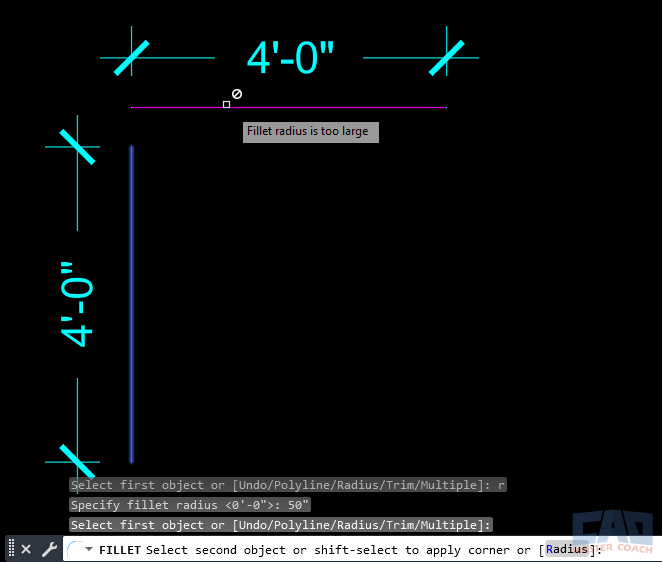
The fillet fails because one of the selected objects is too short to support the radius.
FILLET Creates a Tangent Arc Between Two Objects
The FILLET command is more than a corner-rounding shortcut. At its core, FILLET is an efficient way to create an arc that is tangent to two selected objects.
When you apply FILLET, AutoCAD:
- Constructs an arc
- Ensures the arc is tangent to both selected elements
- Trims or preserves the original objects as needed
- Uses the specified radius only if the geometry can physically support it
This is why FILLET behaves consistently across lines and arcs — and why it can even create new arcs between objects that already include curved geometry. If an arc can be constructed that is tangent to both selections and supported by their available length, FILLET succeeds. If it cannot, AutoCAD reports “Fillet radius too large.”
Thinking of FILLET as an arc-creation tool with built-in tangency rules makes its behavior far more predictable and explains why modern AutoCAD can handle cases that older versions could not.
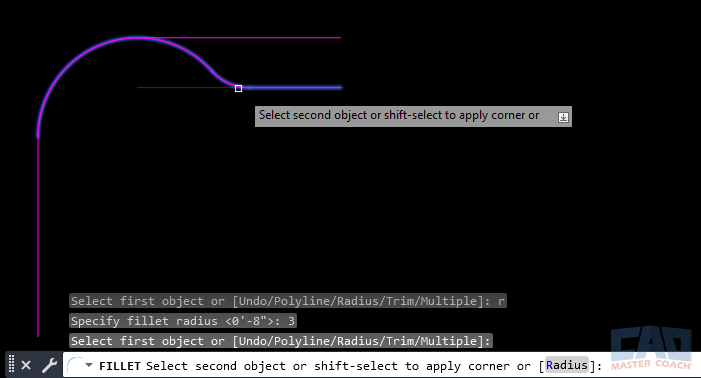
FILLET can create arcs between lines and existing arcs as long as enough length exists.
The Real Cause of the “FILLET Radius Too Large” Error
In modern AutoCAD, this message usually has one primary meaning.
One or More Selected Objects Are Too Short for the Radius
If the specified radius is larger than what at least one selected object (or segment) can physically support, AutoCAD cannot construct the arc and reports “Fillet radius too large.”
Important clarifications:
- This is about object length, not spacing
- Selection precision and object snaps are usually not the issue
- FILLET now infers intent correctly in many situations that used to fail
If FILLET works in some cases and fails in others with the same radius, the difference is almost always available length, not angle or snap accuracy.
How to Fix “FILLET Radius Too Large” (Modern Workflow)
When FILLET fails, repeating the command rarely helps. Use this workflow instead.
Reset the Radius to Zero as a Diagnostic Step
Setting the fillet radius to 0 is still a useful troubleshooting step:
- It confirms whether the geometry can connect
- It removes curvature from the equation
- If a zero-radius fillet succeeds, the geometry is valid
Make Sure the Selected Objects Are Long Enough
This is the most effective fix in modern AutoCAD.
Check:
- Is either selected line shorter than the fillet radius?
- Are you selecting a short segment instead of a longer one?
- If filleting to an arc, is there enough arc length near the corner?
If not, give FILLET more geometry to work with:
Reapply the Radius and Fillet Again
Once the selected objects provide enough length:
- Set the desired radius
- Apply FILLET again
- The arc is created consistently

FILLET remembers the last radius value used.
CAD Master Coach Tip
In current AutoCAD versions, “Fillet radius too large” almost always means one of the selected objects is too short for the radius. Stop looking for snapping errors and start looking at object length.
Common Assumptions vs. Modern Reality
| Common Assumption | What Actually Happens Today |
|---|---|
| Radius must be smaller than spacing | Radius can exceed spacing |
| Parallel lines should fail | Parallel lines auto-generate an arc |
| FILLET fails if you click the wrong side | AutoCAD usually infers intent correctly |
| Object snaps must be perfect | Selection tolerance is much higher |
| The error is mysterious | One object is usually too short |
When FILLET Is Not the Right Tool
Even with modern improvements, FILLET isn’t always the best choice:
- CHAMFER for sharp corners
- ARC for precise curvature control
- Manual cleanup for heavily constrained or imported geometry
Knowing when not to use FILLET saves time and frustration.
Related AutoCAD Commands
| Command | Description |
|---|---|
| FILLET | Creates rounded corners between objects |
| CHAMFER | Creates beveled corners |
| EXTEND | Lengthens objects to meet a boundary |
| TRIM | Shortens objects to a boundary |
| LENGTHEN | Precisely modifies object length |
| ARC | Creates arcs directly |
Frequently Asked Questions (FAQ)
Many tutorials are based on older AutoCAD behavior. Modern versions evaluate whether an arc can physically be constructed from the available object length.
Yes. The error now primarily means that one or more selected objects are too short to support the specified radius.
Yes. Spacing alone does not determine success. Object length is what matters.
AutoCAD automatically creates an arc with a radius equal to half the spacing between parallel lines.
The selected objects may differ in usable length.
Yes. FILLET can create arcs between lines and arcs, including arcs created by previous fillets, as long as sufficient length exists.
No. Objects must already provide enough usable length, or you must extend them first.
Yes. It’s a fast way to confirm whether geometry connectivity is the issue.
Short segments cannot physically support large fillet radii.
Command Categories

Create
Explore all AutoCAD Create commands in one place. Learn how to use LINE, CIRCLE, ARC, POLYLINE, BLOCK, HATCH, and more with tutorials and practical examples.

Modify
Your complete guide to AutoCAD Modify tools—ERASE, TRIM, EXTEND, MOVE, ROTATE, OFFSET, FILLET, and more—with tips and workflows.

Notation
Complete guide to annotation in AutoCAD: text, dimensions, leaders, tables, zoom/pan basics, and clipboard tools.

Drafting Aids
Learn AutoCAD’s Drafting Aids and Precision Controls—OSNAP, Ortho Mode, Polar Tracking, Object Snap Tracking, and Dynamic Input. Improve accuracy, speed, and control with this complete guide.

All Commands
Browse every AutoCAD command in one place with this complete A–Z index. Quickly find command pages for LINE, ERASE, ZOOM, and more, with clear explanations and tips for efficient drafting.
Modify Commands

















Ways to Use Fillet