
3-Point Circle: How to Create a Circle Through Three Defined Points in AutoCAD
Introduction
The Circle (3-Point) method in AutoCAD is one of the most flexible and underrated ways of creating circular geometry — especially when you don’t know the center of the circle but do know three points through which the circle must pass. While other methods like Center-Radius or 2-Point are more common, the 3-Point option solves a very different kind of drafting challenge: reconstructing circular shapes from partial or irregular data.
If you’ve ever traced over a PDF, reconstructed a scanned detail, worked with survey points, reverse-engineered a sketch, or needed a circle to pass through specific features, you’ve probably needed the 3-Point method without realizing it.
In this article, you’ll learn what the Circle (3-Point) tool does, how to use it accurately, and when to choose it over other circle creation methods in AutoCAD. You’ll also see examples, precision tips, related tools, and a full set of CAD Master Coach–style tables to help reinforce the concepts.
Accessing the Circle (3-Point) Command
AutoCAD provides several ways to access the 3-Point circle tool. You can use whichever feels most natural for your workflow — ribbon, command line, or dynamic input.
Below are the most common methods:
Ribbon Access
- Home tab → Draw panel → Circle dropdown
- Choose 3-Point
Command Line Access
Type the following:
- CIRCLE
- then press Enter, and when prompted:
- 3P
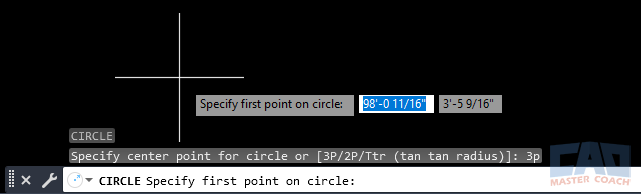
You can also start a 3-Point circle directly through the command line by choosing the 3P option.
Direct Command Alias
AutoCAD doesn’t provide a default alias specifically for the 3-Point option, but you can easily type:
- CIRCLE
- Choose the 3P option.
Dynamic Input
If Dynamic Input is enabled, start typing “circle” and select the Circle command, then choose 3P from the options that appear near the cursor.
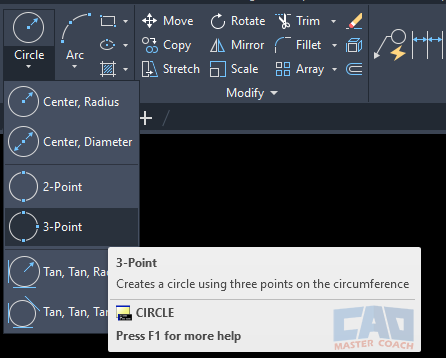
The Circle (3-Point) tool is available from Home → Draw → Circle → 3-Point.
This may be the fastest way, especially for keyboard-heavy users.
Step-by-Step: Creating a Circle Using Three Points
The process itself is simple — AutoCAD does most of the geometric heavy lifting behind the scenes. You simply tell AutoCAD which three points your circle must pass through, and it computes the only possible circle that fits them.
But precision matters. The better your point selection, the more accurate your geometry.
Step 1 — Start the 3-Point Circle Command
Use any method from above to initiate:
- Ribbon → Circle → 3-Point
- Command line → CIRCLE → 3P
Once active, AutoCAD will prompt:
- Specify first point on circle:
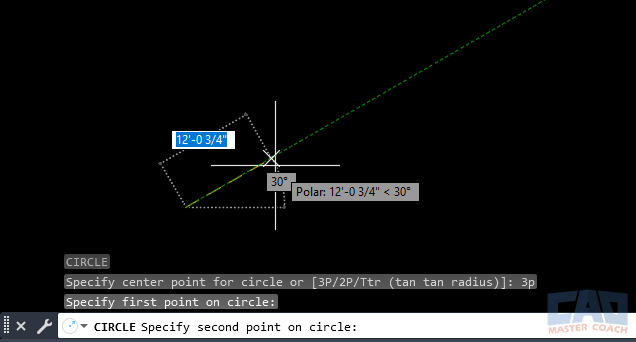
Begin the circle by choosing the first of three points the circle will pass through.
Step 2 — Select the First Point
Use OSNAPs (Endpoint, Midpoint, Intersection, etc.) whenever possible. Avoid picking random points unless you are sketching.
After selecting the first point, AutoCAD prompts:
- Specify second point on circle:
- Choose the next location your circle must pass through.
Step 3 — Select the Second Point
Again, use OSNAPs for precision. If your points come from imported geometry such as PDF details or survey data, zoom in and confirm that the snap marker shows the feature you expect.
AutoCAD then prompts:
- Specify third point on circle:
- This final point completes the required geometry.
Step 4 — Select the Third Point
After your third click, AutoCAD immediately calculates and draws the circle.
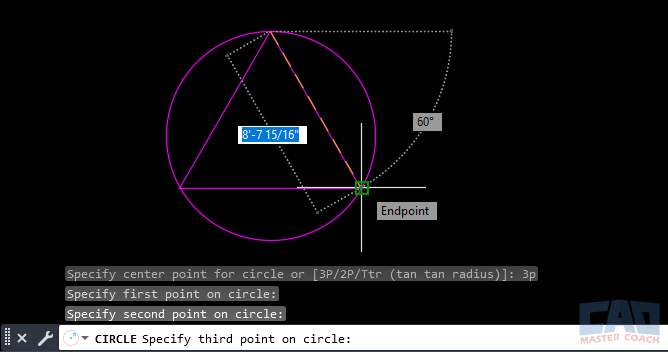
AutoCAD generates a circle that passes exactly through the three specified points.
Mathematically, any three non-collinear points define one and only one circle. If your points are nearly collinear (in a nearly straight line), AutoCAD may produce a very large radius circle — more on that later.
Practical Use Cases for the 3-Point Method
The Circle (3-Point) option is incredibly powerful in real-world drafting scenarios. Some examples include:
1. Reconstructing Circular Shapes From Partial Geometry
If you have:
- An arc from an imported drawing
- A PDF of a detail
- A curved surface measured in the field
…selecting three points on the curve instantly creates the full circle.
2. Working with Irregular Design Constraints
Sometimes designs place features at three distinct locations, and the required circle must pass through all of them. The 3-Point method solves this perfectly.
3. Surveying and Civil Situations
Three known points (e.g., control points) that define a curve can be used to compute the full geometry instantly.
4. Mechanical Layouts
Hole patterns or circular features where the center is unknown can be reconstructed using three measured points.
5. Reverse-Engineering PDF Geometry
If you’re drafting over legacy documents or scans, often the center of a circle cannot be snapped — but three perimeter points can.
6. Architectural Drafting
Rounded building corners, radiused site elements, landscape features, and non-orthogonal geometries often rely on reconstructing curves from partial edges.
CAD Master Coach Tips, Warnings, and Best Practices
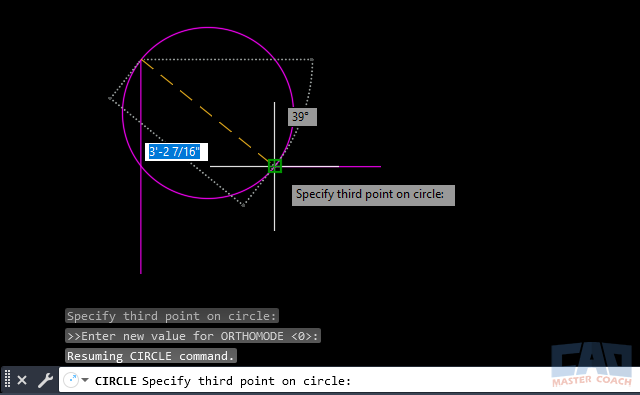
Use OSNAP tools like Endpoint and Midpoint to ensure accurate point selection.
Below are some of the most important professional-grade habits when using the 3-Point circle method.
Use OSNAP Every Time
Selecting arbitrary points destroys accuracy. Always use:
- Endpoint
- Midpoint
- Intersection
- Node
- Nearest (with caution)
- Quadrant (for true arcs/circles)
Avoid Nearly Collinear Points
If your three points are nearly aligned, AutoCAD will draw a circle with:
- A massive radius
- A distant center
- A barely noticeable curve over your selected region
This is not an error — it’s mathematically correct — but it may appear “wrong.”
Understand That the Order of Selection Doesn’t Matter
One of the most useful aspects of the Circle (3-Point) method is that the order in which you pick the points does not affect the final result. AutoCAD doesn’t attempt to “trace” the points in the order you select them, nor does it interpret them as defining a direction or rotation. Instead, it treats all three points as equal geometric inputs. Behind the scenes, AutoCAD uses a mathematical process to determine the single unique circle that passes through all three of those locations.
This means you can pick the top point, then the left point, then the right point… or the left, then right, then top… or any other combination. The outcome will always be identical as long as the same three points are used. This flexibility is especially helpful in complex drawings where snapping to certain points may be easier from a particular zoom level or screen orientation.
It also prevents the frustration of having to carefully select points in a specific sequence, which some users mistakenly assume is necessary. With the 3-Point method, AutoCAD is concerned only with the locations themselves, not the order, allowing you to work faster and more confidently.
Use Zoom Extents Before and After
When working with the Circle (3-Point) method, it’s a good habit to use Zoom Extents (ZE) both before and after creating the circle. If your three points are nearly collinear, AutoCAD may generate a circle with a very large radius, placing the center far outside your immediate drawing area. As a result, the new circle might appear to “disappear” or seem much smaller than expected. Using Zoom Extents instantly adjusts the view to include all geometry in the drawing, allowing you to clearly see the full size and location of the circle. This simple step helps avoid confusion and ensures you always understand what AutoCAD created.
Use Object Snap Tracking for Alignment
Object Snap Tracking is extremely helpful when you need your third point to align precisely with one of the first two points before creating a 3-Point circle. With the feature enabled in the status bar (or by pressing F11), hover over a reference point until the temporary tracking marker appears, then move your cursor along the horizontal or vertical tracking path. These alignment guides let you position points with precision without drawing extra construction lines. Combined with the AUTOSNAP system variable, Object Snap Tracking ensures your point placement is accurate and intentional, resulting in cleaner and more reliable circle geometry.
Related System Variables and Tools
| Command / Tool | Description |
|---|---|
| OSNAP | Ensures precise selection of the three defining points. |
| POLAR | Helps align cursor direction when placing points before using the command. |
| DYNAMIC INPUT | Allows numerical point entry and cursor-based prompts directly on screen. |
| OBJECT SNAP TRACKING | Useful for lining up geometry before selecting each point. |
| ORTHO | Useful when placing pre-construction points along orthogonal directions. |
Comparison: 3-Point vs Other Circle Methods
| Method | Best Use | Inputs Required | Notes |
|---|---|---|---|
| Center–Radius | You know the center and radius. | 1 center point, 1 radius | Most commonly used method. |
| Center–Diameter | You know overall diameter. | 1 center point, diameter value | Useful for mechanical drawings. |
| 2-Point | Two points exactly define the diameter. | 2 points | Great for constrained geometry. |
| 3-Point | You know three points the circle must pass through. | 3 points | Ideal when the center is unknown or geometry comes from field/scan data. |
Troubleshooting 3 Point Circle
Here are the most common issues users encounter with the Circle (3-Point) command and how to resolve them:
“My circle looks wrong.”
Your points are nearly collinear → AutoCAD is mathematically correct, but the radius is extremely large.
“AutoCAD won’t snap to the point I need.”
Turn on the correct OSNAPs:
- Endpoint
- Intersection
- Node
- Quadrant
Avoid “Nearest” unless necessary.
“My circle disappeared.”
It probably didn’t — it’s just extremely large. Try:
ZE
to Zoom Extents.
“The command canceled unexpectedly.”
Check your OSNAP settings or ensure you didn’t right-click too early.
“My UCS is off.”
If your points appear on different planes, set UCS to World using:
UCS
W
Frequently Asked Questions (FAQ)
No. You can select them in any order — AutoCAD will compute the single circle that fits all three.
A circle cannot be created. Three collinear points do not define a circle.
AutoCAD will still draw the circle, but the radius may be extremely large. Zoom Extents to see the whole result.
Yes. You can enter any of the three points as typed coordinates (absolute or relative).
Your three points are nearly aligned. The farther apart they are in relation to the curve, the larger the computed radius.
Yes — both AutoCAD and AutoCAD LT fully support the 3-Point circle option.
Related Commands and Tools
| Command / Tool | Description |
|---|---|
| ORTHO | Locks movement to horizontal/vertical directions — useful before selecting points. |
| POLAR Tracking | Helps align cursor movement at precise angles when placing points. |
| DYNAMIC INPUT | Allows coordinate entry and prompt interaction near the cursor. |
| Object Snap Tracking | Enables alignment of geometry before point selection. |
| OSNAP | Critical for selecting accurate point locations. |
Summary
The Circle (3-Point) method is a powerful tool in AutoCAD that gives you precise control when a circle needs to pass through three known points — even if the center is unknown. Whether you’re reconstructing geometry from imported PDFs, working with surveying data, or reverse-engineering existing drawings, this method provides accuracy and flexibility that other circle creation methods can’t match.
Mastering the 3-Point method will improve your drafting precision, speed up your workflow, and help you confidently handle irregular or partial geometry. It’s a key skill for any AutoCAD user, and an essential component of your core drawing toolkit.
Ways to Use Circle

Learn how to use AutoCAD’s Center–Radius circle method with precision. Step-by-step instructions, pro techniques, and engineering examples.

Learn how to use the Circle (2-Point) command in AutoCAD to create precise circles between two points. Step-by-step guide, examples, tips, and FAQs included.
Learn how to use the AutoCAD Circle (3-Point) method to draw a circle through any three points. This step-by-step guide includes screenshots, tips, tables, best practices, and FAQs.

Learn how to use the CIRCLE TTR (Tangent–Tangent–Radius) option in AutoCAD to create perfectly tangent circles with an exact radius. Includes step-by-step instructions, screenshots, troubleshooting tips, and real-world applications.
Command Categories

Create
Explore all AutoCAD Create commands in one place. Learn how to use LINE, CIRCLE, ARC, POLYLINE, BLOCK, HATCH, and more with tutorials and practical examples.

Modify
Your complete guide to AutoCAD Modify tools—ERASE, TRIM, EXTEND, MOVE, ROTATE, OFFSET, FILLET, and more—with tips and workflows.

Notation
Complete guide to annotation in AutoCAD: text, dimensions, leaders, tables, zoom/pan basics, and clipboard tools.

Drafting Aids
Learn AutoCAD’s Drafting Aids and Precision Controls—OSNAP, Ortho Mode, Polar Tracking, Object Snap Tracking, and Dynamic Input. Improve accuracy, speed, and control with this complete guide.

All Commands
Browse every AutoCAD command in one place with this complete A–Z index. Quickly find command pages for LINE, ERASE, ZOOM, and more, with clear explanations and tips for efficient drafting.
Create Commands










Ways to Use Circle