
CIRCLE by TTR (Tangent–Tangent–Radius)
Introduction
The Tangent–Tangent–Radius option of the CIRCLE command—commonly referred to as TTR—is one of the most precise and geometry-driven tools in AutoCAD. Instead of manually locating the center of a circle or defining its diameter, TTR creates a circle that is perfectly tangent to two existing objects while maintaining an exact radius. When your design requires a circle to “kiss” two boundaries exactly—nothing more and nothing less—TTR is the tool you reach for.
Unlike the traditional circle methods (Center–Radius, 2P, 3P), TTR solves a geometric condition: the circle must touch each reference object at exactly one point, and that point must be perpendicular to the radius at the moment of contact. This makes TTR incredibly useful in mechanical drafting, civil layout, site planning, machine component design, and any situation where an object must be offset or clear a boundary by an exact amount.
In this article, we’ll walk through how TTR works, why circle placement sometimes surprises users, how to troubleshoot failed TTR solutions, and the professional workflows that make it one of the most powerful precision tools in AutoCAD.
How CIRCLE TTR Works
TTR is based on one geometric requirement:
When a circle is tangent to an object, the radius drawn to the tangent point is perpendicular to that object.
When you choose the TTR option, AutoCAD needs three pieces of information:
- Tangent reference 1
- Tangent reference 2
- Radius
AutoCAD then mathematically determines where the center of that circle must be so that the radius remains the specified distance and touches both objects exactly once. Depending on the geometry, there may be multiple possible circle solutions, and AutoCAD will choose the one based on where you click on the objects. If you click on the “wrong” side, you may get a circle positioned differently than expected—this is normal behavior, and we’ll cover how to control it.
AutoCAD may also return this message:
“Cannot create circle with given radius.”
This simply means that mathematically, no circle exists that can satisfy the tangency and radius constraints for the geometry you selected. We’ll explore why this happens later.
How to Access TTR
There are three main ways to activate Tangent–Tangent–Radius mode.
Ribbon
Home → Draw panel → Circle dropdown → Tangent Tangent Radius
Command Line
Type:
- CIRCLE
- Then choose the TTR option:
- Specify center point for circle or [3P/2P/Ttr]:
(“Ttr” is the internal option—not a standalone command.)
Toolbar (Classic Workspace)
Draw → Circle → TTR
Step-by-Step Workflow (Illustrated)
Step 1 — Start the Circle Command
Type CIRCLE or click the Circle tool.
AutoCAD displays:
Specify center point for circle or [3P/2P/Ttr]:
Step 2 — Choose the TTR Option
Type TTR, or click “Tangent Tangent Radius” from the Circle dropdown.
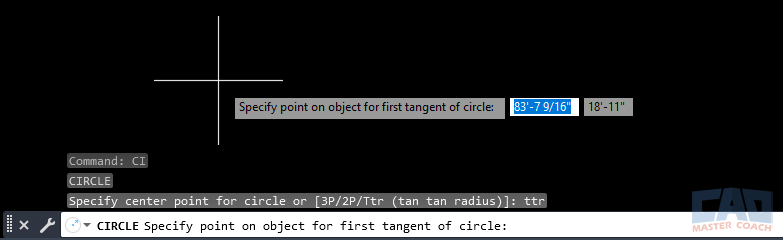
The TTR option appears in the command line when starting the CIRCLE command.
Step 3 — Select the First Tangent Object
Click the first object where you want the circle to become tangent.
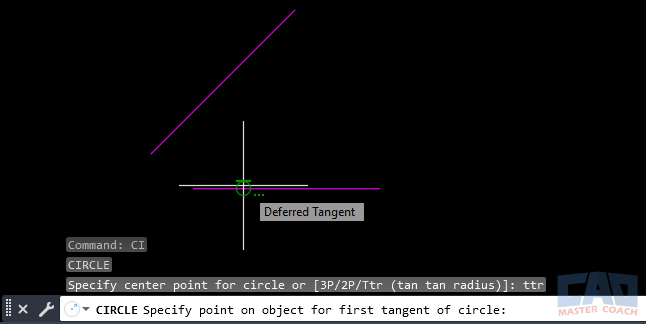
Choose the first object where the TTR circle will be tangent.
The exact location of your click tells AutoCAD which “side” of the object you are referencing.
Step 4 — Select the Second Tangent Object
Click the second object.
A preview arc may appear depending on geometry.
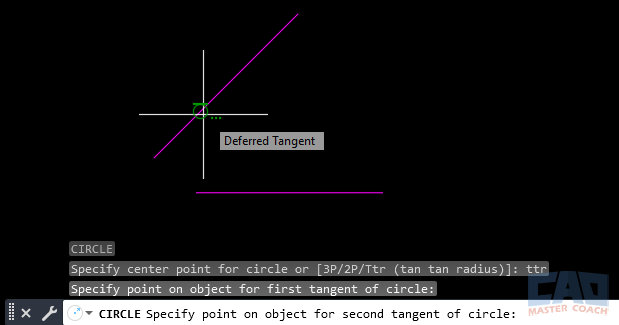
AutoCAD previews the potential circle once the second tangent is chosen.
Step 5 — Enter the Radius
Input the desired radius:
Specify radius of circle:
AutoCAD then computes the circle and places it tangent to both objects.
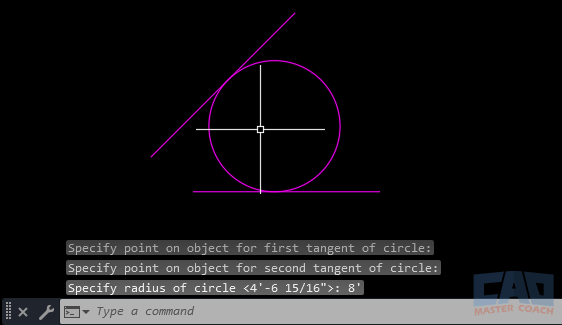
The completed circle touches both objects exactly once, at perpendicular tangent points.
Circle Creation Methods Compared
| Method | Inputs Required | Best For | Limitations |
|---|---|---|---|
| Center–Radius | Center point + radius | General circles, known center locations | Not based on existing geometry |
| 2P (Two-Point) | Two points on circumference | Circles defined by two exact points | No control over tangency |
| 3P (Three-Point) | Three points on circumference | Circles passing through known geometry | Not radius-driven; no tangency |
| TTR (Tangent–Tangent–Radius) | Two tangent references + radius | Precision geometry requiring exact clearance or offset | May fail if radius is too small or geometry incompatible |
Understanding Tangency Behavior
TTR circles sometimes appear in positions you don’t expect. This happens because:
- The side of the object where you click determines which tangent solution AutoCAD attempts.
- Tangency conditions can be satisfied in multiple geometric configurations.
- Objects such as lines, arcs, and polylines each have different tangency properties.
- With certain geometries, no solution exists for the radius you enter.
Controlling the Circle’s Placement
To control the outcome:
- Click near the side where you want the circle to appear.
- Use construction lines to guide your cursor.
- Use Object Snap Tracking to preview alignment paths.
- Ensure OSNAP settings include Tangent and Nearest.
AutoCAD uses the AUTOSNAP system variable to show snap indicators. If these glyphs ever stop appearing, check AUTOSNAP—it controls whether snap symbols and tooltips display.
Why TTR Sometimes Fails
If you see:
“Cannot create circle with given radius.”
There are several possible causes.
1. Radius Too Small
If the two tangent objects are extremely close together, even a tiny radius may not solve.
2. Radius Too Large
If your radius is so large that the circle cannot touch both objects simultaneously, no solution exists.
3. Objects That Don't Support Tangency
Examples include:
- Splines
- Polylines with variable-width segments
- Blocks (depending on geometry)
- Very short line segments
4. Incorrect Pick Locations
Selecting the wrong side of the object may cause AutoCAD to attempt an impossible configuration.
5. Geometry Alignment Issues
If lines are parallel and the radius does not bridge them correctly, the circle cannot form.
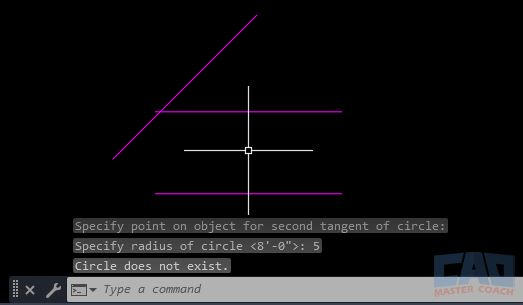
AutoCAD displays this message when the geometry cannot satisfy the TTR condition.
Practical Applications of TTR
Mechanical & Industrial Applications
- Designing pulley clearances
- Establishing gear offsets
- Creating circles that must maintain an exact standoff from machine components
- Creating “pseudo-fillets” where FILLET is not appropriate
Civil Engineering & Site Layout
- Designing curb returns at exact offsets
- Creating tank clearances in a site plan
- Laying out pipe or conduit paths between fixed boundaries
- Roadway geometry intersections
Architecture & Interior Design
- Cabinet transitions
- Rounded corners between intersecting faces
- Clearance circles in furniture layout where objects must touch two surfaces
General Drafting Scenarios
- When you need a circle to just touch two boundaries
- When offset distances need to be exact
- When using construction lines to define spatial limits
CAD Master Coach Tips
Use Temporary Construction Lines
When geometry doesn’t cooperate, add a construction layer and draw helper lines. These allow you to control tangency precisely.
Use Object Snap Tracking
Tracking lines help you visualize exactly where tangency solutions will appear before selecting objects.
Combine OFFSET + TTR
OFFSET the geometry to control where the circle must be tangent, then use TTR on the offset lines.
Know When to Use FILLET Instead
FILLET with a radius is often faster when connecting two lines directly.
Use TTR when the circle is not meant to blend the lines but to touch them while remaining a standalone object.
Keep Construction Geometry on Its Own Layer
Turn this layer on or off as needed, especially for mechanical layouts where temporary references are common.
Common Mistakes to Avoid
1. Clicking the Wrong Side of a Line
Your click location determines which tangent solution AutoCAD attempts.
2. Using Diameter Instead of Radius
TTR requires a radius value, not the diameter.
R = D / 2.
3. Snapping to Endpoints Instead of Tangents
Ensure the Tangent OSNAP is enabled.
4. Trying to Use TTR on Spline Geometry
Splines do not provide a standard tangent surface for geometric solutions.
5. Over-Constrained Geometry
Lines that are nearly parallel or nearly intersecting may produce unstable or impossible TTR solutions.
Related Commands and Tools
| Command / Tool | Description |
|---|---|
| 2P Circle | Creates a circle using two known points on its perimeter. |
| 3P Circle | Creates a circle that passes through three exact points. |
| Tangent OSNAP | Snaps to a tangent point on arcs and circles—useful for controlling TTR geometry. |
| FILLET | Creates rounded corners between two objects using a radius value. |
| OFFSET | Creates parallel geometry that can serve as tangent reference lines. |
| MEASUREGEOM | Measures distances to verify that your intended radius is mathematically possible. |
FAQ – CIRCLE by TTR
The radius may not be geometrically possible with the selected tangent objects. Try a larger or smaller radius, check the spacing between objects, or verify that the objects support tangent solutions.
Click closer to the side where you want the circle to be placed. Your pick location tells AutoCAD which geometric solution to attempt.
Not reliably. Splines do not offer consistent tangent surfaces that TTR can use. Convert them to simpler geometry if needed.
FILLET modifies the existing geometry and creates an arc between two lines.
TTR creates a standalone circle tangent to two objects. They serve different purposes.
Yes. Tracking lines allow precise alignment before clicking tangent objects, ensuring the circle forms exactly where you want it.
Summary
The CIRCLE by TTR option is a powerful and precise drafting tool that allows you to create circles tangent to two objects while maintaining an exact radius. When working with clearance requirements, mechanical layouts, site planning, or complex geometric constraints, TTR is often the fastest and most accurate solution.
By understanding how tangency works, controlling where AutoCAD places your circle, and recognizing the conditions under which TTR may fail, you’ll unlock a higher level of geometric control in your drawings.
Ways to Use Circle

Learn how to use AutoCAD’s Center–Radius circle method with precision. Step-by-step instructions, pro techniques, and engineering examples.

Learn how to use the Circle (2-Point) command in AutoCAD to create precise circles between two points. Step-by-step guide, examples, tips, and FAQs included.

Learn how to use the AutoCAD Circle (3-Point) method to draw a circle through any three points. This step-by-step guide includes screenshots, tips, tables, best practices, and FAQs.

Learn how to use the CIRCLE TTR (Tangent–Tangent–Radius) option in AutoCAD to create perfectly tangent circles with an exact radius. Includes step-by-step instructions, screenshots, troubleshooting tips, and real-world applications.
Command Categories

Create
Explore all AutoCAD Create commands in one place. Learn how to use LINE, CIRCLE, ARC, POLYLINE, BLOCK, HATCH, and more with tutorials and practical examples.

Modify
Your complete guide to AutoCAD Modify tools—ERASE, TRIM, EXTEND, MOVE, ROTATE, OFFSET, FILLET, and more—with tips and workflows.

Notation
Complete guide to annotation in AutoCAD: text, dimensions, leaders, tables, zoom/pan basics, and clipboard tools.

Drafting Aids
Learn AutoCAD’s Drafting Aids and Precision Controls—OSNAP, Ortho Mode, Polar Tracking, Object Snap Tracking, and Dynamic Input. Improve accuracy, speed, and control with this complete guide.

All Commands
Browse every AutoCAD command in one place with this complete A–Z index. Quickly find command pages for LINE, ERASE, ZOOM, and more, with clear explanations and tips for efficient drafting.
Create Commands










Ways to Use Circle