UNITS – Set Drawing Units in AutoCAD
AutoCAD UNITS Command Access
COMMAND LINE: UNITS

DEFAULT KEYBOARD SHORTCUT: UN
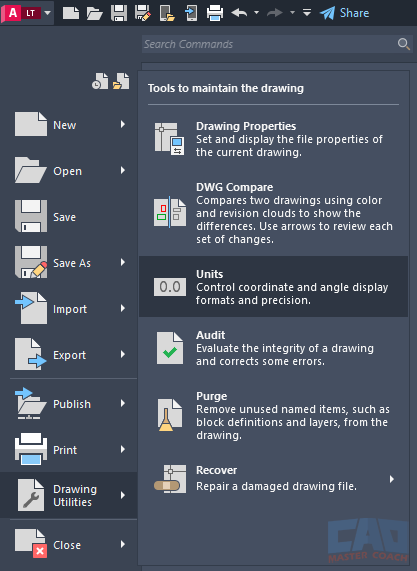
APPLICATION MENU: DRAWING UTILITIES | UNITS
Introduction
Setting your drawing units is one of the most important early steps in creating an accurate AutoCAD drawing. Even experienced beginners often overlook it, thinking units can be “figured out later.” Unfortunately, this leads to problems with scaling, dimensions, hatches, blocks, and external references (Xrefs).
The UNITS command defines how distances and angles are interpreted and displayed inside AutoCAD. Get this wrong at the beginning, and the rest of the workflow becomes a frustrating experience.
This article thoroughly explains every setting within the Drawing Units dialog, best practices, and—critically—how to fix your drawing if the wrong units were used.
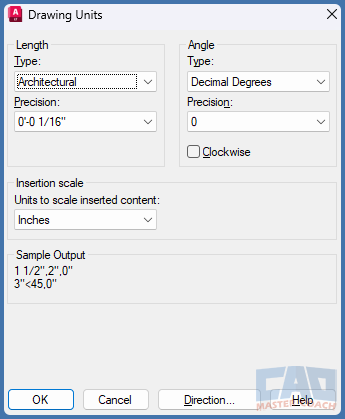
The Drawing Units dialog controls how AutoCAD interprets and displays distances, angles, and insertion scales.
Why Setting Units Early Matters
AutoCAD is fundamentally unitless—a line measuring “10” could represent 10 inches, 10 feet, 10 millimeters, or 10 meters. AutoCAD has no idea what you intend unless you explicitly define the measurement system. The UNITS command tells AutoCAD how to interpret distances, format measurements, and scale content that comes from outside your drawing. Even though setting units is simple, skipping this step creates cascading problems throughout the entire project.
Below are the most common issues caused by starting a drawing with incorrect or undefined units.
Dimensions Reading Incorrectly
When units are not defined properly, dimensions may display numbers that make no sense for the type of project you are creating. For example, a wall intended to be 10 feet long could dimension as 120 inches or even 3048 millimeters depending on how AutoCAD interprets the geometry. Students often think the dimension tool is “broken,” but the real issue is that the drawing units were never configured. Correct units ensure dimensions represent real-world measurements accurately.
Blocks Inserting Too Large or Too Small
Blocks include their own internal unit definitions, and AutoCAD uses your drawing's insertion scale to resize them on import. If your drawing is set to inches but the block was created in millimeters, it may insert 25.4 times too large. Similarly, inserting a feet-based block into an inch-based drawing may produce objects that appear tiny. Setting units early ensures blocks insert exactly as intended without mysterious scaling problems.
Hatch Patterns Scaling Poorly
Hatch patterns depend on units because their spacing, angle, and density are based on real-world sizes. When units are wrong, hatch patterns may appear extremely dense, nearly invisible, or wildly oversized. Beginners often attempt to fix this with arbitrary scale adjustments, but those adjustments only hide the underlying problem. Proper units deliver correct hatch appearance without constant trial-and-error.
Layout Scales Not Matching Real-World Sizes
Paper space layout scaling depends on your drawing being in the correct measurement system. If your geometry is 12× too big or too small, standard scales like 1/4" = 1'-0" or 1:100 won’t work correctly, and viewport scales will appear random or nonsensical. Setting units early ensures that all layout scales behave correctly and match industry-standard plot scales.
Xrefs Misaligning
External references (Xrefs) are one of the most powerful features in AutoCAD, but they depend on consistent units between drawings. If one file is in feet and the other is in inches (or metric), the Xref will either misalign or “fly off” to an unexpected location. Establishing units at the beginning ensures that survey files, architectural plans, structural drawings, and civil backgrounds all line up perfectly.
The Entire Drawing Needing to Be Rescaled
The worst-case scenario is discovering—typically late in a project—that the drawing was created in the wrong units from the beginning. Fixing the problem often requires scaling the entire drawing, correcting block definitions, adjusting hatches, and cleaning up any annotations created before the units were corrected. This process can take hours of tedious rework. Setting units correctly takes just a few seconds and avoids all of this cleanup.
Setting units early is one of the simplest habits that separates professionals from frustrated beginners. A few moments spent configuring the UNITS command prevents days of confusion, scaling issues, and drawing corruption later in the project.
The Drawing Units Dialog – Full Walkthrough
Running UNITS opens the Drawing Units dialog, which contains five major components:
- Length Type
- Angle Type
- Insertion Scale
- Lighting Units
- Direction Control
Each one influences how AutoCAD interprets and displays geometry.
1. Length Type
This setting controls how distances appear in AutoCAD.
Architectural
- Format: 5'-6"
- Standard for U.S. building design
- Uses fractional inches for precision
Engineering
- Format: 2'-7.25"
- Decimal inches
- Used in civil engineering and surveying
Decimal
- Format: 25.4
- Unit-agnostic; works for inches, millimeters, meters
- Standard for mechanical design and metric workflows
Fractional
- Format: 15 3/8"
- Pure inches, no feet
- Good for woodworking and fabrication
Scientific
- Format: 1.25E+02
- Rare; used in specialized engineering applications
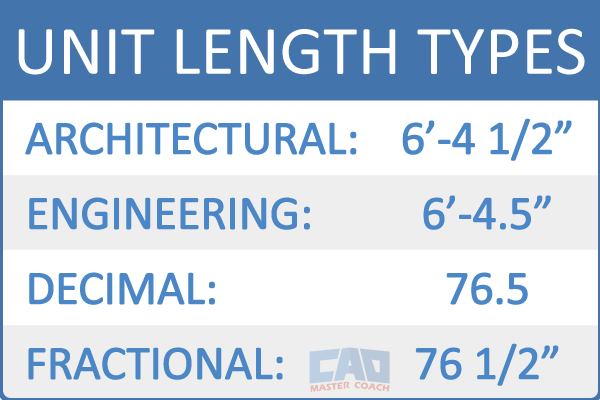
Length types change how measurements are displayed based on the drafting standard you follow.
Length Precision
Controls display precision such as:
- Architectural: 1/8", 1/16", 1/32"
- Decimal: 0.00 or 0.0000
Precision does not change geometry—it only affects how numbers are shown.
2. Angle Type
Decimal Degrees
Most common. Example: 45.00°
Degrees / Minutes / Seconds
Example: 45° 30' 20"
Used in surveying.
Grads
Full circle = 400 grads. Rare.
Radians
Used for mathematical workflows.
Surveyor’s Units
Example: N 45°30'00" E
Common in plat maps and property descriptions.
Angle Precision
Angle precision controls how many decimal places (or DMS increments) AutoCAD displays when showing angular measurements. Just like linear precision, this setting affects only the way angles are formatted on-screen, not the underlying geometry. Whether you choose zero decimal places, four decimal places, or degrees-minutes-seconds, the actual angle you draw stays mathematically identical. The precision setting simply determines how much detail AutoCAD reveals when reporting or dimensioning angles, which can help reduce visual clutter or provide greater clarity depending on the needs of the project.
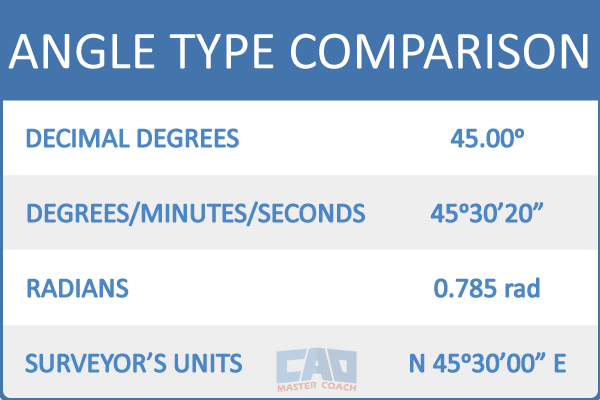
AutoCAD supports multiple angle formats used in construction, surveying, and engineering disciplines.
3. Insertion Scale
The Insertion Scale setting determines the expected units for inserted blocks, Xrefs, and other content.
If your drawing expects inches, but the block was created in millimeters, it will insert 25.4× too large unless your insertion scale is correctly configured.
Common options:
- Unitless
- Inches
- Feet
- Millimeters
- Centimeters
- Meters
| Industry | Recommended Insertion Scale |
|---|---|
| Architecture (U.S.) | Inches |
| Structural (U.S.) | Inches or Feet |
| Civil | Feet or Meters |
| Mechanical | Millimeters |
| Manufacturing | Millimeters |
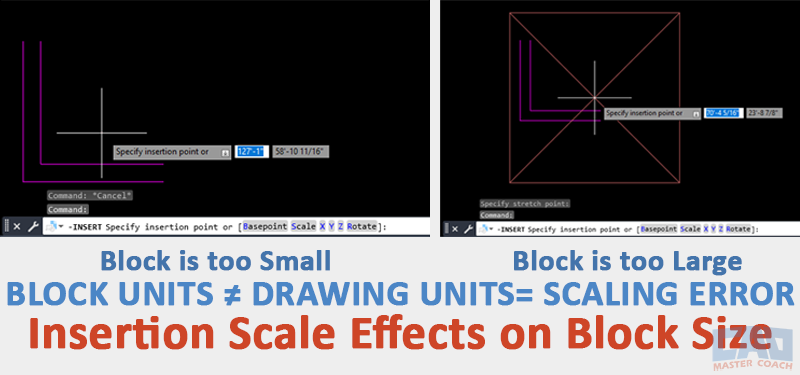
Mismatched insertion scales cause blocks to resize unpredictably, leading to major drawing inconsistencies.
4. Lighting Units (3D Only)
This only affects rendered scenes:
- Generic: No real-world lighting
- American: Foot-candles
- International: Lux
The Lighting Units section does not apply to 2D drawings.
5. Direction Control
This setting determines how angles are measured:
Zero Direction
Common options:
- East (default)
- North
- West
- South
Direction of Increasing Angles
- Counterclockwise (default, standard drafting)
- Clockwise (surveying workflows)
Changing these settings is uncommon and should be done only with intent.
Common Unit Setups by Industry
| Industry | Linear Units | Angle Units | Insertion Scale | Notes |
|---|---|---|---|---|
| Architecture (U.S.) | Architectural | Decimal Degrees | Inches | Fractional inches common. |
| Structural (U.S.) | Architectural or Engineering | Decimal Degrees | Inches or Feet | Depends on template standard. |
| Civil | Engineering | DMS or Decimal Degrees | Feet or Meters | Survey data must match. |
| Mechanical (Metric) | Decimal | Decimal Degrees | Millimeters | Industry standard worldwide. |
| Manufacturing | Decimal | Decimal Degrees | Millimeters | Tight tolerances require high precision. |
| Surveying | Engineering | Surveyor’s Units | Feet or Meters | Bearings require specific angle settings. |
Best Practices for Setting Units
Set units before drawing anything
Always set your units as the first step in a new drawing. AutoCAD is unitless by default, so defining the measurement system early prevents scale mismatches and avoids needing to rescale the entire drawing later. This simple habit eliminates many beginner errors before they start.
Use templates (DWT) with correct units preconfigured
Professional workflows rely on templates so that every new drawing begins with consistent unit settings, dimension styles, layers, text styles, and title blocks. Using a template ensures that you do not need to configure UNITS manually each time. It also helps maintain company-wide or project-wide standards.
Match dimension styles (important!)
UNITS controls how distances are interpreted, but DIMSTYLE controls how measurements are displayed in dimensions. If these two systems do not match (for example: Decimal units but Architectural dimensions), your drawing will appear inconsistent to anyone reading it. Make sure dimension formatting always reflects the unit type you chose.
Avoid mixing imperial and metric content
Combining inch-based blocks with millimeter-based blocks leads to massive scaling errors, often by factors of 12 or 25.4. If a project uses imperial, keep everything imperial; if it uses metric, keep everything metric. Mixing systems almost always requires cleanup and often breaks hatch scales, annotation sizes, and block insertions.
Verify block units before inserting
Blocks created by other users or downloaded online may not match your drawing’s insertion scale. Before inserting them, check their INSUNITS value or inspect their size inside the Block Editor. Taking 10 seconds to verify units prevents hours of cleanup from incorrectly scaled blocks.
Use -DWGUNITS when opening client-provided drawings
Client drawings often come from different templates, standards, or countries, and may use unexpected unit systems. Running -DWGUNITS immediately shows you how the drawing was created and gives you the option to convert and rescale it properly. This tool is the safest way to clean up messy third-party files and keep your workflow consistent.
Fixing a Drawing Created in the Wrong Units
This is one of the most important skills beginners need.
Option 1: Manually Scale the Entire Drawing
Use the SCALE command.
| From → To | Scale Factor |
|---|---|
| Inches → Feet | 1/12 |
| Feet → Inches | 12 |
| Inches → Millimeters | 25.4 |
| Millimeters → Inches | 1/25.4 |
| Millimeters → Feet | 1/304.8 |
| Feet → Millimeters | 304.8 |
The base point is typically 0,0.
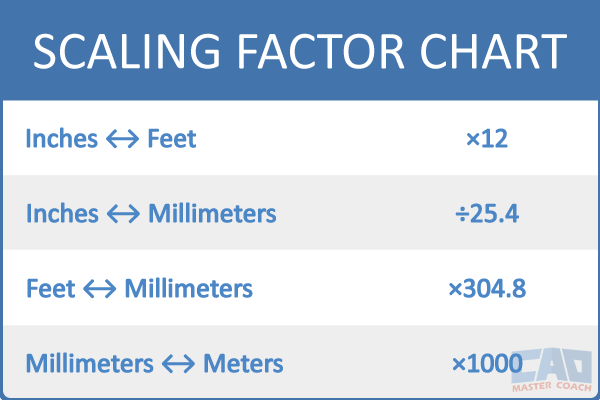
When scaling a drawing manually, use accurate conversion factors to avoid compounding measurement errors.
Option 2: Use -DWGUNITS (Recommended)
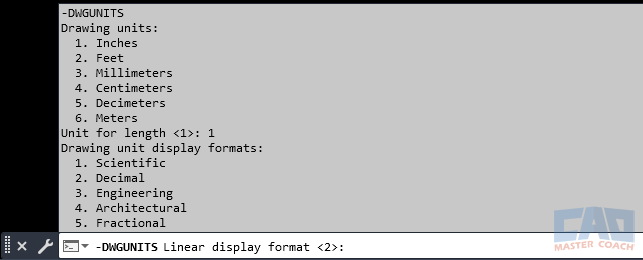
The -DWGUNITS command allows you to convert and rescale an entire drawing when the wrong units were used initially.
Type:
- -DWGUNITS
AutoCAD will ask:
- Current units
- Desired units
- Whether to scale the geometry
Answer "Yes" to scaling unless you have a very specific reason not to.
This method handles:
- Imperial ↔ Metric conversions
- Bad blocks
- Wrong templates
- Incorrect insertion scales
- Mixed content
How To Tell If Your Units Are Wrong
Look for symptoms like:
- Door blocks insert very tiny
- Hatches are microscopic
- Xrefs do not align
- Dimensions read incorrectly
- An object measuring “8” is actually 8 feet instead of 8 inches
When in doubt, check:
- UNITS
- DIMSTYLE
- INSUNITS system variable
- Block editor (BEDIT) block units
Related Commands and Tools
| Command / Tool | Description |
|---|---|
| DIMSTYLE | Controls how dimensions are formatted and displayed. Must match units. |
| SCALE | Scales geometry manually when fixing unit mistakes. |
| -DWGUNITS | Command-line unit conversion tool. Can rescale drawings automatically. |
| MEASUREGEOM | Confirms whether geometry measures as expected. |
| DIST | Measures distances to validate whether units are correct. |
| INSUNITS | System variable controlling block insertion units. |
| OPTIONS | Controls general drawing defaults, including template settings. |
| UNITS | The primary command for controlling drawing and insertion units. |
FAQ – UNITS in AutoCAD
Your geometry will be the wrong size, dimensions will be incorrect, and blocks may insert at unpredictable scales.
Yes — using either SCALE or -DWGUNITS, depending on the situation.
No. It only changes how measurements are displayed, not actual size.
UNITS controls how AutoCAD interprets distances.
DIMSTYLE controls how dimensions format those distances.
AutoCAD is completely unitless. A line that measures “10” has no inherent meaning until you assign one.
Their INSUNITS setting doesn’t match your drawing’s insertion scale.
Only for highly specialized workflows. Most users should avoid it.
Use Architectural with Insertion Scale = Inches.
Incorrect units or incorrect scaling often cause hatch pattern mismatches.
Yes — it is one of the safest ways to convert drawings between measurement systems.
You likely mixed inches (blocks) with feet (Xrefs). Fix the insertion scale or run -DWGUNITS on the Xref.
Professional workflows rely on templates so units (along with layers, text styles, and dimstyles) are always correct from the start.
All Commands
Command Categories

Create
Explore all AutoCAD Create commands in one place. Learn how to use LINE, CIRCLE, ARC, POLYLINE, BLOCK, HATCH, and more with tutorials and practical examples.

Modify
Your complete guide to AutoCAD Modify tools—ERASE, TRIM, EXTEND, MOVE, ROTATE, OFFSET, FILLET, and more—with tips and workflows.

Notation
Complete guide to annotation in AutoCAD: text, dimensions, leaders, tables, zoom/pan basics, and clipboard tools.

Drafting Aids
Learn AutoCAD’s Drafting Aids and Precision Controls—OSNAP, Ortho Mode, Polar Tracking, Object Snap Tracking, and Dynamic Input. Improve accuracy, speed, and control with this complete guide.

All Commands
Browse every AutoCAD command in one place with this complete A–Z index. Quickly find command pages for LINE, ERASE, ZOOM, and more, with clear explanations and tips for efficient drafting.
Create Commands