
Circle (2-Point) Command in AutoCAD: How to Draw a Circle Using Two Points
Drawing circles is one of the most common drafting tasks in AutoCAD, and understanding every circle creation method gives you flexibility, accuracy, and confidence. Most new users start with Center–Radius, but the 2-Point option is equally powerful—especially when working with existing geometry or when the center of the circle is not known.
In the Circle (2-Point) method, the two points you click define the diameter endpoints of the circle. This makes it an ideal choice when you know exactly where the circle needs to start and end, or when you want to fit a circle between two specific features.
This article explains exactly how the 2-Point option works, how to use it effectively, when to use it instead of other circle methods, and common mistakes to avoid. You’ll also find practical engineering examples, CAD Master Coach Tips, and a comparison table that shows where the 2-Point method fits among the other AutoCAD circle tools.
1. What the 2-Point Circle Method Actually Does
The 2-Point circle method allows you to define a circle using nothing more than two points on the diameter. These two clicks tell AutoCAD:
- Point 1 = First endpoint of the diameter
- Point 2 = Second endpoint of the diameter
- Midpoint between them = center of the circle
- Distance between them = diameter length
This creates extremely predictable geometry because the relationship between two points is absolute—there’s no need to calculate a center point or remember a radius value.
2. Why this method is useful
Use the 2-Point method when:
- You know exactly where the circle must touch two existing features
- You’re working with geometry where dimensions are uncertain
- You need to construct a circle between two endpoints (e.g., hole locations)
- You want a circle whose placement depends strictly on physical layout, not math
- You don’t know the radius but you DO know two boundary points
It’s precise, intuitive, and avoids guesswork.
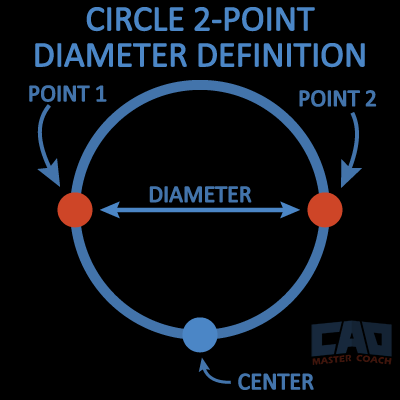
This image shows how the two selected points form the diameter of the circle, with the midpoint becoming the center.
3. How to Use the Circle (2-Point) Option
Here is the complete step-by-step workflow. It works the same in AutoCAD LT and full AutoCAD.
Step-by-Step Instructions
- Start the CIRCLE command.
- Ribbon: Home > Draw > Circle
- Command line shortcut: C
- Toolbar: Circle icon
- Choose the 2P (Two-Point) option.
- AutoCAD displays several options after the command starts; choose 2P by clicking it or typing 2P.
- Specify the first endpoint of the diameter.
- Click wherever the diameter should begin—preferably using OSNAP for accuracy.
- Specify the second endpoint of the diameter.
- Click the opposite end of the diameter or enter coordinate values.
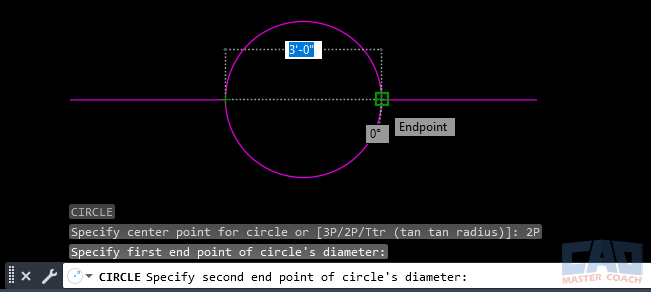
Screenshot showing OSNAP snapping to endpoints while selecting diameter points.
- The circle is instantly drawn.
This is one of the fastest circle creation techniques, and it ensures the circle passes exactly through the two chosen points.
4. Selecting Points Accurately
Accuracy matters, and snapping is key:
- END — for precise line endpoints
- MID — to use the midpoint of a line or segment
- CEN — when one side of the diameter aligns with a center
- INT — when the diameter needs to touch an intersection
- PERP — when constructing orthogonally
You can also type exact coordinates or use Direct Distance Entry with Polar Tracking.
5. Command Line Workflow
Here is the exact command-line sequence you’ll typically see:
- Command: CIRCLE
- Specify center point for circle or [3P/2P/Ttr (tan tan radius)]:
- Specify first end point of circle's diameter:
- Specify second end point of circle's diameter:
This version appears when you start CIRCLE, then choose 2P from the options.
6. Practical Use Cases for Circle (2-Point)
The 2-Point method shines in real engineering and drafting problems where geometry determines the circle—not calculations.
Example 1: Mechanical Brackets and Hole Patterns
Imagine you’re drawing a mechanical bracket where a circular cutout must pass through two known points. You may not know the radius or center, but you do know where the cutout must touch the material.
Using Circle → 2P, you simply snap to the two required points, and AutoCAD calculates the correct circle.
Example 2: Architectural Space Planning
In architectural layouts, especially furniture plans or cabinetry, you may need to visualize an arc or clearance circle between two fixed points:
- Door swing clearances
- Countertop corner radii
- Circular layout features between walls
The 2-Point method ensures the circle fits exactly within the available space.
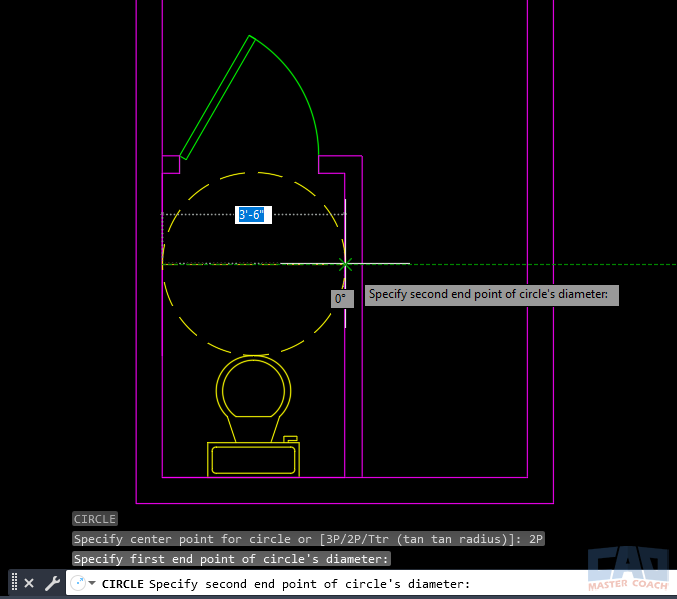
Illustration of a circle drawn between two points on walls in a bathroom to ensure clearance for the toilet in an architectural layout.
Example 3: Civil Engineering Layouts
Civil engineers often place circular islands, turning radii, or underground features based on two known points (such as offsets from a curb or grid).
For example:
- A manhole cover that must be centered between two survey points
- A landscaped island that must touch two pavement edges
- A pipe opening or culvert placed between boundary markers
The 2-Point option guarantees geometric accuracy.
Example 4: Unknown Radius, Known Endpoints
Sometimes, the radius is irrelevant but the endpoints matter:
- Fabrication layouts
- Waterjet or laser cutting
- Custom metalwork where two contact points define a circle
Instead of solving the circle mathematically, you let AutoCAD do the heavy lifting.
7. CAD Master Coach Tips
Here are some high-value tips to improve accuracy and speed when using the 2-Point circle option.
Tip 1: Use MID for Perfect Symmetry
If you want the circle centered on a line, snap the first point to one endpoint and the second point to the opposite endpoint. AutoCAD automatically centers the circle on the midpoint of the line.
Tip 2: Use Construction Lines for Alignment
Create temporary XLINE or RAY geometry to control the orientation and alignment of your diameter endpoints.
Tip 3: Use Polar Tracking for Perfect Horizontal or Vertical Circles
Turn on Polar Tracking and align the diameter horizontally or vertically for alignment-sensitive geometry.
Tip 4: Zoom In Before Selecting Points
Selecting the wrong endpoint or intersection is the #1 cause of inaccurate circles. Zoom in before clicking.
Tip 5: Always Draw on the Correct Layer First
Circles placed on incorrect layers cause messy drawings and destroyed CAD standards. Always check your current layer.
8. Comparison: 2-Point vs Other Circle Methods
Below is a summary of how the 2-Point method compares with the other major circle tools.
| Method | Best For | Required Inputs | Strengths |
|---|---|---|---|
| Center–Radius | Most common circles | Center + radius | Simple, fast |
| Center–Diameter | Specified overall diameter | Center + diameter | Exact diameter control |
| 2-Point | Circles between two known points | Two endpoints | Excellent for fitting geometry |
| 3-Point | Circles through three known points | Three points | Great for irregular construction |
| TTR (Tan–Tan–Radius) | Circles tangent to two objects | 2 tangents + radius | Ideal for offset geometry |
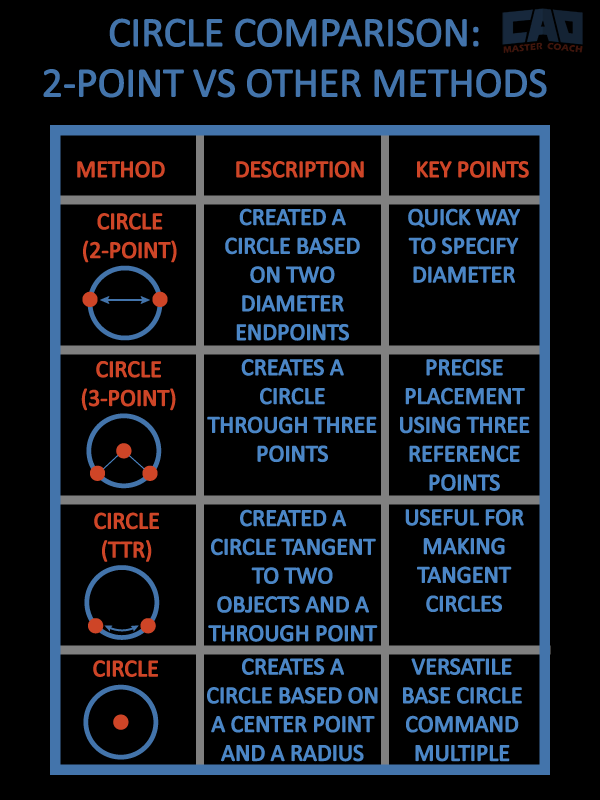
A four-method comparison infographic showing 2P, 3P, TTR, and Center–Radius.
9. Related Commands and Tools
| Command / Tool | Description |
|---|---|
| CIRCLE | Main command used to create circles. |
| CIRCLE (3-Point) | Creates a circle using three known points. |
| CIRCLE (TTR) | Creates a circle tangent to two objects with a set radius. |
| ARC | Draws arcs using multiple construction methods. |
| XLINE / RAY | Construction lines to help with layout and alignment. |
| OSNAP | Ensures precision when selecting endpoints and intersections. |
| Polar Tracking | Helps align points horizontally, vertically, or at set angles. |
| Dynamic Input | Displays command input next to the cursor. |
| TRIM | Cleanup tool for modifying geometry around circles. |
| EXTEND | Cleanup tool for modifying geometry around circles. |
10. Common Mistakes & Troubleshooting
Even though the 2-Point method is easy, several pitfalls can lead to inaccurate or unexpected results.
Mistake 1: Clicking Without Using OSNAP
This creates circles that “look right” but are actually imprecise. Always verify active OSNAPs.
Mistake 2: Selecting the Wrong Endpoint
Zooming too far out or having too many OSNAPs on can cause AutoCAD to snap to the wrong point.
Mistake 3: Drawing on the Wrong Layer
Fixing layer mistakes later is tedious—always set your layer first.
Mistake 4: Confusing 2P with Diameter Entry
Diameter entry creates a circle from the center; 2P creates it from the endpoints.
Mistake 5: Losing Track of Geometry
If the circle appears “off-screen,” you may be drawing far from the origin—use Zoom Extents.
11. Summary
The Circle (2-Point) sub-command is one of the most reliable ways to create circles based entirely on geometric relationships. Whether you are designing mechanical parts, architectural features, or civil layouts, the 2-Point method gives you accuracy and control without requiring radius or diameter calculations.
Use this method whenever you know two boundary points and want AutoCAD to compute the perfect circle for you.
12. FAQ — Circle (2-Point) in AutoCAD
It creates a circle using two points that define the diameter. AutoCAD automatically calculates the center and radius.
Use 2-Point when the circle must pass through two specific points or when you don’t know the center point.
Yes. You can click, snap, or type absolute or relative coordinates.
No. The circle will be identical regardless of which endpoint you pick first.
Absolutely—this is the recommended way to ensure precision.
Usually this means units or drawing scale are set incorrectly, or you are zoomed too far out.
Yes. You can snap to polyline endpoints, midpoints, intersections, or quadrants.
You can’t—use the TTR method for tangent-based circles.
Ways to Use Circle

Learn how to use AutoCAD’s Center–Radius circle method with precision. Step-by-step instructions, pro techniques, and engineering examples.

Learn how to use the Circle (2-Point) command in AutoCAD to create precise circles between two points. Step-by-step guide, examples, tips, and FAQs included.

Learn how to use the AutoCAD Circle (3-Point) method to draw a circle through any three points. This step-by-step guide includes screenshots, tips, tables, best practices, and FAQs.

Learn how to use the CIRCLE TTR (Tangent–Tangent–Radius) option in AutoCAD to create perfectly tangent circles with an exact radius. Includes step-by-step instructions, screenshots, troubleshooting tips, and real-world applications.
Command Categories

Create
Explore all AutoCAD Create commands in one place. Learn how to use LINE, CIRCLE, ARC, POLYLINE, BLOCK, HATCH, and more with tutorials and practical examples.

Modify
Your complete guide to AutoCAD Modify tools—ERASE, TRIM, EXTEND, MOVE, ROTATE, OFFSET, FILLET, and more—with tips and workflows.

Notation
Complete guide to annotation in AutoCAD: text, dimensions, leaders, tables, zoom/pan basics, and clipboard tools.

Drafting Aids
Learn AutoCAD’s Drafting Aids and Precision Controls—OSNAP, Ortho Mode, Polar Tracking, Object Snap Tracking, and Dynamic Input. Improve accuracy, speed, and control with this complete guide.

All Commands
Browse every AutoCAD command in one place with this complete A–Z index. Quickly find command pages for LINE, ERASE, ZOOM, and more, with clear explanations and tips for efficient drafting.
Create Commands










Ways to Use Circle