ATTRIBUTE (ATTDEF) — Define Text Attributes in AutoCAD
AutoCAD ATTRIBUTE (ATTDEF) Command Access
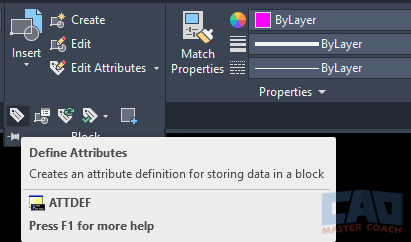
COMMAND LINE: ATTDEF

DEFAULT KEYBOARD SHORTCUT: AT
RIBBON: HOME | BLOCK TAB | ATTDEF
Introduction
Attributes are one of the most powerful tools available in AutoCAD for creating intelligent drawings. An attribute is a text-based data field stored inside a block. When someone inserts the block, AutoCAD prompts them to enter values—such as sheet numbers, project names, dates, initials, and other information that varies from instance to instance.
The ATTDEF command (Attribute Definition) is how you create these attributes. It opens a dialog box where you set the tag, prompt, default value, formatting, and attribute behavior. After defining one or more attributes, you place them in your drawing and then include them in a block.
This article explains every option in the Attribute Definition dialog box, how attribute order affects user prompts, and how to use attributes effectively in title blocks, symbols, and other repeatable content.
What Are Attributes in AutoCAD?
Attributes are editable text fields embedded inside blocks. They allow each inserted block instance to store different information—something normal text cannot do.
Common uses include:
- Sheet titles and sheet numbers
- Project name and project number
- Drawn by / Checked by fields
- Revision information
- Symbol labels
- Annotation markers (section cuts, elevations, etc.)
- Equipment tags
- Data extraction for schedules and tables
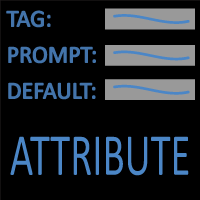
Every attribute includes three essential components:
- Tag — the internal name AutoCAD uses
- Prompt — the message shown to the user
- Default value — the starting text
Once attributes are part of a block, inserting that block displays a pop-up window showing each attribute in the order you originally selected them. This detail is extremely important for usability and consistency.
The Attribute Definition (ATTDEF) Dialog Box
Running the ATTRIBUTE or ATTDEF command opens a comprehensive dialog with all the options needed to define an attribute. Below is a detailed breakdown of each component and how it affects behavior.
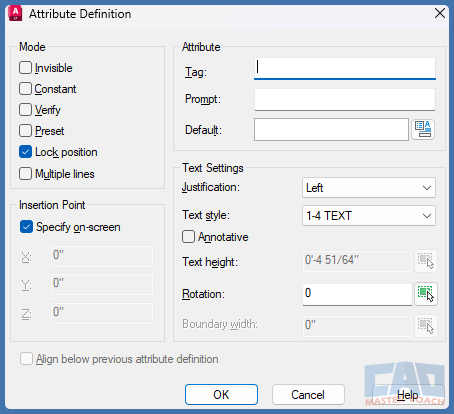
The Attribute Definition dialog box includes the tag name, prompt, default value, text style settings, and attribute modes.
1. Attribute Category Options
Tag
The Tag is the internal name for the attribute.
- Must be unique within a block
- Should be in ALL CAPS
- No spaces; use underscores if needed
- Avoid renaming Tags later because it can break data extraction and standards
Examples:
- SHEET_NUMBER
- DRAWN_BY
- PROJECT_NAME
Prompt
This is the text AutoCAD displays to the user during block insertion.
Examples:
- “Enter sheet number:”
- “Drawn by:”
- “Project name:”
Make prompts clear and human-friendly.
Default Value
This is what appears automatically in the attribute unless the user types something else. You can leave this blank if you want the user to always enter a value.
If the attribute is Constant, the default becomes the permanent text displayed.
2. Text Settings
Text Style
Choose a text style from your drawing.
Common choices:
- ROMANS
- Annotative text styles
- Office standard styles
Justification
Determines how text aligns relative to the insertion point:
- Left
- Right
- Center
- Middle Center
- Fit
This is essential for precision placement.
Text Height
Determines the size of the attribute text:
- Title block attributes often use 0.125” or 3.5 mm
- Annotation-based attributes may vary depending on scale
Rotation
Sets the text angle.
- 0° is horizontal
- 90° is vertical
- Other angles are used for symbols or architectural conventions
Annotative
When checked, the attribute scales with different annotative scales.
Use only when the block needs to appear at multiple scales automatically.
3. Attribute Modes
These options change how AutoCAD treats the attribute.
| Mode | Behavior |
|---|---|
| Invisible | Attribute is hidden in the drawing but still stored. |
| Constant | Attribute cannot be edited during block insertion. |
| Verify | AutoCAD asks the user to confirm their entry. |
| Preset | AutoCAD skips prompting if a default value exists. |
| Lock Position | Prevents the attribute from being moved. |
Notes:
- Constant attributes are perfect for fixed text like company names.
- Invisible attributes are ideal for metadata.
- Lock Position is strongly recommended for title block attributes.
Inserting the Attribute into the Drawing
After clicking OK in the dialog box, AutoCAD prompts you to pick an insertion point.
Placement matters:
- Insertion point determines alignment
- Justification affects layout
- Title block attributes should be placed very precisely
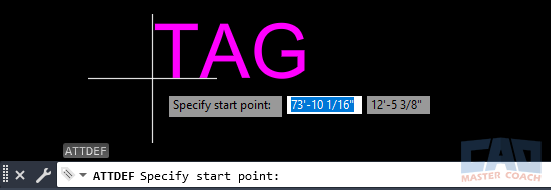
After defining the attribute, click to place it at the correct location in your title block or symbol.
Adding Attributes to a Block
Attributes only work when they are part of a block definition.
To include them:
- Draw your geometry
- Create each attribute with ATTDEF
- Run the BLOCK command
- Select the geometry and the attributes
- Choose a base point
- Give the block a name
- Save it
The attribute selection order matters
During block creation, select attributes in the order you want them to appear in the pop-up window.
This small detail greatly improves usability—especially in title blocks.
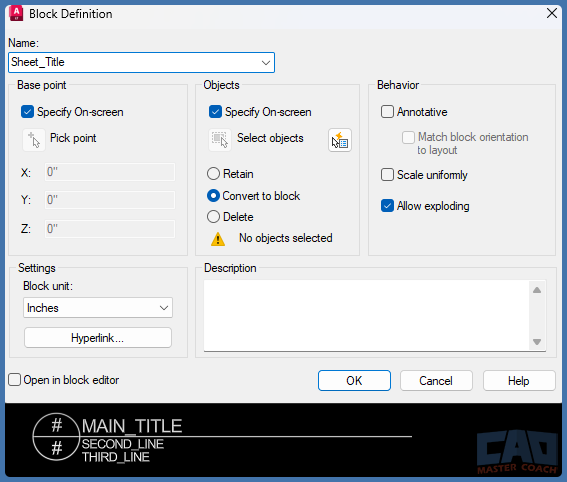
Select both the attribute and the drawing geometry when defining your block.
Editing Attribute Values After Block Insertion
Once a block containing attributes is inserted, values can be edited using:
- EATTEDIT (Enhanced Attribute Editor)
- ATTEDIT (Legacy editor)
- Double-clicking the block
The Enhanced Attribute Editor allows users to:
- Change values
- Modify text height
- Adjust justification
- Change layer
- Toggle visibility
However, Tags cannot be changed this way. Changing a Tag requires redefining the attribute and then redefining the block.
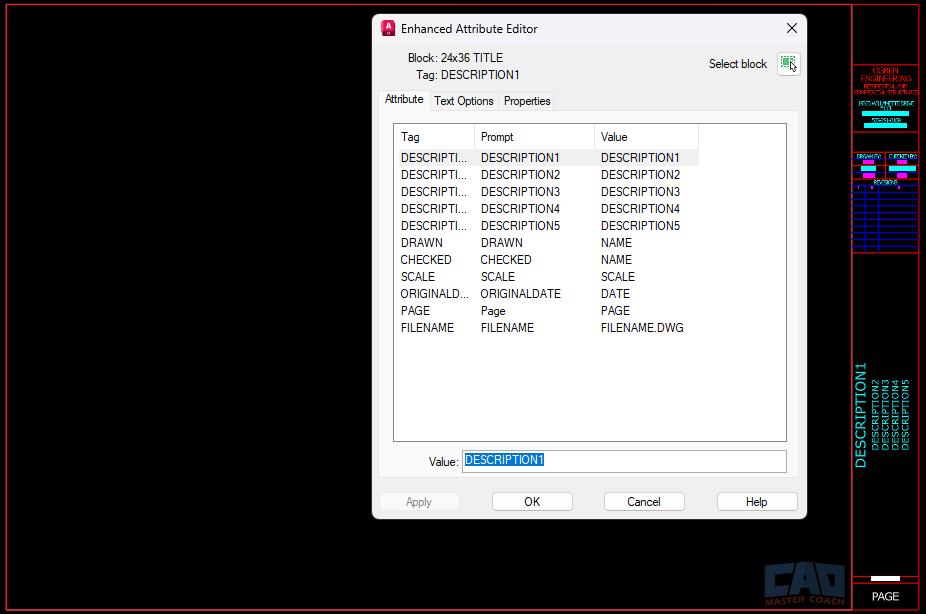
The Enhanced Attribute Editor allows you to edit attribute values after inserting the block.
Tips for Using Attributes in Title Blocks
Attributes are essential for modern title blocks. Here are best practices:
- Use ALL CAPS for Tags
- Group related fields together (project info, sheet info, revision info)
- Make prompts clear and short
- Use Constant attributes for fixed fields
- Lock attribute positions after placement
- Avoid annotative attributes unless necessary
- Maintain consistent text styles

Title blocks typically include attributes such as sheet number, drawn-by information, and project details.
When to Use Constant Attributes
Constant attributes are excellent for:
- Company name
- Address
- Standard notes
- Revision block labels
- Symbols with fixed identifiers
Unlike normal attributes, Constant attributes never prompt the user—they simply display the default value every time.
Extracting Attribute Data
Attributes enable powerful automation tools such as:
- Schedules
- Material lists
- Parts lists
- Index sheets
- Excel exports
Use the DATAEXTRACTION command to collect attribute values and output them to tables or files.
To ensure reliable extraction:
- Use consistent Tag naming
- Maintain uppercase
- Avoid renaming Tags
- Use identical attribute definitions across related blocks
Common Attribute Mistakes
Avoid these frequent Attribute mistakes:
- Using inconsistent naming (e.g., SheetNum vs SHEET_NUMBER)
- Forgetting to lock attribute positions
- Changing Tag names after release
- Leaving attributes out of the block definition
- Selecting attributes in the wrong order
- Accidentally checking Invisible or Preset
Attribute Modes
| Mode | Description | Common Uses |
|---|---|---|
| Invisible | Hidden from view but still part of the block. | Metadata, automation fields, IDs. |
| Constant | Not editable during block insertion. | Company name, static labels, fixed notes. |
| Verify | Prompts twice to confirm entry. | Critical fields such as sheet number. |
| Preset | Auto-fills the default value without prompting. | Symbols with standard values. |
| Lock Position | Prevents attribute from being moved. | Title blocks and templates. |
Related Commands and Tools
| Command / Tool | Description |
|---|---|
| BLOCK | Creates block definitions that contain attributes. |
| EATTEDIT | Edits attribute values after block insertion. |
| ATTEDIT | Legacy attribute editor. |
| DATAEXTRACTION | Extracts attribute information for schedules and tables. |
| BATTMAN | Manages attribute order and settings inside a block. |
FAQ — ATTRIBUTE (ATTDEF)
The attribute might be set to Invisible, or it might be marked Constant or Preset, which prevent prompts from appearing. Check the Attribute Modes in the block definition.
AutoCAD shows attribute prompts in the order you selected the attributes when creating the block. If you want to change the order later, use the BATTMAN command.
Yes. Use EATTEDIT, ATTEDIT, or simply double-click the block to modify attribute values.
- Tag: Internal name used for data extraction (must be unique).
- Prompt: The message displayed to the user during insertion.
The user never sees the Tag.
Yes. Attributes only work inside block definitions. If you place attributes directly in a drawing without creating a block, nothing will prompt and no instance-based data will be stored.
Summary
The ATTRIBUTE (ATTDEF) command is the foundation for building intelligent, editable, and data-rich blocks in AutoCAD. Understanding Tags, Prompts, Default values, Attribute Modes, and block selection order gives you full control over how information is entered and managed. Once set up correctly, attributes save massive amounts of time and ensure consistent, professional drawings across your entire project or office.
All Commands
Command Categories

Create
Explore all AutoCAD Create commands in one place. Learn how to use LINE, CIRCLE, ARC, POLYLINE, BLOCK, HATCH, and more with tutorials and practical examples.

Modify
Your complete guide to AutoCAD Modify tools—ERASE, TRIM, EXTEND, MOVE, ROTATE, OFFSET, FILLET, and more—with tips and workflows.

Notation
Complete guide to annotation in AutoCAD: text, dimensions, leaders, tables, zoom/pan basics, and clipboard tools.

Drafting Aids
Learn AutoCAD’s Drafting Aids and Precision Controls—OSNAP, Ortho Mode, Polar Tracking, Object Snap Tracking, and Dynamic Input. Improve accuracy, speed, and control with this complete guide.

All Commands
Browse every AutoCAD command in one place with this complete A–Z index. Quickly find command pages for LINE, ERASE, ZOOM, and more, with clear explanations and tips for efficient drafting.
Create Commands