
AutoCAD POLYGON Command
POLYGON Command Access
COMMAND LINE: POLYGON
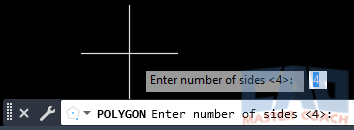
DEFAULT KEYBOARD SHORTCUT: POL
RIBBON: HOME | DRAW TAB | POLYGON
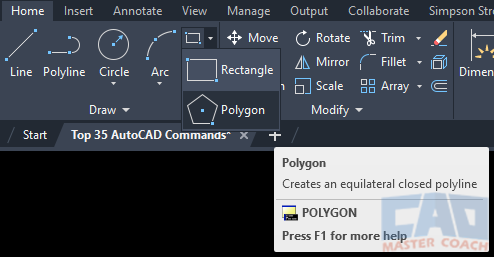
How to Create a POLYGON in AutoCAD
To create a polygon, initiate the POLYGON command and enter the number of sides the polygon will have. In the image below, 6 was entered to create a polygon with six equal sides.
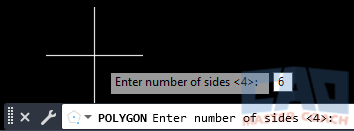
After entering the number of sides, enter the location of the center of the polygon.
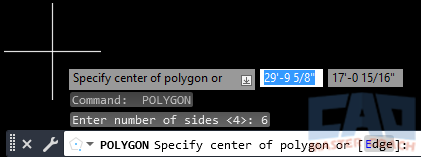
Next, indicate if the polygon will be Inscribed or Circumscribed about the circle which will define the size of the polygon.
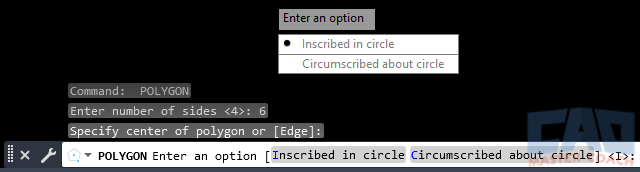
Lastly, enter the radius of the circle that defines the size of the polygon.
If a polygon is inscribed in a circle, it is entirely inside the circle with only the vertices touching the circle. If a polygon is circumscribed about a circle, it is entirely outside the circle with each face intersecting with the circle at the point its midpoint.

EDGE OPTION
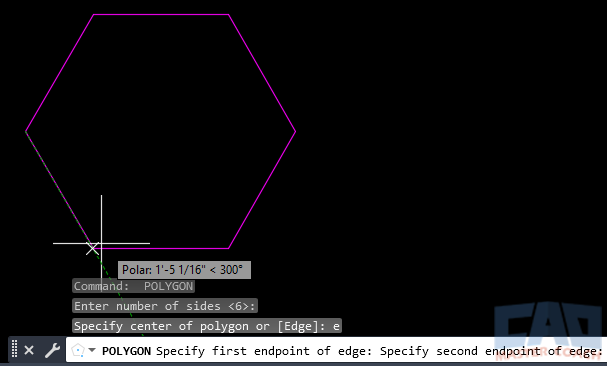
When the Edge option is selected, select the location of one of the vertices and then select the length and direction of one edge of the polygon. All other edges of the polygon will have the same length.
All Commands
Command Categories

Create
Explore all AutoCAD Create commands in one place. Learn how to use LINE, CIRCLE, ARC, POLYLINE, BLOCK, HATCH, and more with tutorials and practical examples.

Modify
Your complete guide to AutoCAD Modify tools—ERASE, TRIM, EXTEND, MOVE, ROTATE, OFFSET, FILLET, and more—with tips and workflows.

Notation
Complete guide to annotation in AutoCAD: text, dimensions, leaders, tables, zoom/pan basics, and clipboard tools.

Drafting Aids
Learn AutoCAD’s Drafting Aids and Precision Controls—OSNAP, Ortho Mode, Polar Tracking, Object Snap Tracking, and Dynamic Input. Improve accuracy, speed, and control with this complete guide.
All Commands
Browse every AutoCAD command in one place with this complete A–Z index. Quickly find command pages for LINE, ERASE, ZOOM, and more, with clear explanations and tips for efficient drafting.
Create Commands











Written by
 |
Scott Ogren, PE |
|
Scott Ogren, PE first used AutoCAD in 1993 while in college studying civil / structural engineering. In 2002, I founded Ogren Engineering and have been working for myself since. AutoCAD and drafting skills are a requirement to work for my firm. Over the years, I have coached, tutored, and taught many people how to use and become proficient with AutoCAD. Ogren Engineering: https://ogreneng.com/ In addition, Scott has written software to perform the lateral analysis of a wood-framed building. Shearwall Pro: https://shearwallpro.com/ |