
Practical Uses of TRIM in AutoCAD
The TRIM command is one of the most frequently used tools in AutoCAD, not because it draws anything new, but because it refines what you’ve already drawn. In real drafting workflows, geometry is often created quickly and deliberately oversized, then cleaned up once relationships are clear. TRIM is the tool that turns rough layout into finished drawings.
This article focuses on the practical, real-world uses of TRIM—the situations where experienced drafters reach for it automatically. Rather than explaining how to start the command or what each option does, this page concentrates on when TRIM is the right tool and how it fits into everyday drafting workflows across multiple disciplines.
When TRIM Is the Right Tool
TRIM is most effective when geometry already exists and simply needs to be refined. In real drafting workflows, objects are often drawn longer than necessary so they can be aligned, offset, or copied quickly without worrying about exact endpoints. Once those relationships are established, TRIM is used to remove the excess and bring the drawing into its final, clean state. For this reason, TRIM is rarely the first command used when creating geometry, but it is almost always part of the refinement process that follows.
This makes TRIM especially valuable during the cleanup phase of a drawing. After layout lines, offsets, and construction geometry have served their purpose, TRIM allows you to correct overlaps, resolve intersections, and clarify boundaries without redrawing objects. Instead of erasing entire lines and recreating them, TRIM preserves the original geometry while removing only what is unnecessary. This approach improves accuracy, maintains drawing intent, and keeps workflows efficient—especially in complex or evolving drawings.
Practically speaking, TRIM is an important part of nearly every AutoCAD workflow. Once geometry is laid out, copied, or offset, there is almost always excess linework that needs to be removed. TRIM provides a fast, controlled way to clean up these conditions without disrupting the rest of the drawing. Rather than striving for perfect geometry on the first pass, experienced drafters rely on TRIM to refine their work as the drawing develops. This makes it a core productivity tool—not because it creates geometry, but because it helps turn rough layout into clear, accurate, and professional drawings.
Cleaning Up Intersections
One of the most common uses of TRIM is cleaning up intersections where objects cross each other unintentionally. Walls, centerlines, grids, and framing elements are often drawn past their final endpoints so they can be aligned easily. Once those relationships are established, TRIM removes the excess.
This approach is faster and more accurate than trying to draw every line to its exact endpoint from the beginning. By trimming intersections after the fact, you ensure clean corners and precise connections without excessive zooming or snapping.
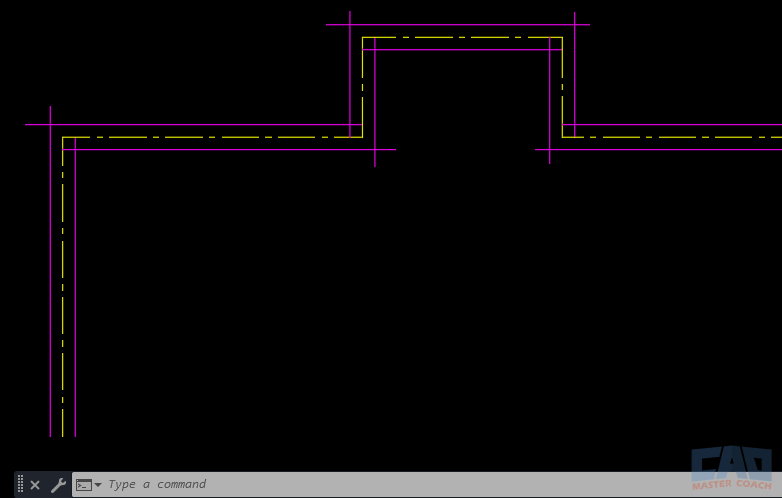
TRIM is commonly used to clean up intersections after layout geometry is drawn.
Removing Overdrawn Geometry
Overdrawing is a normal part of efficient drafting. Offsets extend past corners, construction lines remain after layout, and copied geometry may overlap other objects. TRIM excels at removing this excess without disturbing the geometry that should remain.
This is especially common after using OFFSET, COPY, or MIRROR. Instead of erasing and redrawing geometry, TRIM lets you surgically remove only the portions that no longer belong in the drawing.
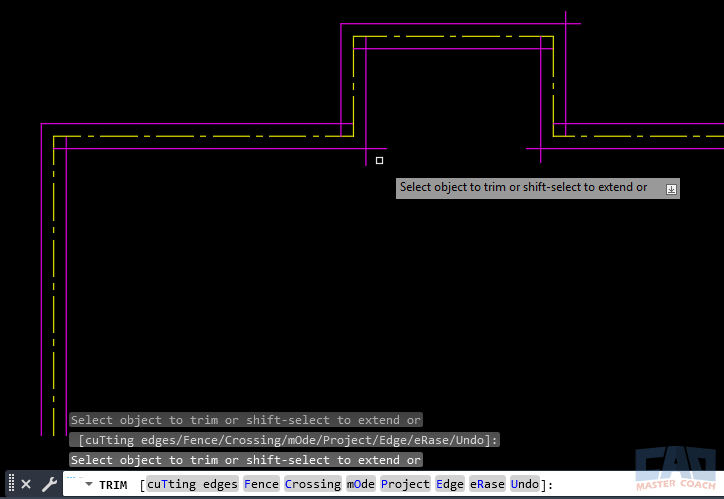
Offset geometry is often drawn long and trimmed back once alignment is verified.
Practical Drafting Scenarios
Architectural Plans
In architectural drawings, TRIM is used constantly to refine wall layouts and building components. Wall intersections are often created by offsetting centerlines or reference geometry, then trimming the resulting overlaps. Door swings, window openings, and cabinetry frequently intersect wall geometry and require cleanup before the drawing is complete.
Hatch boundaries are another common application. Rather than drawing perfect closed boundaries manually, many drafters apply hatch first and then trim surrounding geometry to create clean, readable plans.
Mechanical and Fabrication Drawings
In mechanical drawings, TRIM is often used to clean up profiles, section views, and centerlines. Parts are frequently sketched using overlapping geometry that is later refined. TRIM allows those intersections to be resolved cleanly without altering the overall shape or alignment of the part.
Fabrication drawings benefit from this approach because it preserves intent while ensuring that only the required geometry remains visible.
Civil and Site Drawings
Civil drawings also rely heavily on TRIM. Property lines may need to be trimmed to rights-of-way, centerlines trimmed at intersections, or curb returns cleaned up after layout. In these cases, geometry is often created broadly and then refined once alignments are verified.
TRIM Efficiency Techniques
While TRIM is simple to use, experienced drafters develop a few habits that significantly improve speed and accuracy. One of the most important is treating TRIM as a cleanup tool rather than a precision drawing command. Geometry is often drawn quickly and intentionally oversized, with the understanding that TRIM will be used later to remove anything that extends too far. This mindset reduces hesitation and keeps drafting momentum high.
Efficiency also comes from working with context rather than isolating geometry. Keeping more of the drawing visible makes it easier to select appropriate cutting edges and avoid trimming the wrong objects. Instead of focusing on individual lines, experienced users think in terms of areas and intersections, using TRIM to resolve multiple conditions at once. Over time, these habits turn TRIM into a fast, almost automatic part of the workflow rather than a command that requires careful setup or repeated corrections.
Selecting Everything as a Cutting Edge
In dense drawings, it is often faster to select all visible geometry as cutting edges rather than trying to pick individual objects. After starting the TRIM command, simply press Enter again at the Select cutting edges prompt to tell AutoCAD to treat all visible objects as valid cutting edges. This eliminates missed trims and allows you to focus entirely on selecting what should be removed, rather than worrying about which objects need to be selected first.
This approach is especially effective in floor plans, sections, and detailed drawings where many objects intersect. By removing the need to carefully define cutting edges, TRIM becomes a rapid cleanup tool rather than a precision setup task. Many experienced drafters use this method by default, as it reduces clicks, minimizes errors, and keeps drafting momentum high in complex drawings.
Fence Trimming for Dense Geometry
Fence trimming allows you to remove multiple segments with a single gesture. By dragging a fence through the portions you want removed, you can clean up complex areas very quickly.
This technique is particularly effective when cleaning up wall intersections, section cuts, or detailed assemblies.
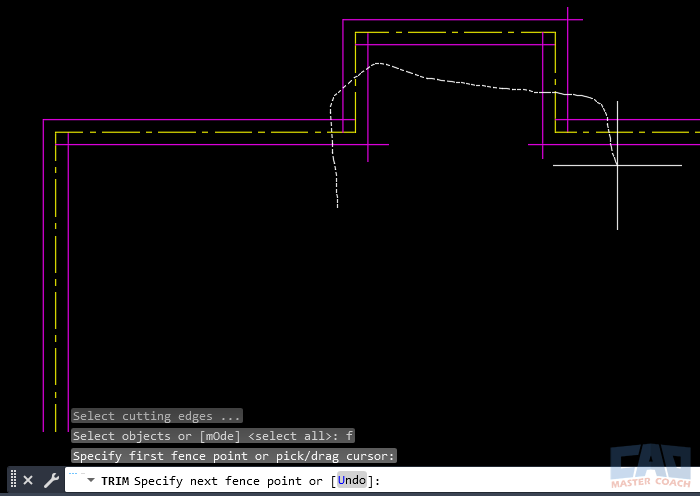
Fence trimming allows rapid cleanup of dense geometry.
TRIM vs ERASE vs EXTEND
Although ERASE and EXTEND may seem interchangeable with TRIM in some situations, TRIM is often the safer and more flexible choice. ERASE removes entire objects, which can require redrawing geometry that was otherwise correct. EXTEND works best when objects need to be lengthened to meet a boundary, while TRIM is ideal when only a portion of an object should be removed.
TRIM and EXTEND are closely related commands, and AutoCAD reflects this by allowing you to temporarily switch between them. While using TRIM, holding the SHIFT key momentarily invokes EXTEND, letting you lengthen geometry without leaving the command. This makes it easy to correct small gaps or overshoots on the fly. Understanding how these tools work together helps preserve drawing intent, reduce unnecessary redraws, and keep workflows efficient.
Common Mistakes When Using TRIM
Many issues with TRIM come from losing context or working too tightly zoomed in. Trimming the wrong object, failing to select proper cutting edges, or accidentally removing geometry on the wrong layer are common mistakes.
Another frequent issue is using ERASE when TRIM would preserve the rest of the object. Developing the habit of trimming rather than erasing helps keep drawings flexible and editable.
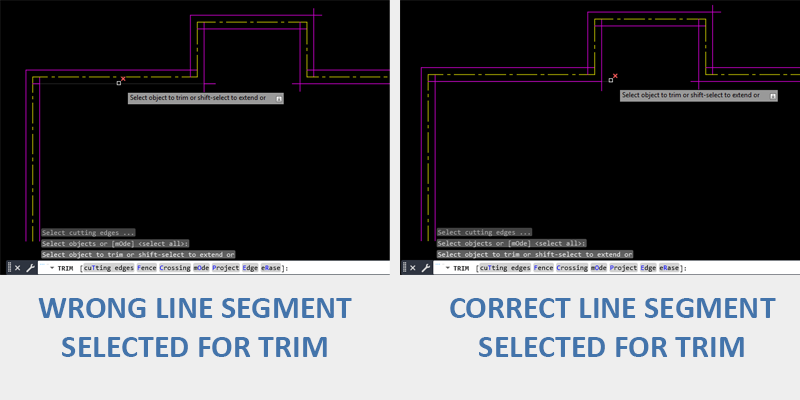
Maintaining context helps prevent trimming the wrong geometry.
Common TRIM Use Cases and Why They Work
| Use Case | Why TRIM Is Effective |
|---|---|
| Cleaning wall intersections | Ensures clean corners without redrawing |
| Removing offset overdraw | Preserves original geometry |
| Clearing construction lines | Non-destructive cleanup |
| Refining hatch boundaries | Faster than manual boundary creation |
| Cleaning section details | Maintains alignment and intent |
Related Modify Commands
| Command | Relationship to TRIM |
|---|---|
| EXTEND | Complements TRIM by lengthening geometry |
| OFFSET | Often followed by TRIM to remove overdraw |
| FILLET | Creates clean corners after trimming |
| CHAMFER | Used where trimmed edges need bevels |
| BREAK | Removes segments without cutting edges |
| ERASE | Removes entire objects instead of portions |
Frequently Asked Questions
Use TRIM when you want to remove part of an object but keep the rest intact.
Yes. Selecting multiple or all visible objects as cutting edges is common in professional workflows.
It is faster, more accurate, and easier to maintain alignment.
Cleaning up many overlapping objects at once in dense drawings.
Yes, TRIM works on polylines, arcs, and many other object types.
Undo will reverse the entire operation, not individual trims.
The object may not intersect a valid cutting edge or may be on a locked layer.
Almost always, especially in complex drawings.
No, locked layers prevent trimming.
Ways to Use Trim

Learn advanced TRIM techniques using boundaries, SHIFT-extend, Window/Crossing, Lasso, and Fence selections. A complete guide to trimming faster and with more control.
Learn the most practical real-world uses of the AutoCAD TRIM command, including cleanup workflows, efficiency tips, and common drafting scenarios.
Learn the most common AutoCAD TRIM mistakes and how professionals avoid them. Fix failed trims, intersections, layers, and selection issues fast.
Command Categories

Create
Explore all AutoCAD Create commands in one place. Learn how to use LINE, CIRCLE, ARC, POLYLINE, BLOCK, HATCH, and more with tutorials and practical examples.

Modify
Your complete guide to AutoCAD Modify tools—ERASE, TRIM, EXTEND, MOVE, ROTATE, OFFSET, FILLET, and more—with tips and workflows.

Notation
Complete guide to annotation in AutoCAD: text, dimensions, leaders, tables, zoom/pan basics, and clipboard tools.

Drafting Aids
Learn AutoCAD’s Drafting Aids and Precision Controls—OSNAP, Ortho Mode, Polar Tracking, Object Snap Tracking, and Dynamic Input. Improve accuracy, speed, and control with this complete guide.

All Commands
Browse every AutoCAD command in one place with this complete A–Z index. Quickly find command pages for LINE, ERASE, ZOOM, and more, with clear explanations and tips for efficient drafting.
Modify Commands
















Ways to Use Trim