
Common Mistakes with TRIM
The TRIM command is one of the most frequently used tools in AutoCAD — and also one of the most misunderstood. When TRIM works, it feels instant and effortless. When it doesn’t, users often assume AutoCAD is broken, glitchy, or “just being AutoCAD.”Content About Command
In reality, most TRIM problems come down to a small number of predictable mistakes. These mistakes are easy to make, especially when you’re moving quickly or learning the software, but they’re also easy to fix once you understand what’s really happening.
This article walks through the most common TRIM mistakes, explains why they happen, and shows how professionals avoid them in everyday drafting workflows.
Mistake #1 – Forgetting to Select Proper Cutting Edges
One of the most common TRIM failures happens before you even start trimming: no valid cutting edges were selected.
TRIM requires at least one cutting edge — an object that defines where other objects should be trimmed. If you skip this step or select the wrong objects, AutoCAD has nothing to work with. The result is a command that appears to do nothing.
Many users assume AutoCAD will automatically detect cutting edges based on proximity or overlap. It won’t. TRIM only works with explicitly selected edges.
A professional shortcut is to press Enter twice when prompted for cutting edges. This tells AutoCAD to treat all visible objects as cutting edges, which works well in most drafting situations and saves time.
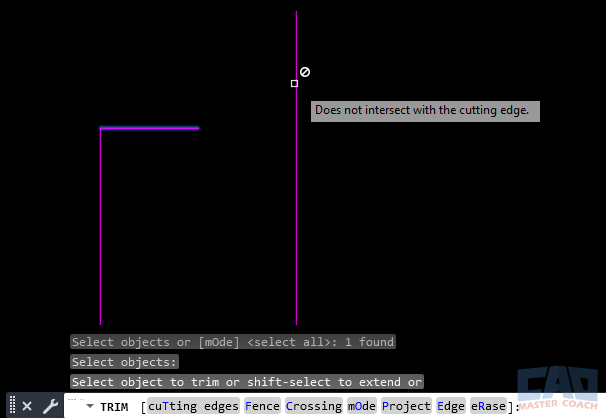
TRIM does nothing when no cutting edges are selected
Mistake #2 – Clicking the Wrong Side of the Object
TRIM is side-sensitive. When you click an object, AutoCAD removes the portion closest to where you clicked. If you click on the side you want to keep, nothing appears to happen.
This mistake is easy to miss, especially when zoomed out or working with thin geometry. Users may click repeatedly, thinking the command failed, when in fact they are simply selecting the wrong side of the object.
Zooming in slightly before trimming helps make the intended removal area obvious. With experience, professionals develop an instinct for pick locations and rarely need multiple attempts.
Mistake #3 – Assuming Objects Intersect When They Don’t
TRIM normally requires objects to physically intersect — when the system variable EDGEMODE is set to 0. In this default behavior, visual alignment alone is not enough.
Lines may appear to touch, but tiny gaps, misaligned endpoints, or differing Z-coordinates can prevent a true intersection. This is especially common in drawings that have been imported, scaled, or edited over long periods of time.
However, when EDGEMODE is set to 1, AutoCAD allows projected edges to act as cutting edges. In this mode, TRIM can remove objects even when they do not physically intersect, as long as they would intersect if extended.
If TRIM refuses to remove an object that looks like it should trim, first check whether the geometry truly intersects. If not, you have two reliable options:
- Use EXTEND to force a real intersection, or
- Set EDGEMODE to 1 to allow projected cutting edges
Understanding how EDGEMODE affects trimming behavior eliminates much of the confusion users experience with “non-working” trims.
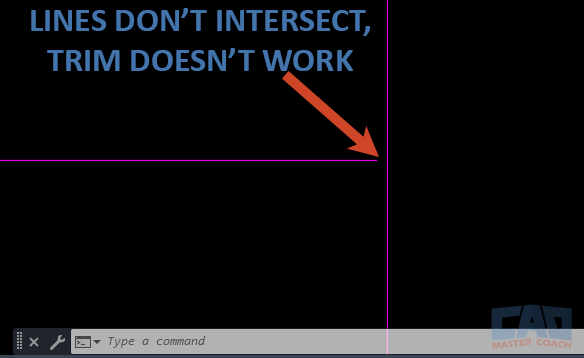
Visual overlap does not guarantee a valid trim
Mistake #4 – Trying to Trim Locked or Frozen Layers
Objects on locked layers cannot be modified, including trimmed. Frozen layers may hide potential cutting edges entirely.
AutoCAD does not always provide a clear warning when this happens, which can confuse users. The trim cursor appears, clicks register, but nothing changes.
Before troubleshooting geometry, check the Layer Manager. Unlock relevant layers and ensure cutting edges are visible and editable. This quick habit saves a surprising amount of time.
Mistake #5 – Not Using Fence Trimming When They Should
Fence trimming is one of the most powerful — and underused — features of TRIM.
Instead of clicking objects one at a time, Fence mode allows you to draw a temporary cutting line across multiple objects. Any object intersected by the fence is trimmed automatically.
Beginners often avoid Fence trimming because it feels imprecise or risky. Professionals use it constantly to clean up dense geometry, repetitive overlaps, and construction lines in seconds.
Fence trimming shines in floor plans, elevations, and detail drawings where many objects need to be trimmed consistently.
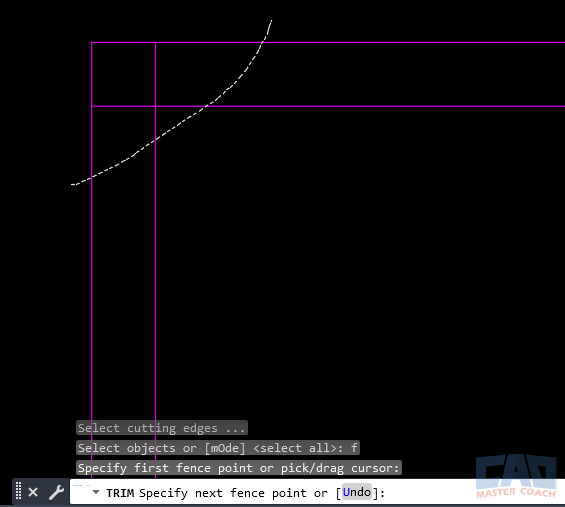
Fence trimming removes many objects at once
Mistake #6 – Trimming Instead of Redrawing
New users often erase and redraw geometry instead of trimming it. This feels safer, but it introduces alignment errors and wastes time.
Professional workflows favor drawing lines long and trimming them back. This approach preserves intent, maintains clean intersections, and allows geometry to adapt easily when designs change.
TRIM is not just a cleanup tool — it’s a construction strategy. When used intentionally, it reduces rework and keeps drawings flexible.
Mistake #7 – Forgetting TRIM Works on More Than Lines
TRIM works on far more than simple lines. Arcs, polylines, circles, and many compound objects can all be trimmed.
Users who assume TRIM is “for lines only” may miss opportunities to clean up geometry efficiently. Polylines, in particular, trim cleanly when intersections are valid, making them ideal for architectural and civil drawings.
If trimming fails on a complex object, check whether it is grouped, locked, or part of a block rather than assuming TRIM is incompatible.
Mistake #8 – Expecting Partial Undo Behavior
TRIM undo behavior is operation-based, not object-based. When you undo a trim, AutoCAD reverses the entire trimming action, not individual clicks.
This surprises users who expect to undo one mistake at a time. Professionals work around this by staging trims logically — performing related trims together and committing them before moving on.
Thinking one step ahead prevents frustration and reduces unnecessary undo cycles.
Visual Summary – Multiple Mistakes at Once
Objects on locked layers can be used as cutting edges, but they cannot be modified themselves. This distinction is important. A locked object will successfully act as a boundary for trimming other geometry, but if you attempt to trim the locked object directly, TRIM will appear to “fail” even though it is behaving correctly.
In addition, cutting edge behavior depends on the EDGEMODE system variable:
- EDGEMODE = 0
TRIM requires true geometric intersections. If an object does not physically intersect a cutting edge, it cannot be trimmed, even if it appears to line up visually.
- EDGEMODE = 1
AutoCAD allows projected cutting edges, meaning non-intersecting objects can still function as trimming boundaries. This setting can make TRIM feel more forgiving, but it can also obscure the real reason an operation succeeds or fails.
Because EDGEMODE changes how TRIM interprets geometry, professionals should always know which setting is active when diagnosing unexpected behavior.
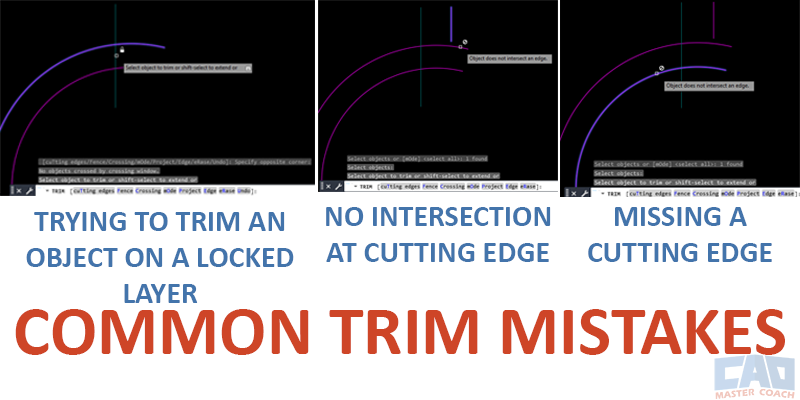
Several issues can prevent TRIM from working
CAD Master Coach Tip – How Professionals Avoid These Mistakes
Professionals don’t trim faster because they click faster — they trim faster because they set themselves up for success.
They draw geometry long, unlock layers early, use Enter-Enter to select cutting edges, and rely heavily on fence trimming. Most importantly, they understand what TRIM expects before blaming the software.
TRIM rewards deliberate setup and confident execution.
Common TRIM Mistakes – Quick Reference Table
| Mistake | What Goes Wrong | Quick Fix |
|---|---|---|
| No cutting edges | Nothing trims | Press Enter twice |
| Wrong side clicked | Object stays intact | Click closer to removal side |
| No intersection | TRIM fails silently | Use EXTEND first |
| Locked layer | Objects won’t modify | Unlock layer |
| No fence trimming | Slow cleanup | Use Fence mode |
| Redrawing geometry | Alignment errors | Draw long, trim later |
| Object type assumption | Trim fails | Verify object type |
| Undo confusion | Entire trim undone | Stage trims logically |
Related AutoCAD Commands
| Command | Why It’s Related |
|---|---|
| TRIM | Primary modification tool |
| EXTEND | Creates valid intersections |
| ERASE | Removes entire objects |
| STRETCH | Adjusts geometry length |
| FILLET | Cleans up corners |
| CHAMFER | Beveled intersections |
| BREAK | Splits objects |
Frequently Asked Questions
Usually no cutting edges were selected or the object does not intersect a valid edge.
Yes. Press Enter twice to select all visible objects as cutting edges.
Yes. TRIM works on many object types, including polylines and arcs.
The objects may not truly intersect due to small gaps or misalignment.
No. Locked layers prevent trimming.
Cleaning up many overlapping objects quickly.
Almost always, especially in complex drawings.
No. Undo reverses the entire trimming operation.
It is faster, more accurate, and easier to modify later.
Ways to Use Trim
Learn advanced TRIM techniques using boundaries, SHIFT-extend, Window/Crossing, Lasso, and Fence selections. A complete guide to trimming faster and with more control.
Learn the most practical real-world uses of the AutoCAD TRIM command, including cleanup workflows, efficiency tips, and common drafting scenarios.
Learn the most common AutoCAD TRIM mistakes and how professionals avoid them. Fix failed trims, intersections, layers, and selection issues fast.
Command Categories

Create
Explore all AutoCAD Create commands in one place. Learn how to use LINE, CIRCLE, ARC, POLYLINE, BLOCK, HATCH, and more with tutorials and practical examples.

Modify
Your complete guide to AutoCAD Modify tools—ERASE, TRIM, EXTEND, MOVE, ROTATE, OFFSET, FILLET, and more—with tips and workflows.

Notation
Complete guide to annotation in AutoCAD: text, dimensions, leaders, tables, zoom/pan basics, and clipboard tools.

Drafting Aids
Learn AutoCAD’s Drafting Aids and Precision Controls—OSNAP, Ortho Mode, Polar Tracking, Object Snap Tracking, and Dynamic Input. Improve accuracy, speed, and control with this complete guide.

All Commands
Browse every AutoCAD command in one place with this complete A–Z index. Quickly find command pages for LINE, ERASE, ZOOM, and more, with clear explanations and tips for efficient drafting.
Modify Commands
















Ways to Use Trim