
TRIM with Boundaries & Shortcuts
The TRIM command is one of the most frequently used tools in AutoCAD, but few people ever learn how powerful it can be when used with the right boundaries and selection shortcuts. TRIM may seem simple on the surface—cut objects at their intersections—but when you understand how boundaries work, how AutoCAD interprets your selections, and how to incorporate shortcuts like SHIFT, Fence, and Lasso, you can clean drawings faster and with much more control.
This guide focuses specifically on boundary-based trimming and the speed shortcuts that will help you work like an expert. If you already know basic TRIM, this section will elevate your workflow. If you’re new, this article will teach you the right habits from the start.
1. Quick Refresher: How TRIM Normally Works
TRIM removes the part of an object that extends past another object. The standard workflow is:
- Start TRIM
- Select cutting edges (the boundaries)
- Press Enter
- Click the part of the object you want to remove
If you skip step 2 and press Enter immediately, AutoCAD assumes every object in the drawing should act as a cutting edge. That’s called Implied All mode, and we’ll cover it in depth later.
2. Using Selection as Temporary Boundaries
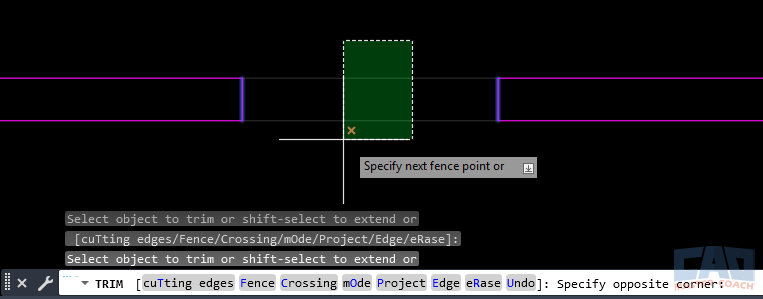
Selecting cutting edges gives precise control when trimming.
Before trimming, you can explicitly select the objects you want AutoCAD to recognize as the “cutting edges.” This gives you total control over how TRIM behaves.
Why Use Manual Boundary Selection?
By selecting specific boundaries:
- You prevent unintended trimming across distant parts of the drawing.
- You restrict trimming to a specific area.
- You can work neatly around openings, intersections, layouts, and detail drawings.
When to Use Manual Boundaries
- Architectural: trimming interior wall lines within a room.
- Mechanical: cleaning up edges around circular cutouts.
- Civil: refining a road centerline near intersections.
Best Practice
Always select your boundaries intentionally when precision matters.
3. The “Implied All” Mode
If you start TRIM and immediately press Enter, AutoCAD automatically treats every object in the drawing as a potential cutting edge.
Advantages
- Fastest for small, simple drawings.
- Ideal when you truly want everything to be a boundary (e.g., trimming within a tightly packed cluster).
Disadvantages
- Easy to accidentally trim something far away.
- Slower in large drawings with lots of geometry.
- Difficult to predict when lots of overlapping objects exist.
Use Implied All carefully. It’s fast, but it can be dangerous if you go too fast.
4. Using SHIFT to Extend Instead of Trim
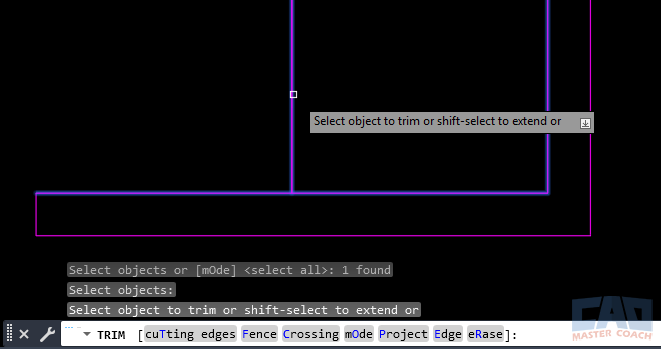
Holding SHIFT temporarily changes TRIM into EXTEND.
SHIFT transforms TRIM into EXTEND temporarily.
SHIFT Behavior
- Hold SHIFT while trimming → the picked object extends to the nearest boundary.
- Release SHIFT → TRIM returns to normal.
This allows you to:
- Trim and extend without switching commands.
- Clean up geometry much faster.
- Maintain a constant rhythm while drawing.
Best Use Cases
- Extending wall segments to meet another wall.
- Extending detail lines to a construction edge.
- Adjusting geometry during mid-design changes.
5. Trimming with Geometric Boundaries
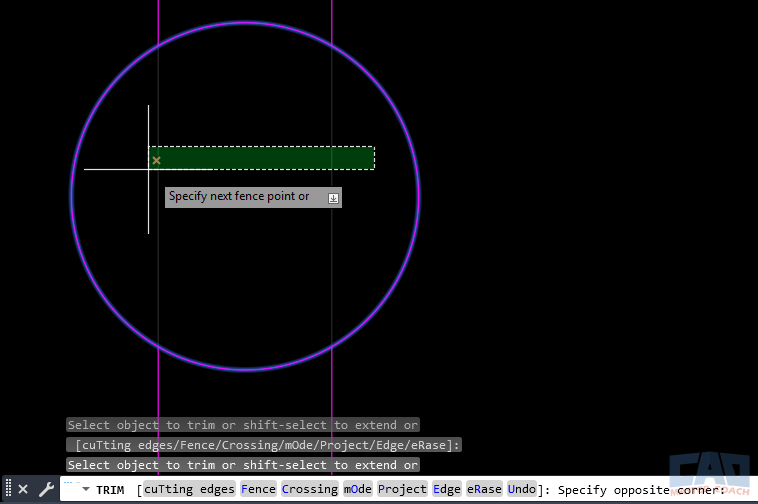
Any intersecting geometry can act as a trimming edge.
Boundaries don’t have to be straight lines. Any object AutoCAD recognizes as a valid edge can serve as a trimming boundary.
This includes:
- Circles
- Arcs
- Polylines
- Splines (most of the time)
- Hatch boundaries
You can even create temporary geometry as boundaries:
- Draw a construction line or shape.
- Use TRIM to clean up surrounding geometry.
- Delete the temporary line.
This practice is extremely common among experienced drafters.
6. TRIM Performance Shortcuts (Direct Selection, Crossing, Lasso, Fence)
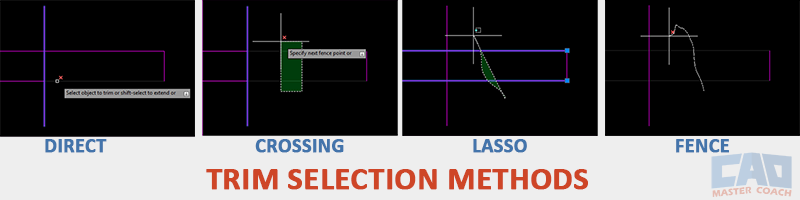
Different selection tools dramatically change TRIM behavior during trimming.
TRIM becomes dramatically faster when you master the different selection methods.
However — Window selection is only available during boundary selection, not during the trimming step.
Once the trimming phase begins, AutoCAD automatically converts every drag-motion selection into a crossing selection, regardless of direction.
Direct Selection (Pick Objects One at a Time)
This is the most controlled way to trim—especially when the geometry is dense or precision matters.
How it works:
- Click directly on each object you want to trim.
- AutoCAD trims only the segment you touch.
Best for:
- Tight areas with many intersecting lines
- Avoiding accidental multi-trims
- Beginner users who want precision over speed
Crossing Selection (Drag a Rectangle)
Once cutting edges are chosen, any rectangular drag becomes a crossing selection, even if dragged left→right.
How it works:
- Drag a rectangle across objects
- Anything the rectangle touches or crosses will be trimmed
Best for:
- Quickly trimming many segments
- Clearing construction lines
- Quickly cleaning around door/window openings in plans
Lasso Selection (Freeform Drag)
Hold left-click and drag in a loose circle to create a freeform closing shape.
How it works:
- The lasso acts as a crossing selection
- Any object the lasso touches will trim
Best for:
- Organic shapes
- Cluttered areas
- Trimming arcs, splines, or curved geometry without boxing them
Fence Selection (F key)
Press F during trimming to activate a fence.
How it works:
- Click multiple points to draw a fence line
- Anything the fence crosses will be trimmed
- Press Enter to execute the fence trim
Best for:
- Trimming multiple parallel lines
- Cutting across hatch boundaries
- Cleaning up inside structural grids or mechanical layouts
Other Performance Boosters
- Right-click → Repeat TRIM to maintain a fast workflow rhythm
- Resize your Pickbox for more accurate click targeting (especially helpful on dense geometry)
- Use Quick Trim mode
- * In the command line, select mOde
- * Choose between Quick (instant trimming by click) and Standard (classic boundary-pick workflow)
- * Quick mode is dramatically faster for detail cleanup, but Standard mode gives you more control in complex drawings
Using a Trackpad vs. a Mouse (and Why It Causes TRIM Problems)
Many laptop users naturally try to draft using the built-in trackpad, but trackpads make precise selection extremely difficult. The TRIM command relies heavily on accurate clicking and dragging motions. Trackpads often cause:
Common Trackpad Problems
- Accidental Lasso activation (press + hold + drag)
- Accidental Fence activation (wobbly drag turns into a fence line)
- Unintended zoom/pan gestures from multi-touch sensitivity
- Difficulty maintaining a straight Window or Crossing selection
- Cursor drift when trying to click small intersections
- Missed pick points, especially when trimming detail work
Why a Mouse Is Better
Using an external mouse provides:
- Consistent left-click responsiveness
- Clean Window/Crossing motions
- Predictable pick locations
- Better control during trimming
- Less fatigue during long drafting sessions
Even an inexpensive basic USB mouse is a massive upgrade over a laptop trackpad.
CAD Master Coach Recommendation
If you’re learning AutoCAD—or doing any serious production work—use a real mouse.
Trackpads cause errors, slow you down, and make boundary-based trimming far more frustrating.
7. Boundary-Based Workflow Examples
Workflow 1: Architectural Floor Plan Cleanup
- Select wall lines as your cutting edges.
- TRIM door swing lines inside the selected room.
- Avoid trimming lines in adjacent rooms.
Workflow 2: Mechanical Part Layout
- Use a circle as the trimming boundary.
- TRIM construction lines or intersecting geometry outside the diameter.
Workflow 3: Civil Alignment Refinement
- Use Fence to trim overlapping station ticks.
- Maintain clean alignment geometry without deleting lines individually.
8. CAD Master Coach Table — TRIM Boundary Methods Comparison
| Method | How It Works | Best Use Case | Speed | Notes |
|---|---|---|---|---|
| Manual Boundary Selection | You manually pick specific cutting edges | Precise cleanup in dense or detailed drawings | Medium | Safest and most controlled method |
| Implied All (Press Enter) | Press Enter without selecting edges to use everything as a boundary | Quick cleanup in small or simple drawings | Fast | Risky in large or cluttered files |
| Temporary Geometry | Draw a temporary line/arc to act as a trim boundary | Complex shapes, custom trim lines, detailing | Medium | Delete the temporary line after trimming |
| Hatch/Object Edges | Use solid hatch boundaries or object outlines | Architectural details, wall layouts | Fast | Highly predictable and clean |
| SHIFT + EXTEND | Hold Shift during TRIM to temporarily EXTEND instead | Walls, partitions, alignments | Fast | A must-know power shortcut |
9. Common Mistakes to Avoid
Accidentally using Implied All.
Leads to trimming across the entire drawing.
Using Lasso unintentionally.
People often click-and-drag too long.
Picking too far away from intersections.
TRIM needs a clear pick location near the part to remove.
Forgetting SHIFT behavior.
Many extend operations can be done without switching commands.
Trying to trim lines that don’t touch.
AutoCAD needs mathematical intersection—not just visual alignment.
10. FAQ — TRIM with Boundaries & Shortcuts
AutoCAD might be in Implied All mode. Select your boundaries manually before trimming.
Always select at least one boundary object before pressing Enter.
They may not mathematically touch. Zoom in or use EXTEND first.
Yes. Hatch edges make excellent cutting edges.
SHIFT temporarily flips TRIM into EXTEND; release SHIFT to return to trimming.
Use Fence or Crossing selection—both are extremely efficient.
Quick Trim lets you click directly on objects without selecting boundaries first.
You likely held the mouse button too long. Use click → move → click.
Absolutely—draw a temporary line or shape, trim, then erase it.
Lineweight can be misleading; zoom in to confirm intersection.
11. Related Commands
| Command | Purpose |
|---|---|
| EXTEND | Complements TRIM—SHIFT toggles between them |
| FILLET (Radius = 0) | Cuts and joins intersections |
| BREAK | Removes a segment without trimming to a boundary |
| OFFSET | Creates geometry often trimmed afterward |
| DELETE / ERASE | Simple cleanup |
| OVERKILL | Cleans duplicates before trimming |
Ways to Use Trim
Learn advanced TRIM techniques using boundaries, SHIFT-extend, Window/Crossing, Lasso, and Fence selections. A complete guide to trimming faster and with more control.
Learn the most practical real-world uses of the AutoCAD TRIM command, including cleanup workflows, efficiency tips, and common drafting scenarios.
Learn the most common AutoCAD TRIM mistakes and how professionals avoid them. Fix failed trims, intersections, layers, and selection issues fast.
Command Categories

Create
Explore all AutoCAD Create commands in one place. Learn how to use LINE, CIRCLE, ARC, POLYLINE, BLOCK, HATCH, and more with tutorials and practical examples.

Modify
Your complete guide to AutoCAD Modify tools—ERASE, TRIM, EXTEND, MOVE, ROTATE, OFFSET, FILLET, and more—with tips and workflows.

Notation
Complete guide to annotation in AutoCAD: text, dimensions, leaders, tables, zoom/pan basics, and clipboard tools.

Drafting Aids
Learn AutoCAD’s Drafting Aids and Precision Controls—OSNAP, Ortho Mode, Polar Tracking, Object Snap Tracking, and Dynamic Input. Improve accuracy, speed, and control with this complete guide.

All Commands
Browse every AutoCAD command in one place with this complete A–Z index. Quickly find command pages for LINE, ERASE, ZOOM, and more, with clear explanations and tips for efficient drafting.
Modify Commands
















Ways to Use Trim