
TRIM vs EXTEND in AutoCAD: When to Use Each Command
In AutoCAD, few command pairs are as closely related—or as commonly confused—as TRIM and EXTEND. Both are Modify commands. Both rely on boundaries. Both are used constantly in professional drafting workflows. Yet they do opposite things.
Understanding when to use TRIM versus EXTEND can dramatically improve drawing speed, reduce redraws, and help you maintain clean, accurate geometry. This article breaks down the difference in plain terms, shows practical use cases for each command, and gives you a simple decision framework you can apply immediately.
Why TRIM and EXTEND Are Often Confused
TRIM and EXTEND are often learned together because they share the same workflow structure: you define boundaries, then select objects to modify. Because of this, many users think of them as variations of the same command—which is partially true.
The confusion usually comes from intent. When you’re cleaning up geometry, you might instinctively reach for TRIM even when the object is actually too short. Or you might try EXTEND and wonder why nothing happens. In both cases, the issue isn’t the command—it’s choosing the wrong tool for the situation.
At a high level, the difference is simple:
- TRIM removes excess geometry
- EXTEND adds missing geometry
Once you internalize that distinction, the choice becomes automatic.
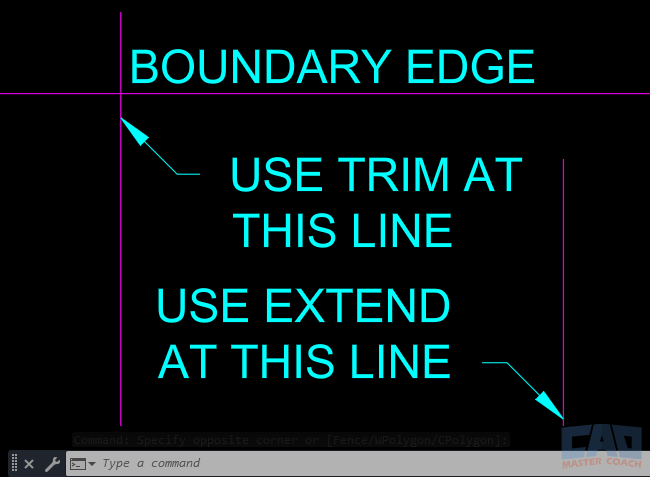
TRIM removes excess geometry, while EXTEND lengthens geometry to a boundary.
The Core Difference: Shorten vs Reach
TRIM — Remove What You Don’t Need
Use TRIM when an object extends too far past a logical boundary. TRIM deletes the portion of the object that lies beyond the boundary while preserving the rest of the geometry.
Typical TRIM situations include:
- Lines crossing past wall intersections
- Overlapping construction lines
- Cleanup after offset or array operations
TRIM is subtractive. It shortens geometry.
EXTEND — Reach What You Need
Use EXTEND when an object stops short of where it should logically connect. EXTEND lengthens the object until it meets a boundary.
Typical EXTEND situations include:
- Gaps between walls or edges
- Lines drawn slightly short
- Geometry that must meet an alignment reference
EXTEND is additive. It grows geometry.
If the object is too long, use TRIM.
If the object is too short, use EXTEND.
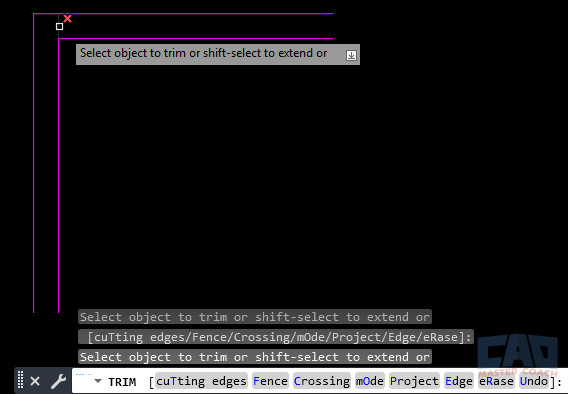
TRIM shortens objects by removing unwanted portions past a boundary.
When to Use TRIM (Practical Scenarios)
TRIM is one of the most heavily used commands in AutoCAD because professional drafting favors drawing quickly and cleaning later. Instead of carefully stopping every line at an exact intersection, experienced users draw confidently and trim excess afterward.
Common TRIM use cases include:
Cleaning wall intersections
When drawing walls, grids, or framing, it’s faster to let lines cross and then trim them cleanly at intersections. This produces crisp corners without worrying about snapping perfectly during initial layout.
Removing offset overdraw
Offsets often create extra line segments beyond corners. TRIM is the fastest way to clean these up while preserving the accuracy of the offset distance.
Managing dense geometry
In drawings with overlapping details, fence and window trimming allow you to remove dozens of unwanted segments in seconds.
Multi-object cleanup
TRIM supports window, crossing, and fence selection, making it ideal for large cleanup passes at the end of a drafting phase.
TRIM excels when geometry exists—but exists where it shouldn’t.
When to Use EXTEND (Practical Scenarios)
EXTEND is just as powerful as TRIM, but it’s often underused. Many users redraw short lines instead of extending them, which wastes time and introduces alignment errors.
Common EXTEND use cases include:
Closing gaps
When lines stop short of a boundary—often due to zoom level, snap issues, or fast drafting—EXTEND fixes the problem instantly without redrawing.
Aligning endpoints
EXTEND ensures that objects meet boundaries exactly, preserving precision that manual redraws often miss.
Correcting under-drawn geometry
If a line was intentionally drawn short during layout, EXTEND completes it cleanly once the final boundary is known.
Extending multiple objects at once
Like TRIM, EXTEND supports window, crossing, and fence selection, making it effective for batch corrections.
EXTEND excels when geometry exists—but doesn’t go far enough.
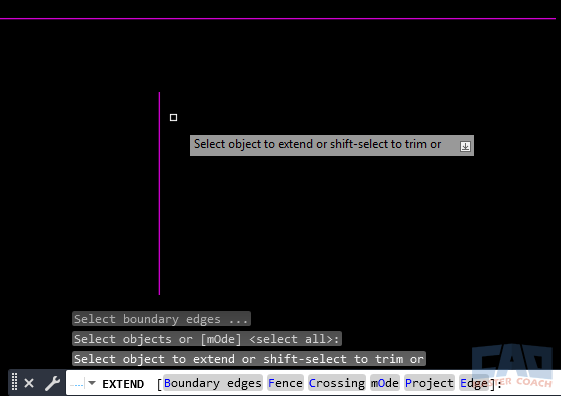
EXTEND lengthens objects so they meet a valid boundary.
TRIM and EXTEND Share the Same Engine
One reason TRIM and EXTEND feel so similar is that they are built on the same underlying logic.
Both commands:
- Require a valid boundary (explicit or implied)
- Work on lines, arcs, polylines, and many other objects
- Support fence, window, and crossing selection
- Preserve object type and properties
Both commands also support implied boundaries, meaning you can often skip selecting a boundary explicitly and simply select the objects you want to modify. AutoCAD will infer the correct boundary based on visible geometry.
A powerful productivity feature further reinforces how closely related these commands are: when TRIM is active, holding the SHIFT key temporarily switches to EXTEND, and when EXTEND is active, holding SHIFT temporarily switches to TRIM. This toggle works only while the SHIFT key is held down and immediately returns to the original command when released. In practice, this allows you to fluidly switch between shortening and lengthening geometry without restarting commands, making cleanup and alignment workflows significantly faster.
If you know how to use TRIM well, you already understand most of EXTEND—and vice versa.
Common Mistakes When Choosing Between TRIM and EXTEND
Many frustrations with TRIM and EXTEND come from subtle setup issues rather than command limitations.
Using the wrong command
Trying to TRIM an object that’s too short—or EXTEND an object that’s already past the boundary—won’t work. Always confirm whether the problem is excess or missing geometry.
No valid boundary
EXTEND requires a boundary that the object can logically reach. Gaps, misalignment, or non-intersecting geometry can prevent extension.
Locked layers
Objects on locked layers cannot be modified. Both TRIM and EXTEND will fail silently in this case.
Tiny gaps or breaks
Small breaks in boundaries can prevent both commands from functioning as expected, especially when zoomed out.
Understanding these limitations prevents unnecessary redraws and frustration.
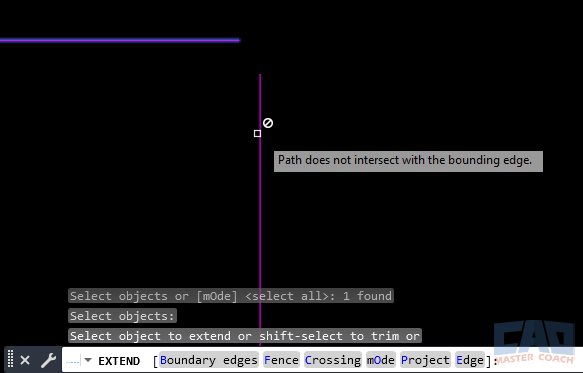
EXTEND requires a valid boundary and unlocked geometry to work correctly.
Quick Comparison: TRIM vs EXTEND
| Feature | TRIM | EXTEND |
|---|---|---|
| Primary purpose | Removes excess geometry | Lengthens geometry |
| Typical problem solved | Object is too long | Object is too short |
| Requires a boundary | Yes (explicit or implied) | Yes (explicit or implied) |
| Works on polylines | Yes | Yes |
| Changes object type | No | No |
| Best used when | Cleaning up intersections | Closing gaps and aligning |
Related Modify Commands
| Command | Description |
|---|---|
| TRIM | Removes unwanted portions of objects |
| EXTEND | Lengthens objects to meet boundaries |
| STRETCH | Moves and reshapes geometry |
| LENGTHEN | Adjusts object length numerically |
| FILLET | Creates rounded intersections |
| CHAMFER | Creates angled intersections |
Frequently Asked Questions (FAQ)
Use EXTEND when an object is too short and needs to reach a boundary. TRIM is used when an object extends too far and needs to be shortened.
Yes. Both commands support implied boundaries, allowing you to select objects directly and let AutoCAD infer the boundary.
No. In many cases, selecting the objects to modify is enough. AutoCAD will detect nearby boundaries automatically.
Yes. Both commands work on polylines, arcs, lines, and many other object types.
The object must logically intersect or connect to a valid boundary. Gaps, misalignment, or incompatible geometry can prevent extension.
No. Objects on locked layers cannot be modified by either command.
Almost always. Both commands preserve alignment and reduce unnecessary redraw steps.
Yes. Both commands support window, crossing, and fence selection for multi-object cleanup.
No. Both commands only modify object length and do not change the object type or properties.
Ways to Use Extend

Learn how to use EXTEND with boundaries in AutoCAD to control exactly where objects extend. Step-by-step instructions, tips, and FAQs included.
Learn practical, professional uses of the EXTEND command in AutoCAD for cleaning up geometry, improving precision, and speeding up drafting workflows.
Learn the difference between TRIM and EXTEND in AutoCAD, when to use each command, common mistakes, and professional drafting workflows.
Command Categories

Create
Explore all AutoCAD Create commands in one place. Learn how to use LINE, CIRCLE, ARC, POLYLINE, BLOCK, HATCH, and more with tutorials and practical examples.

Modify
Your complete guide to AutoCAD Modify tools—ERASE, TRIM, EXTEND, MOVE, ROTATE, OFFSET, FILLET, and more—with tips and workflows.

Notation
Complete guide to annotation in AutoCAD: text, dimensions, leaders, tables, zoom/pan basics, and clipboard tools.

Drafting Aids
Learn AutoCAD’s Drafting Aids and Precision Controls—OSNAP, Ortho Mode, Polar Tracking, Object Snap Tracking, and Dynamic Input. Improve accuracy, speed, and control with this complete guide.

All Commands
Browse every AutoCAD command in one place with this complete A–Z index. Quickly find command pages for LINE, ERASE, ZOOM, and more, with clear explanations and tips for efficient drafting.
Modify Commands












Ways to Use Extend