
EXTEND with Boundaries in AutoCAD
How to Control Exactly Where Objects Extend
The EXTEND command is one of AutoCAD’s essential Modify tools, but many users only scratch the surface of what it can do. When you use EXTEND with boundaries, you gain precise control over where objects extend instead of letting AutoCAD decide for you.
This approach is especially valuable in real-world drafting, where geometry rarely lines up perfectly and extension limits matter. By intentionally selecting boundary objects, you can extend lines, arcs, and other objects cleanly and predictably — even in complex drawings.
In this article, you’ll learn how EXTEND with boundaries works, how to use it step by step, when it’s the best tool for the job, and how to avoid the most common mistakes.
What “EXTEND with Boundaries” Means in Practice
At its core, EXTEND allows you to lengthen objects until they meet another object. When boundaries are involved, those other objects become intentional stopping points instead of accidental intersections.
Without boundaries, EXTEND can feel inconsistent:
- Sometimes it works perfectly
- Sometimes nothing happens
- Sometimes objects extend farther than expected
Using boundaries removes the guesswork. You tell AutoCAD exactly which objects define the limits, and EXTEND follows those instructions precisely.
This method is especially useful when:
- Lines don’t physically touch yet
- Geometry is slightly misaligned
- You want consistent results across multiple objects
- You are cleaning up imported or copied drawings
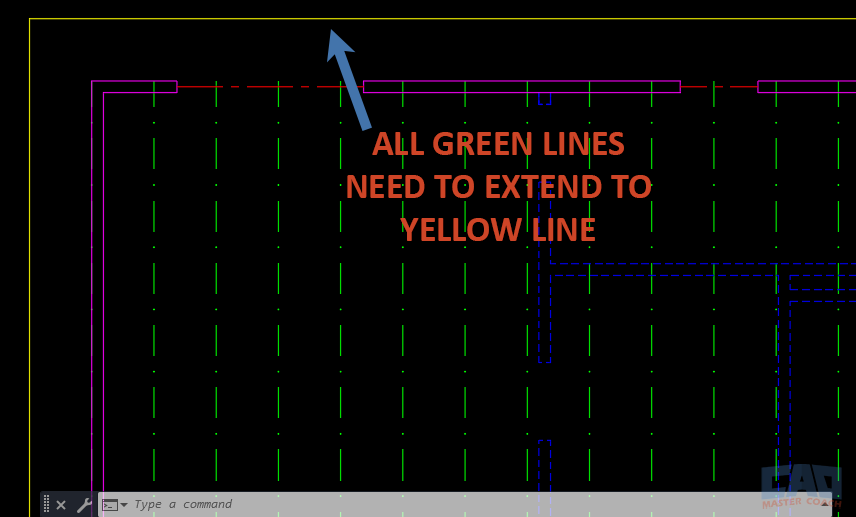
Objects that need to be extended to specific boundary edges
Quick Refresher: How the EXTEND Command Works
Before focusing on boundaries, it helps to briefly review how EXTEND behaves in general.
The EXTEND command works in two main phases:
- Selecting boundary objects
- Selecting objects to extend
The typical workflow looks like this:
- Start the EXTEND command
- Select one or more boundary objects
- Press Enter
- Select the objects you want to extend
- Press Enter to finish
If you skip the boundary selection step, AutoCAD attempts to infer boundaries automatically. That can work in simple cases, but it often leads to confusion when geometry does not clearly intersect.
EXTEND works with many object types, including:
- Lines
- Polylines
- Arcs
- Rays
- Splines (with limitations)
Understanding this basic structure makes it much easier to use boundaries intentionally.
What Are Boundaries in EXTEND?
In EXTEND, boundaries are the objects that define where extensions stop. They are sometimes called cutting edges, but they function as limits rather than targets.
A critical point to understand:
Boundary objects are selected first, before selecting objects to extend.
Boundaries do not need to physically touch the object being extended. AutoCAD can project boundary edges if system settings allow it. This is controlled by the EDGEMODE system variable:
- EDGEMODE = 0 → Extensions require true intersections
- EDGEMODE = 1 → Boundary edges can be projected
This setting plays a major role in how EXTEND with boundaries behaves, especially when gaps exist.
When boundaries are selected correctly, EXTEND becomes predictable, repeatable, and fast.
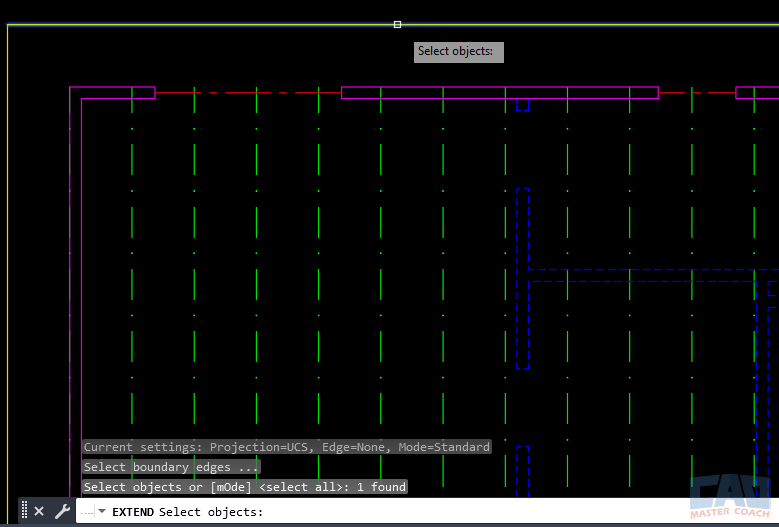
Boundary objects define where extensions will stop
Step-by-Step: Using EXTEND with Boundaries
This section walks through the exact workflow for using EXTEND with boundaries reliably.
Step 1: Start the EXTEND Command
You can start EXTEND by:
- Typing EXTEND at the command line
- Using the Modify panel
- Using the keyboard shortcut (if customized)
Step 2: Select Boundary Objects
Select one or more objects that define where extensions should stop. These might be:
- Wall edges
- Construction lines
- Reference geometry
- Perpendicular edges
You can select boundaries individually or with a window selection.
Step 3: Press Enter
Pressing Enter confirms your boundary selection and moves EXTEND into object-selection mode.
Step 4: Select Objects to Extend
Now select the objects you want to extend. AutoCAD will extend them until they intersect the selected boundaries (or projected boundaries, depending on EDGEMODE).
Step 5: Finish the Command
Press Enter again to complete the command.
This workflow works equally well for extending a single object or many objects at once.
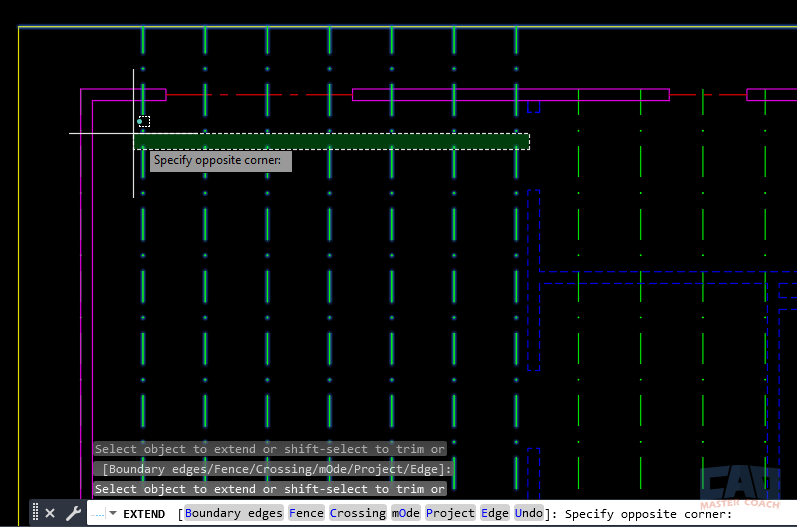
Multiple objects extended precisely to selected boundaries
When EXTEND with Boundaries Is the Best Tool
EXTEND with boundaries shines in situations where control matters more than speed.
Common use cases include:
- Cleaning up wall lines in architectural plans
- Aligning geometry after OFFSET or COPY
- Fixing gaps caused by trimming operations
- Extending multiple objects to a consistent edge
- Working with imported or consultant drawings
If you find yourself undoing EXTEND frequently, that’s often a sign boundaries should be involved. Taking an extra second to define limits saves time overall and produces cleaner drawings.
Common Mistakes and How to Avoid Them
Even experienced users run into problems with EXTEND. Most issues come from a few predictable mistakes.
Mistake 1: Forgetting to select boundaries first
EXTEND behaves very differently when no boundaries are selected. Always define limits intentionally.
Mistake 2: Selecting the wrong boundary objects
If the wrong edge is selected, objects may extend in unexpected directions.
Mistake 3: EDGEMODE causing confusion
When objects don’t intersect visually, EDGEMODE determines whether extensions are allowed. Check this setting if EXTEND “does nothing.”
Mistake 4: Assuming EXTEND works like TRIM
EXTEND and TRIM are related but not identical. EXTEND grows geometry; TRIM removes it.
Recognizing these patterns makes troubleshooting much easier.
CAD Master Coach Tip: Faster Boundary Selection
When working in dense drawings, selecting boundaries one at a time can slow you down.
Try these techniques:
- Use window selection to grab multiple boundary edges at once
- Isolate layers temporarily to limit selection options
- Undo boundary selection quickly if you make a mistake — no need to restart the command
Speed comes from confidence, not rushing.
Related AutoCAD Commands
The EXTEND command often works alongside other Modify tools. Understanding how they fit together improves your drafting efficiency.
| Command | Description |
|---|---|
| TRIM | Removes geometry using cutting edges |
| LENGTHEN | Adjusts object length numerically or dynamically |
| STRETCH | Moves and reshapes connected geometry |
| FILLET | Creates rounded or sharp connections between objects |
| OFFSET | Creates parallel copies of existing geometry |
Using the right tool for each task leads to cleaner, more maintainable drawings.
Frequently Asked Questions (FAQ)
EXTEND with boundaries gives you explicit control over where objects stop, instead of relying on AutoCAD’s automatic detection.
The object may not intersect the boundary, or EDGEMODE may be set to require true intersections.
No. Boundary edges can be projected depending on system settings.
Yes. You can select any number of boundary objects before extending.
EXTEND primarily works in the current plane and is best suited for 2D drafting workflows.
EDGEMODE controls whether AutoCAD allows extensions to projected edges.
Yes, if projected boundaries are allowed and selected properly.
Window selection and layer control are the most efficient methods.
Use TRIM when you want to remove geometry instead of lengthening it.
Ways to Use Extend

Learn how to use EXTEND with boundaries in AutoCAD to control exactly where objects extend. Step-by-step instructions, tips, and FAQs included.
Learn practical, professional uses of the EXTEND command in AutoCAD for cleaning up geometry, improving precision, and speeding up drafting workflows.

Learn the difference between TRIM and EXTEND in AutoCAD, when to use each command, common mistakes, and professional drafting workflows.
Command Categories

Create
Explore all AutoCAD Create commands in one place. Learn how to use LINE, CIRCLE, ARC, POLYLINE, BLOCK, HATCH, and more with tutorials and practical examples.

Modify
Your complete guide to AutoCAD Modify tools—ERASE, TRIM, EXTEND, MOVE, ROTATE, OFFSET, FILLET, and more—with tips and workflows.

Notation
Complete guide to annotation in AutoCAD: text, dimensions, leaders, tables, zoom/pan basics, and clipboard tools.

Drafting Aids
Learn AutoCAD’s Drafting Aids and Precision Controls—OSNAP, Ortho Mode, Polar Tracking, Object Snap Tracking, and Dynamic Input. Improve accuracy, speed, and control with this complete guide.

All Commands
Browse every AutoCAD command in one place with this complete A–Z index. Quickly find command pages for LINE, ERASE, ZOOM, and more, with clear explanations and tips for efficient drafting.
Modify Commands













Ways to Use Extend