
Practical Uses of the EXTEND Command in AutoCAD
The EXTEND command in AutoCAD is often taught early, but it’s rarely used to its full potential by beginners. Many users understand what EXTEND does—lengthening objects to meet a boundary—but fewer understand when and why it should be used in professional workflows.
In real-world drafting, EXTEND is not a novelty tool. It is a cleanup tool, a precision tool, and a speed tool. Professionals rely on EXTEND to finish geometry cleanly after drawing long, continuous objects, rather than constantly redrawing or manually adjusting endpoints.
This article focuses on practical uses of EXTEND—the situations where it saves time, improves accuracy, and keeps drawings consistent. These are the same scenarios that show up repeatedly in architectural, structural, and civil drawings.
EXTEND for Cleaning Up Wall and Line Intersections
One of the most common professional uses of EXTEND is cleaning up wall and line intersections. In production drawings, walls, grids, and layout lines are often drawn long on purpose. This allows drafters to focus on alignment and spacing first, and worry about exact endpoints later.
EXTEND allows those long objects to be finished cleanly by extending them to a controlling boundary—such as another wall, a grid line, or a reference edge—without redrawing geometry.
This approach has several advantages:
- Alignment stays intact
- Geometry remains consistent
- Cleanup happens quickly at the end of a drafting pass
For example, when drafting floor plans, a common technique is to draw walls past their intended intersections. Once the layout is verified, EXTEND is used to bring wall ends precisely to the intersecting wall face. This avoids small gaps, overlaps, or misaligned corners that can occur when snapping endpoints manually.
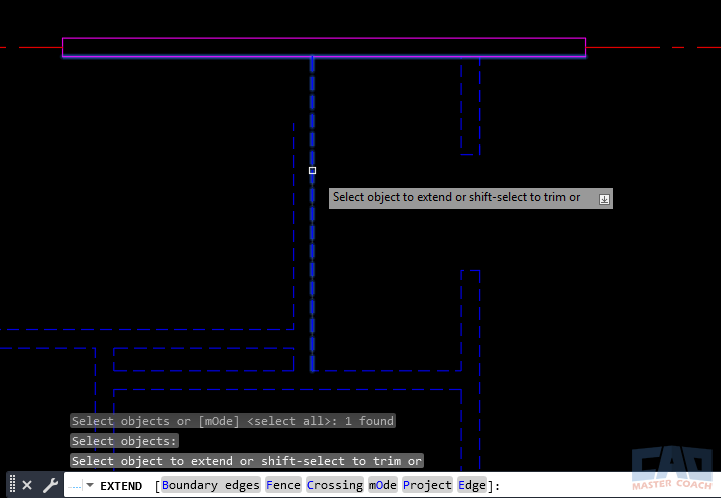
EXTEND is commonly used to finish wall intersections without redrawing geometry.
In professional drawings, this “draw long, clean later” approach is faster and more reliable than attempting to draw every object to its final length from the start.
Using EXTEND with Implied Boundaries
Many users assume that EXTEND always requires you to select cutting edges or boundaries first. While explicit boundary selection is common and sometimes necessary, EXTEND also supports implied boundaries, which can dramatically speed up everyday cleanup workflows.
To use EXTEND with implied boundaries, the key is how you start the command:
- Start the EXTEND command
- Press ENTER a second time immediately, without selecting any objects as boundaries
- Select the object(s) you want to extend
That second press of ENTER is what tells AutoCAD to skip boundary selection and instead infer suitable boundaries automatically based on nearby geometry.
Once you select the object to extend, AutoCAD looks for logical intersecting edges in the drawing and extends the object to the most appropriate boundary it can detect.
This implied-boundary workflow is especially useful when:
- The boundary is visually obvious
- The drawing is clean and well-organized
- You are performing fast cleanup passes across many objects
Implied boundaries reduce unnecessary clicks and turn EXTEND into a quick “finish this line” tool rather than a multi-step command. In well-structured drawings, this approach is often faster than explicitly selecting boundaries—and just as precise.
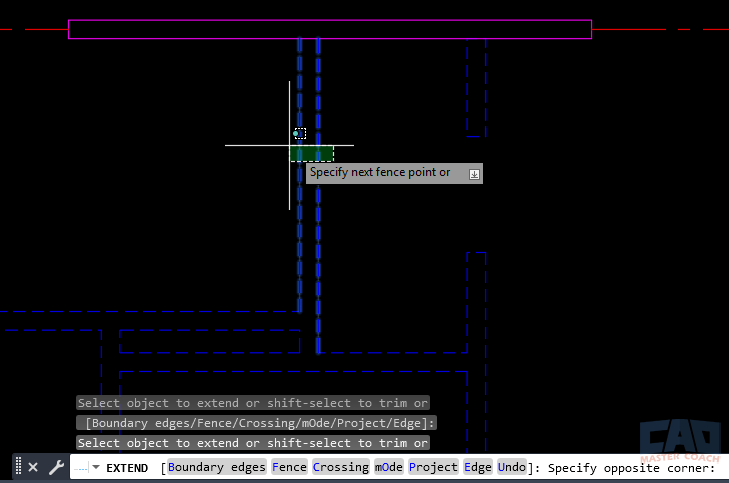
Implied boundaries allow faster EXTEND workflows in clean drawings.
Experienced professionals switch between explicit and implied boundary selection without thinking about it. Knowing when to press ENTER twice and let AutoCAD infer the boundary is one of those small workflow habits that adds up to significant time savings over the course of a project.
EXTEND in Multi-Object Cleanup PassesEXTEND in Multi-Object Cleanup Passes
EXTEND becomes especially powerful when used on multiple objects at once. In dense drawings—such as plans, sections, or details—there may be dozens of lines that all need to reach the same boundary.
Instead of extending each object individually, you can:
- Select a single boundary
- Use window or fence selection
- Extend many objects in one pass
This technique is commonly used when:
- Cleaning up wall projections
- Finishing grid lines
- Aligning section lines or reference lines
Because EXTEND preserves the original direction and geometry of objects, it ensures that all extended objects terminate at the same precise location. This consistency is difficult to achieve through manual edits.
In large drawings, this multi-object approach can save minutes per cleanup pass—which adds up quickly over the life of a project.
EXTEND for Precision Drafting (Centerlines, Grids, and Details)
Precision drafting is another area where EXTEND shines. Centerlines, grids, and projection lines often need to reach exact geometry edges without overshooting or stopping short.
EXTEND is ideal for:
- Bringing centerlines to the face of geometry
- Extending grid lines to match extents
- Finishing projection lines for dimensioning
Because EXTEND references real geometry, it reduces the chance of “almost touching” errors—small gaps that can cause problems later when dimensioning or plotting.
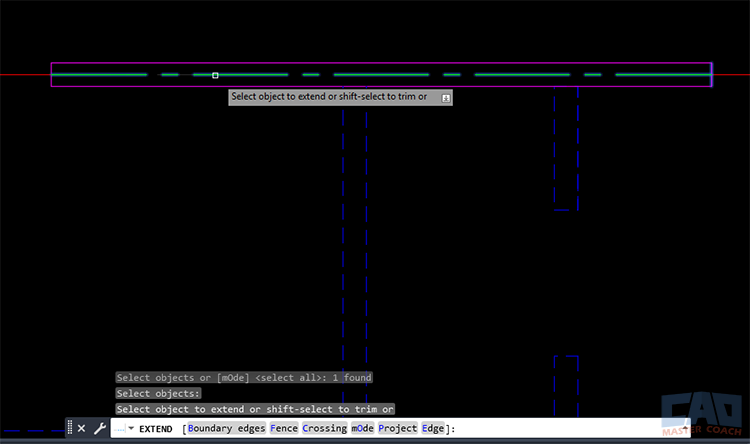
EXTEND ensures centerlines terminate precisely at geometry edges.
In professional drawings, precision matters not just visually, but technically. Clean intersections ensure that snaps, dimensions, and references behave as expected throughout the drawing lifecycle.
EXTEND vs STRETCH vs TRIM — Choosing the Right Tool
Understanding when to use EXTEND instead of similar commands is a key professional skill.
Here is a simple decision framework:
- Use EXTEND when you want an object to reach an existing boundary
- Use TRIM when you want to remove excess geometry
- Use STRETCH when you need to move or reshape geometry
A common mistake is using STRETCH to fix short objects. While STRETCH works, it changes geometry rather than finishing it to a reference. EXTEND is usually faster and more precise when a boundary exists.
Likewise, redrawing short lines instead of extending them wastes time and increases the risk of alignment errors.
Professionals choose EXTEND when the goal is completion, not modification.
Common EXTEND Mistakes
Even experienced users occasionally misuse EXTEND. The most common mistakes include:
- Attempting to extend objects that do not intersect a valid boundary
- Forgetting that objects on locked layers cannot be modified
- Expecting EXTEND to alter object direction or shape
- Drawing short and extending later instead of drawing long initially
EXTEND works best when geometry is planned with cleanup in mind. Drawing long, organized geometry first makes EXTEND predictable and efficient later.
Common EXTEND Use Cases
| Use Case | Why EXTEND Is Effective |
|---|---|
| Wall cleanup | Preserves alignment and avoids redraw |
| Grid extension | Maintains consistent datum control |
| Centerline finishing | Ensures true intersections |
| Detail cleanup | Faster and cleaner than manual edits |
Related Commands
| Command | Relationship to EXTEND |
|---|---|
| TRIM | Removes excess geometry instead of extending |
| STRETCH | Modifies geometry rather than finishing it |
| FILLET | Creates intersections rather than extending |
| LENGTHEN | Adjusts object length numerically |
| OFFSET | Often used before EXTEND in layout workflows |
Frequently Asked Questions (FAQ)
Use EXTEND when an object is too short and needs to reach a boundary. TRIM is used when an object extends too far and needs to be shortened.
No. EXTEND supports implied boundaries, allowing you to select objects directly and let AutoCAD infer the boundary.
Yes. EXTEND works on polylines, arcs, lines, and many other object types.
The object must intersect or logically connect to a valid boundary. Gaps, locked layers, or incompatible geometry can prevent extension.
No. Objects on locked layers cannot be modified by EXTEND.
Almost always. EXTEND preserves alignment and eliminates unnecessary redraw steps.
Yes. EXTEND supports window, crossing, and fence selection for multi-object cleanup.
No. EXTEND only changes object length, not geometry type.
Draw geometry long, organize layers cleanly, and perform cleanup passes using implied boundaries and multi-object selection.
Ways to Use Extend
Learn how to use EXTEND with boundaries in AutoCAD to control exactly where objects extend. Step-by-step instructions, tips, and FAQs included.
Learn practical, professional uses of the EXTEND command in AutoCAD for cleaning up geometry, improving precision, and speeding up drafting workflows.
Learn the difference between TRIM and EXTEND in AutoCAD, when to use each command, common mistakes, and professional drafting workflows.
Command Categories

Create
Explore all AutoCAD Create commands in one place. Learn how to use LINE, CIRCLE, ARC, POLYLINE, BLOCK, HATCH, and more with tutorials and practical examples.

Modify
Your complete guide to AutoCAD Modify tools—ERASE, TRIM, EXTEND, MOVE, ROTATE, OFFSET, FILLET, and more—with tips and workflows.

Notation
Complete guide to annotation in AutoCAD: text, dimensions, leaders, tables, zoom/pan basics, and clipboard tools.

Drafting Aids
Learn AutoCAD’s Drafting Aids and Precision Controls—OSNAP, Ortho Mode, Polar Tracking, Object Snap Tracking, and Dynamic Input. Improve accuracy, speed, and control with this complete guide.

All Commands
Browse every AutoCAD command in one place with this complete A–Z index. Quickly find command pages for LINE, ERASE, ZOOM, and more, with clear explanations and tips for efficient drafting.
Modify Commands




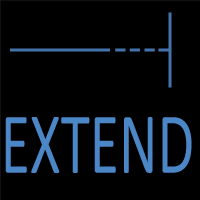







Ways to Use Extend