AutoCAD STYLE Command
AutoCAD STYLE Command Access
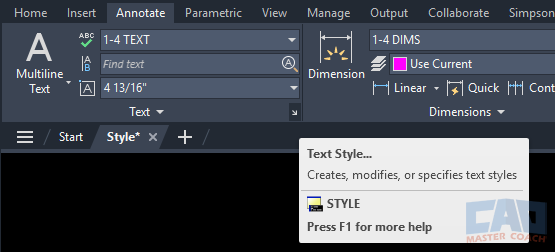
COMMAND LINE: STYLE

DEFAULT KEYBOARD SHORTCUT: ST
RIBBON: ANNOTATE | TEXT TAB | BOTTOM RIGHT ARROW
STYLE Command (Text Styles)
Introduction: Why Text Styles Matter More Than You Think
The STYLE command is one of the most quietly important commands in AutoCAD. It doesn’t draw anything, trim anything, or modify geometry—but it controls how every piece of text in your drawing behaves. When text looks wrong, plots inconsistently, or becomes impossible to manage across multiple viewports, the root cause is almost always a text style issue.
New users often treat text styles as an afterthought. Experienced users know better. Text styles are infrastructure. They define how text is created, how it scales, how it plots, and how it stays consistent across drawings, layouts, and projects. If text styles are set up correctly, text becomes predictable and boring—in the best possible way.
This article focuses on how to use the STYLE command mechanically:
- What each setting does
- How to create text styles correctly
- How those styles interact with other annotation tools
It does not attempt to justify drafting philosophy or workflow choices in depth. Those topics live elsewhere by design:
- Why multiple text styles are required
- How to manage and apply multiple styles → future /how-to articles
This page is about the nuts and bolts: how the STYLE command actually works.
What the STYLE Command Controls (and What It Doesn’t)
A text style is a named collection of formatting rules. When you create or modify text, you’re not formatting the text directly—you’re applying a style that already defines how that text should look.
The STYLE command controls:
- Font selection (SHX or TrueType)
- Text height behavior (fixed height or variable)
- Width factor
- Oblique angle
- Special orientation flags (upside-down, backwards)
The STYLE command does not control:
- The content of the text
- Where the text is placed
- Whether text is annotative
- Viewport scaling behavior by itself
Text styles are referenced by:
- Single-line text (DTEXT / TEXT)
- Multiline text (MTEXT)
- Dimensions
- Leaders
- Blocks containing text or attributes
If a style changes, every object using that style updates automatically. This is why styles are powerful—and why careless changes can affect an entire drawing.
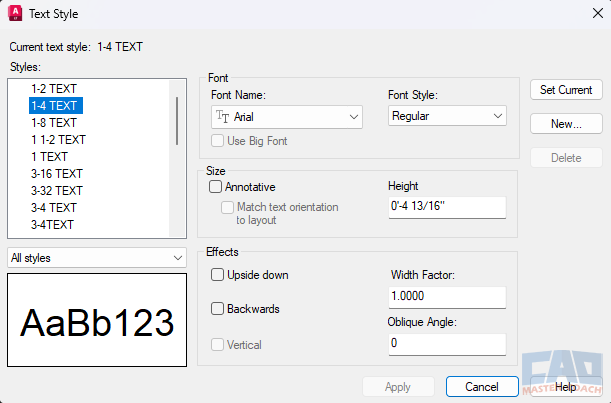
The STYLE command defines font, height, and other properties used by text throughout a drawing.
Opening the STYLE Command
You can access the STYLE command in several standard ways:
- Type STYLE at the command line and press Enter
- Use the Annotate tab on the ribbon and open the Text Style panel
- Access it through menus or customized workspaces
When the STYLE dialog opens, you’ll see:
- A list of existing text styles
- A preview window
- All configurable properties for the selected style
Only one text style can be current at a time. The current style is applied to new text objects as they are created. Existing text does not change unless its style assignment is modified or the style definition itself is edited.
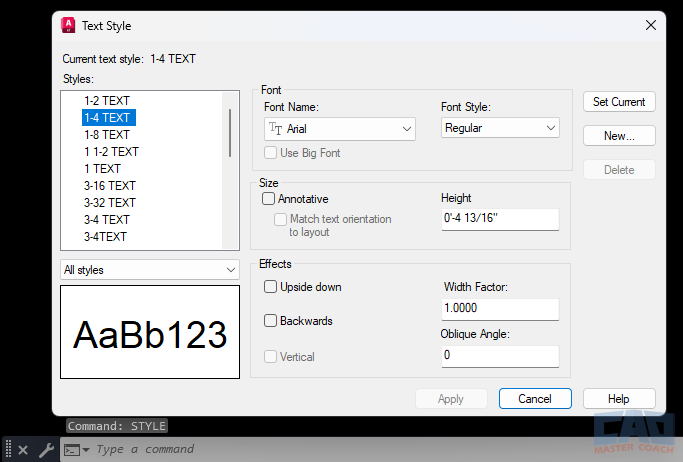
The STYLE command can be launched from the command line or ribbon.
Understanding the STYLE Dialog (Field-by-Field)
This section is the core of the STYLE command. Every field matters—even the ones you rarely touch.
Style Name
Each text style has a unique name. AutoCAD ships with a default style named Standard, but this name should be treated as a placeholder, not a production tool.
Good style names are:
- Descriptive
- Consistent
- Scalable across projects
Examples:
- Text_3-32
- Text_1-8
- Dims_1-8
Avoid generic names like Text1, Notes, or MyStyle. Styles should communicate purpose and scale clearly.
Font Selection
Text styles can use:
- SHX fonts (AutoCAD-native, lightweight, highly predictable)
- TrueType fonts (system fonts with richer typography)
The STYLE command simply assigns the font—it does not embed it. If a drawing is shared and the font is missing, AutoCAD will substitute it.
Font choice affects:
- File portability
- Plot reliability
- Text appearance consistency
The mechanics are simple: choose a font that exists and is appropriate for your standards.
Height (The Critical Setting)
The Height field defines whether a text style has a fixed height or a variable height.
| Height Value | Behavior |
|---|---|
| 0 | Height is defined when text is created |
| Non-zero | Height is locked into the style |
Fixed-height styles are intentional in many scaled workflows. This article does not explain why—only how. A deeper explanation belongs in the concepts cluster.
Click here to read how to manage several text styles in your drawing.
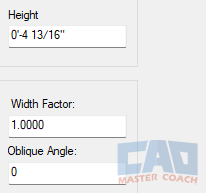
Height and width factor directly control how text appears when created.
Width Factor
Width factor scales text horizontally.
| Value | Effect |
|---|---|
| 1.0 | Normal width |
| < 1.0 | Condensed text |
| > 1.0 | Expanded text |
This setting should be used sparingly. Width factor is not a substitute for proper font selection.
Obliquing Angle
Obliquing angles italicize text mechanically.
- Positive values slant text forward
- Negative values slant text backward
This is rarely used in modern production drawings but exists for compatibility and specialized standards.
Orientation Flags
These include:
- Upside-down
- Backwards
These options exist primarily for legacy compatibility and should generally remain unchecked.
Creating a New Text Style (Step-by-Step)
Creating a text style is straightforward, but the order matters.
Recommended Creation Order:
- Click New
- Enter a descriptive style name
- Select the font
- Set the height (fixed or zero)
- Leave width and oblique at defaults unless required
- Click Set Current if appropriate
Once created, the style becomes available to all text-based objects in the drawing.
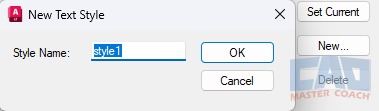
New text styles should be created intentionally for specific uses.
One Text Style per Zoom Scale
In CAD Master Coach workflows, text styles are created intentionally for specific plotted scales. Each plotted scale has its own corresponding text style, allowing text to remain consistent, predictable, and readable across layouts and viewports.
This article establishes that practice at a mechanical level by showing how text styles are defined and configured using the STYLE command. Understanding that multiple styles exist—and that each one is created for a specific purpose—is a necessary foundation before scale, workflow, and management considerations can be addressed.
Those broader topics are developed elsewhere as part of a coordinated cluster:
- /concepts explains why scaled text styles work and how scale affects annotation
- /how-to covers when to use each style and how to manage multiple styles efficiently in real drawings
Together, these sections form a complete system: this article defines the tool, the related articles explain the logic and workflow, and all three reinforce each other in practice.
How Text Styles Interact with Other Annotation Tools
Text styles do not exist for their own sake. A text style that is created and never used serves no purpose unless it lives in a template intended for future drawings. Outside of templates, a text style only matters if it is actively applied to text somewhere in the drawing.
Likewise, text objects cannot exist without a text style. Every piece of text—whether created with DTEXT or MTEXT—must reference a style. AutoCAD does not allow text to be created independently of a style definition. This makes text and text styles two sides of the same coin:
- No text style → no text
- No text → no reason for the text style
The STYLE command exists to support text creation, and text creation is meaningless without a style to control how that text behaves. In practice, this means STYLE almost never operates in isolation. It functions as supporting infrastructure for every annotation command that produces readable information in a drawing.
Text (DTEXT / MTEXT)
Single-line and multiline text objects both rely directly on text styles. When text is created, AutoCAD applies the current text style, inheriting its font, height behavior, width factor, and orientation settings. Changing the style updates all text objects that reference it, which is why styles must be created intentionally and named clearly.
Dimensions
Dimensions do not define their own text formatting independently. Instead, dimension styles reference text styles to control how dimension text appears. This relationship allows dimension text to remain consistent with other annotations, but it also means that changes to a text style can affect dimensions across the entire drawing.
Leaders and Multileaders
Leaders and multileaders also rely on text styles for their annotation text. Inconsistent or poorly defined styles are a common cause of leader text that appears mismatched or incorrectly scaled relative to other annotations.
Blocks and Attributes
Blocks that contain text or attributes reference text styles internally. When blocks are inserted into a drawing, AutoCAD looks for the required styles. If a style does not exist, AutoCAD substitutes another style, often producing unexpected results. This is one of the primary reasons text style management becomes important when working with shared standards or imported content.
Templates and Standardization
In templates, text styles may exist before any text is created. In this case, the style is not unused—it is predefined infrastructure. Templates establish the styles that future text will rely on, ensuring consistency across drawings and projects.
Outside of templates, however, creating text styles without ever applying them provides no benefit. Text styles and text objects are inseparable in practice: one exists to serve the other.
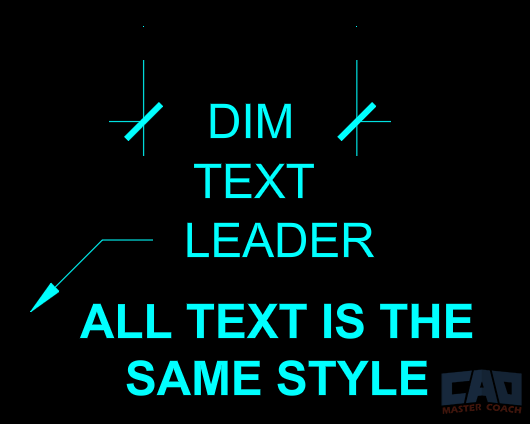
Text styles affect more than just text objects.
Editing Existing Text Styles Safely
Editing a text style updates every object using that style.
Safe changes:
- Correcting font assignments
- Minor width adjustments (with caution)
Risky changes:
- Changing height mid-project
- Changing fonts after plotting has begun
Best practice is to create new styles rather than repurpose existing ones once drawings are in production.
Common STYLE Mistakes (Preview)
This is a preview, not a full mistakes article.
Common issues include:
- Editing the Standard style
- Mixing annotative and non-annotative text
- Importing drawings without auditing styles
- Using overrides instead of styles

Imported drawings often introduce unnecessary or conflicting text styles.
Related Commands
Text does not exist in AutoCAD without a text style. There is no such thing as “unstyled text.” Even a completely empty, bare-bones AutoCAD template includes a default text style because the software cannot create text without one.
That means defining a STYLE is not optional. If you create text of any kind—DTEXT, MTEXT, dimension text, leader text—you are either using a text style you defined intentionally, or you are accepting the default style that AutoCAD provides. There is no third option.
Because of this, the STYLE command sits at the core of AutoCAD’s notation system. Every command listed below depends on text styles already being defined. Without them, these commands cannot produce consistent, readable, or controllable annotation. In practice, none of the commands below matter until the text styles they rely on exist.
Once text styles are in place, the following commands apply, reference, and reuse those styles to create actual annotation in the drawing:
| Command | Relationship to STYLE |
|---|---|
| DTEXT | Uses text styles directly |
| MTEXT | Uses text styles with additional formatting |
| DIMSTYLE | References text styles for dimension text |
| LEADER | Applies text styles to leader annotations |
| TEXTEDIT | Edits text content without changing style |
Frequently Asked Questions (FAQ)
The STYLE command creates and edits text styles, which define how text appears throughout a drawing.
Yes. All text using that style updates immediately.
AutoCAD substitutes a different font, which may change text appearance.
No. Create new styles instead.
It allows height to be specified when text is created.
Yes. Dimension styles reference text styles.
Blocks reference styles but do not contain them independently.
No. It should be used only when required by standards.
Yes. Styles come in with blocks, xrefs, and copied objects.
Because different scales, uses, and standards require controlled text behavior.
All Commands
Command Categories

Create
Explore all AutoCAD Create commands in one place. Learn how to use LINE, CIRCLE, ARC, POLYLINE, BLOCK, HATCH, and more with tutorials and practical examples.

Modify
Your complete guide to AutoCAD Modify tools—ERASE, TRIM, EXTEND, MOVE, ROTATE, OFFSET, FILLET, and more—with tips and workflows.

Notation
Complete guide to annotation in AutoCAD: text, dimensions, leaders, tables, zoom/pan basics, and clipboard tools.

Drafting Aids
Learn AutoCAD’s Drafting Aids and Precision Controls—OSNAP, Ortho Mode, Polar Tracking, Object Snap Tracking, and Dynamic Input. Improve accuracy, speed, and control with this complete guide.

All Commands
Browse every AutoCAD command in one place with this complete A–Z index. Quickly find command pages for LINE, ERASE, ZOOM, and more, with clear explanations and tips for efficient drafting.
Notation Commands