AutoCAD TEXTEDIT Command
AutoCAD TEXTEDIT Command Access
COMMAND LINE: TEXTEDIT

DEFAULT KEYBOARD SHORTCUT: TEDIT
DOUBLE CLICK ON TEXT

TEXTEDIT Command in AutoCAD — Editing Single-Line and Multiline Text with Confidence
Editing text in AutoCAD looks simple on the surface. You double-click text, change a few characters, press OK, and move on. Because of that simplicity, many users never stop to learn what is actually happening behind the scenes. The result is a command that is used constantly but understood poorly.
The TEXTEDIT command sits quietly at the center of AutoCAD’s annotation system. It is not a flashy tool, and it does not create anything new, yet it touches nearly every drawing you will ever work on. Whether you are modifying a beam label, fixing a typo in a note, editing a dimension value, or adjusting a leader callout, TEXTEDIT is almost always involved.
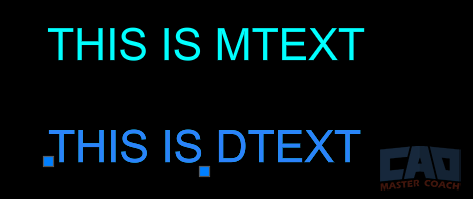
The TEXTEDIT command is used to modify existing text objects in AutoCAD, including both single-line and multiline text.
This article treats TEXTEDIT as what it really is: a core editing command that deserves deliberate understanding. By the end, you should not only know how to use TEXTEDIT, but why it behaves the way it does, how it interacts with DTEXT and MTEXT, and how to avoid the subtle mistakes that cost time and clarity in production drawings.
What the TEXTEDIT Command Actually Does
TEXTEDIT is an editing command, not a text creation command. This distinction matters more than most users realize.
When you use TEXTEDIT, AutoCAD is not deciding what kind of text you want, how that text should look globally, or how it should scale. All of those decisions have already been made. TEXTEDIT’s only responsibility is to allow you to modify the content of an existing text object.
That text object might be:
- Single-line text (DTEXT / TEXT)
- Multiline text (MTEXT)
- Text embedded in a dimension
- Text attached to a leader or multileader
TEXTEDIT does not care how the text was created. It only cares what kind of text object it is editing. Based on that object type, AutoCAD presents the appropriate editing interface.
This explains a common source of confusion: users believe TEXTEDIT is inconsistent because the editor looks different at different times. In reality, TEXTEDIT is extremely consistent. The text objects are different, so the editor adapts.
A useful way to think about TEXTEDIT is this:
TEXTEDIT edits content, not definitions.
How TEXTEDIT Is Launched (and Why Double-Click Matters)
There are multiple ways to start the TEXTEDIT command, but they all lead to the same place.
You can start TEXTEDIT by:
- Typing TEXTEDIT at the command line
- Double-clicking an existing text object
- Right-clicking a text object and choosing Edit Text
- Using a contextual ribbon option when text is selected
Of these, double-clicking text is by far the most common method, and also the most misunderstood.
Many users believe that double-clicking “opens MTEXT” or “edits DTEXT directly.” What actually happens is simpler and more important: double-clicking text invokes the TEXTEDIT command automatically.
This matters because:
- The same double-click behavior works on multiple text-based objects
- The editor that opens depends on the object, not the action
- TEXTEDIT is the unifying command behind all of these edits

Double-clicking any text object automatically launches the TEXTEDIT command.
Once you understand that double-click equals TEXTEDIT, AutoCAD’s text behavior becomes much more predictable.
TEXTEDIT Command-Line Options
When TEXTEDIT is started from the command line, AutoCAD provides additional options that are not available when the command is initiated by double-clicking a text object. These options control how the current TEXTEDIT session behaves.
Available options include:
-
Undo
Reverses the most recent edit made during the current TEXTEDIT session. This undo applies only while the command remains active.
-
Mode
Controls whether TEXTEDIT edits a single text object or remains active for multiple edits.
- Single: The command ends after the current text object is edited.
- Multiple: The command stays active, allowing additional text objects to be edited without restarting TEXTEDIT.
This distinction matters when performing repetitive text edits, as starting TEXTEDIT from the command line with Mode set to Multiple can significantly reduce command restarts.
TEXTEDIT and Text Types: DTEXT vs MTEXT
To understand TEXTEDIT fully, you must understand the two primary text types it edits.
Single-Line Text (DTEXT / TEXT)
DTEXT, also known simply as TEXT, represents single-line text objects. These are intentionally minimal and lightweight. DTEXT is not obsolete, deprecated, or “legacy” in the sense many users assume. It remains heavily integrated into AutoCAD’s annotation tools.
DTEXT is commonly used for:
- Labels
- Identifiers
- Grid references
- Beam, column, or member names
- Any annotation where the meaning is conveyed by a short string of text
DTEXT’s simplicity is a feature. It is fast to place, easy to justify, and predictable when plotted. Because DTEXT does not attempt to manage paragraphs or formatting, it excels at labeling physical objects in a drawing.
Multiline Text (MTEXT)
MTEXT is paragraph-based text designed for communication, not identification. It supports multiple lines, wrapping, alignment, spacing, bullets, numbering, and rich formatting.
MTEXT is commonly used for:
- Notes
- Instructions
- Specifications
- Detailed callouts
- Any annotation that reads like written language
MTEXT is intentionally more complex because its job is different. It must present information clearly, not just identify geometry.
The Key Point
TEXTEDIT works on both DTEXT and MTEXT. The command does not change. What changes is the editing environment AutoCAD presents once the command is active.
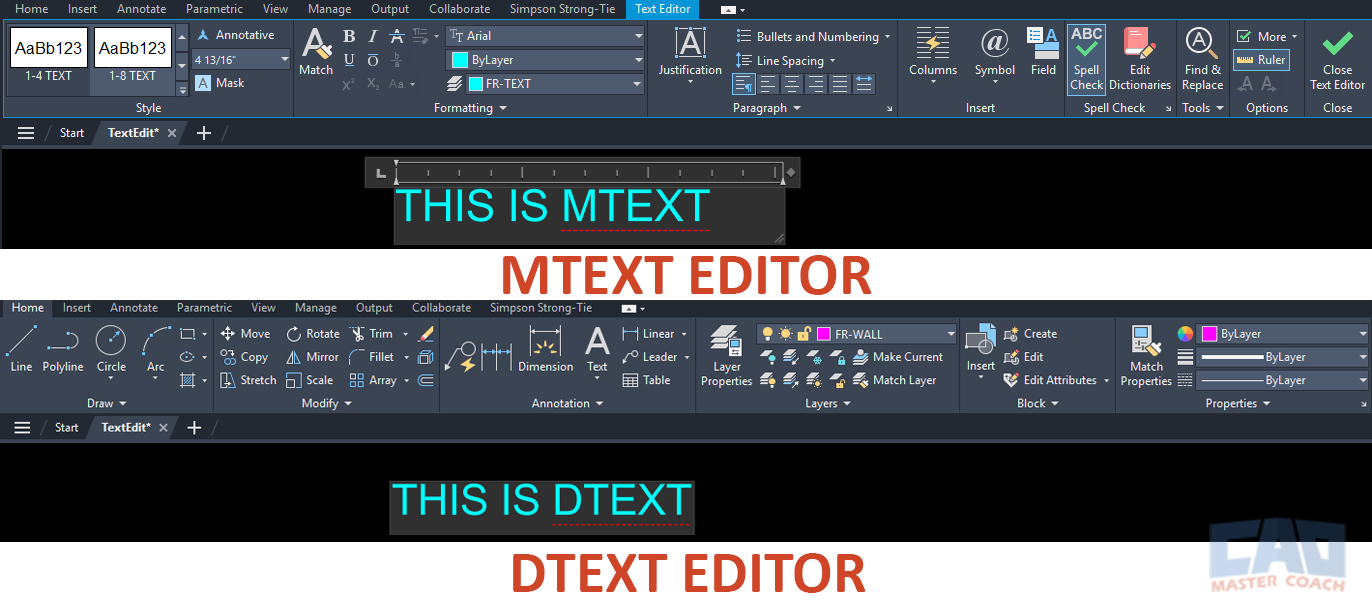
TEXTEDIT adapts its editing interface based on whether the selected text is DTEXT or MTEXT.
What Changes When Editing DTEXT Versus MTEXT
When TEXTEDIT starts, AutoCAD evaluates the selected object and adapts the editor accordingly.
Editing DTEXT with TEXTEDIT
When editing DTEXT:
- The editor is simple and direct
- Formatting options are minimal or absent
- The text remains single-line
- Justification plays a central role
DTEXT justification is often overlooked, yet it is one of the most powerful aspects of single-line text. For example, bottom-center or middle-center justification allows labels to sit cleanly above or along geometry without manual offsets. When used intentionally, justification alone can eliminate clutter and improve legibility.

Single-line text justification plays a major role in how labels relate to geometry.
DTEXT editing is fast because it is not trying to be expressive. It is meant to be precise.
Editing MTEXT with TEXTEDIT
When you use TEXTEDIT to modify an MTEXT object, AutoCAD does more than simply open a text cursor. The entire interface context changes. The ribbon switches to the Text Editor ribbon, exposing a wide range of tools that closely resemble those found in a word processor. This is not accidental or cosmetic — it reflects the fundamentally different role MTEXT plays in a drawing.
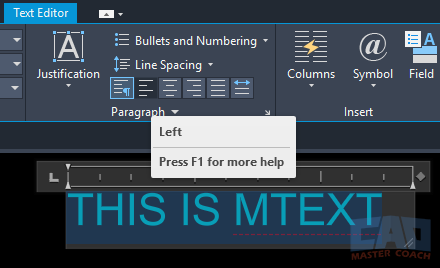
The MTEXT editor provides paragraph formatting, alignment, lists, and special text tools.
At this point:
- AutoCAD opens the full MTEXT editor
- The standard ribbon is replaced with the Text Editor ribbon
- Character-level and paragraph-level formatting tools become available
- Controls for line spacing, alignment, indentation, bullets, numbering, and special formatting are exposed
Unlike DTEXT, which is optimized for fast, geometry-oriented labeling, MTEXT is designed to communicate structured information. Notes, instructions, specifications, and detailed callouts often need hierarchy, spacing, and visual organization. The Text Editor ribbon provides those capabilities directly within the editing environment.
This is why editing MTEXT feels more like working in a lightweight word processor. You are not just changing characters — you are shaping how information is read. Paragraph alignment affects readability, line spacing controls visual density, and lists allow related items to be grouped without manual formatting hacks.
It is important to understand that while the Text Editor ribbon provides powerful formatting options, it does not replace good text style management. Text styles still define baseline fonts, default heights, and general behavior. The MTEXT editor allows object-level overrides, not global redesign. Used correctly, this balance keeps drawings readable without becoming inconsistent.
In practice, this means MTEXT should be chosen intentionally whenever text is expected to be read as language rather than interpreted as a label. TEXTEDIT simply reveals that intent by giving you the right tools at the right time.
A common mistake is trying to force DTEXT to behave like MTEXT. TEXTEDIT makes this limitation obvious, and that is a good thing. Choosing the correct text type upstream avoids frustration downstream.
The MTEXT Editor: Understanding What You’re Actually Editing
The MTEXT editor can feel overwhelming if you treat it as a collection of buttons instead of a structured system. Each tool exists to solve a specific formatting problem.
At a high level, the MTEXT editor manages:
- Character-level formatting
- Paragraph-level formatting
- Structural elements like lists
- Special text constructs
Font and character controls allow you to apply overrides to individual objects. Paragraph controls manage alignment, indentation, and spacing. List tools provide consistent numbering and bullets without manual typing. Special formatting tools handle fractions, superscripts, subscripts, and symbols commonly used in technical drawings.
One of the most important principles to understand is that text styles should do most of the work. TEXTEDIT should be used to adjust content and apply exceptions, not to rebuild formatting from scratch.
If you find yourself heavily formatting every MTEXT object manually, the underlying text style likely needs attention.
Editing Text Created by Other Commands
TEXTEDIT is not limited to text created explicitly with DTEXT or MTEXT. Many AutoCAD commands generate text indirectly, and TEXTEDIT is still the tool used to modify that content.
Dimensions
Dimension text is edited using TEXTEDIT, but the behavior often surprises users. That is because dimension text is governed primarily by the dimension style. TEXTEDIT allows you to:
- Change the displayed value
- Add prefixes or suffixes
- Apply object-level overrides
What it does not allow is unrestricted formatting. If the dimension style enforces certain rules, TEXTEDIT respects them.
Leaders and Multileaders
Leader and multileader text is also edited through TEXTEDIT. As with dimensions, formatting behavior depends on the associated style. The editor adapts, but the rules remain.
When users complain that TEXTEDIT is “not letting them edit text properly,” the issue is almost always a style definition, not the command itself.
Common TEXTEDIT Mistakes and Why They Happen
Most TEXTEDIT problems are conceptual rather than technical.Most TEXTEDIT problems are conceptual rather than technical.
A frequent mistake is expecting TEXTEDIT to change text globally. It does not. That responsibility belongs to text styles, dimension styles, and leader styles.
Another common issue is confusing justification with alignment. Justification controls how text is anchored to its insertion point, while alignment affects how text is arranged relative to other lines or paragraphs.
Users also run into trouble when editing annotative text without understanding annotation scaling. TEXTEDIT edits content, not scale behavior. If text appears to change size unexpectedly, annotation settings are the cause.
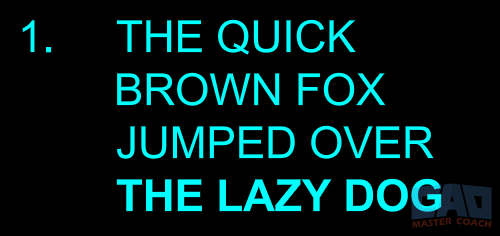
Most TEXTEDIT problems stem from using the wrong text type or misunderstanding style control.
The consistent pattern is this: TEXTEDIT works exactly as designed. Misunderstandings arise when users expect it to do the job of other commands.
TEXTEDIT in a Larger Annotation Workflow
TEXTEDIT becomes far more powerful when understood as part of a system rather than a standalone tool.
In a clean workflow:
- DTEXT is used for physical labels
- MTEXT is used for communication
- Styles define defaults
- TEXTEDIT modifies content
- Properties apply object-level adjustments
When each tool is used for its intended role, text editing becomes fast, predictable, and consistent across drawings.
Related Commands
The TEXTEDIT command does not exist in isolation. It works alongside several closely related commands that define how text is created, styled, and controlled.
| Tool | Use | Why |
|---|---|---|
| TEXTEDIT | Edit existing text | Universal editor for text objects |
| DTEXT / TEXT | Create single-line text | Lightweight labels and identifiers |
| MTEXT | Create multiline text | Notes and formatted paragraphs |
| STYLE | Define text styles | Global control of fonts and behavior |
| DIMSTYLE | Control dimension text | Governs dimension formatting |
Understanding how these commands interact is what turns TEXTEDIT from a convenience into a production tool.
Frequently Asked Questions (FAQ)
TEXTEDIT is the command used to edit both single-line and multiline text objects in AutoCAD.
Yes. Double-clicking a text object automatically launches the TEXTEDIT command.
Because TEXTEDIT adapts to the selected text type. DTEXT uses a simple editor, while MTEXT opens the full MTEXT editor.
No. TEXTEDIT edits individual text objects. Text styles are modified using the STYLE command.
Dimension text formatting is controlled by the dimension style. TEXTEDIT allows overrides, but the style governs defaults.
Yes. DTEXT is widely used for labels, dimensions, and leaders because of its simplicity and reliability.
All Commands
Command Categories

Create
Explore all AutoCAD Create commands in one place. Learn how to use LINE, CIRCLE, ARC, POLYLINE, BLOCK, HATCH, and more with tutorials and practical examples.

Modify
Your complete guide to AutoCAD Modify tools—ERASE, TRIM, EXTEND, MOVE, ROTATE, OFFSET, FILLET, and more—with tips and workflows.

Notation
Complete guide to annotation in AutoCAD: text, dimensions, leaders, tables, zoom/pan basics, and clipboard tools.

Drafting Aids
Learn AutoCAD’s Drafting Aids and Precision Controls—OSNAP, Ortho Mode, Polar Tracking, Object Snap Tracking, and Dynamic Input. Improve accuracy, speed, and control with this complete guide.

All Commands
Browse every AutoCAD command in one place with this complete A–Z index. Quickly find command pages for LINE, ERASE, ZOOM, and more, with clear explanations and tips for efficient drafting.
Notation Commands